Posts Tagged ‘howto’
How to Make a Booking Form
A booking form allows FormSmarts members to offer a fixed number of tickets for booking on a form, like on this demo.

To make a booking form, first create an event on FormSmarts with a preset number of slots (i.e. tickets, seats), then make a standard form with the form builder and add a booking field to it.

Create an Event
To create an event, sign in to the API console and submit a POST request to the URL https://formsmarts.com/api/v1/events specifying:
- An event label like Online Security Class
- The number of slots available for booking
- The date & time of the event and its timezone
We can for example create an Online Security Class event with 100 seats that takes place on June 12, 2020, 1pm Eastern time with the following Request Data:
label = Online Security Class
slots = 100
date = 2020-06-12 13:00:00
timezone = America/New_York
Add a Booking Field
Add a text box to the form, setting its Allowed Content property to Booking.
Guests should now be able to book tickets through a booking widget shown when they tap, click or move the form’s focus to the booking field.
A booking field only allows booking one ticket by default. You can configure the number of slots that can be booked and other settings with the Booking API.
Find Out More…
Read about how the booking system works and how to manage events, view the status of bookings or cancel a booking.
If you would like to create a booking form but your current FormSmarts package doesn’t support this feature, please ask us for a free trial.
We welcome your comments, questions and feedback.
Posted on Jan 7th, 2020 in booking.
Post a Comment
Tags: booking, howto, payment
How to Add a Waiver, Liability Release or Other Contractual Agreement to a Form
The Agreement form widget allows you to add a waiver, liability release, agreement, or any other contract (terms & conditions, privacy statement, policy) to a form.
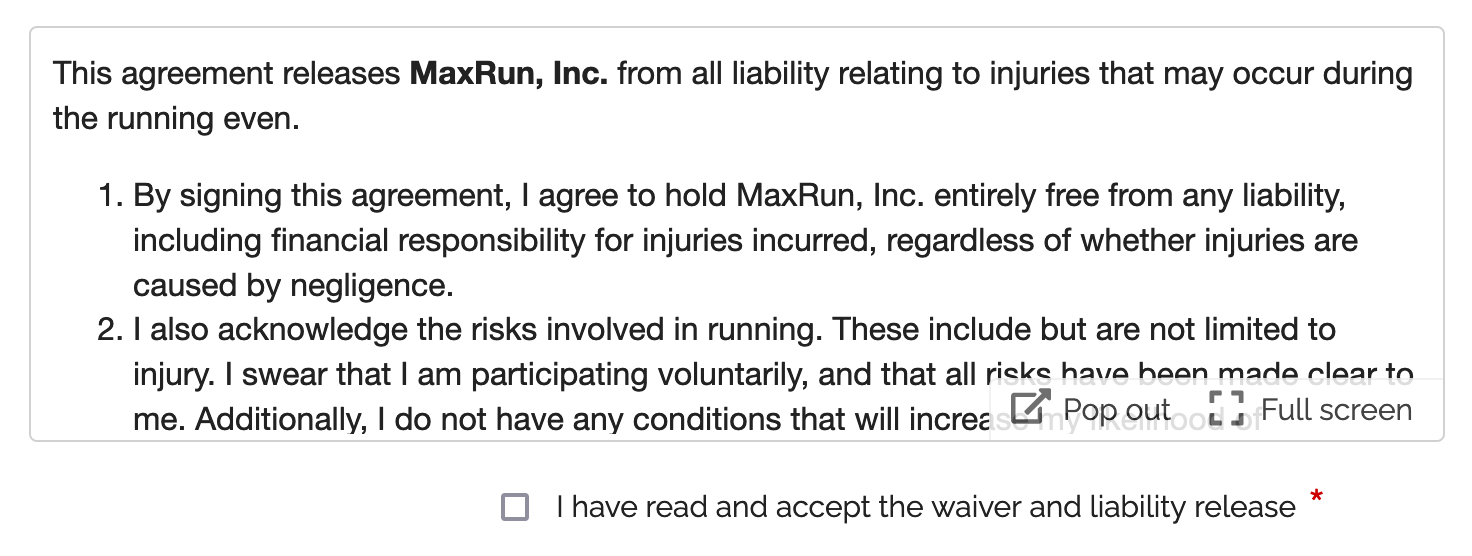
The Agreement widget is intended to be combined with a required checkbox and an e-signature to capture a person’s consent on an online registration form or any other digital contract. Please try this demo.
- A user can read the agreement inline in a scrollable area
- The text can be popped out to a larger window and even launched full screen
- We provide print and download buttons in the pop-up window
- The text shown in agreement widget allows links and basic formatting: bold, italics, underlining, ordered and unordered lists. Here is a waiver example with formatted text.
- Agreements are currently limited to 20,000 characters, please contact us if you need more.
Agreements are only available with the new generation of FormSmarts forms. You can set your account to the new forms in the Settings tab of the Form Builder.
Posted on Jan 22nd, 2016 in form builder.
2 Comments
Tags: digital contract, form design, howto
Introducing Multi-User Accounts
FormSmarts supports accounts with multiple users, allowing an account owner to give invited users access to selected online forms.

How to Enable Multiple User Accounts
- Set up an account alias
- Create users
- Manage user permissions
Set Up an Account Alias
Before allowing sub-users to sign in to FormSmarts, you first need to set up an alias for your account. The alias must be unique and easy for users to memorize. A good choice is probably your organization or department’s name. Users will need to enter the account alias on the log in screen.
To create an account alias, visit the Account Overview panel of your account.
Create a User
To create a user, head to the User Management Dashboard.
- Users sign in to FormSmarts with their email address, account alias and password
- Before creating a user, add their email address to your account in the Settings Tab of the Form Builder and verify it
- Users can change their password in the Security Settings panel of their account if they know their current password
- The account administrator can reset a user’s password in the User Management Dashboard.
Manage User Permissions
For each form, you can grant a user permissions to:
- access individual form entries online or download a PDF (e.g. from the link in email notifications)
- download form attachments (file uploads)
- generate Excel reports
- add tags and notes to a form entry
- edit or delete a form entry
You can also give a user account-level permissions to:
- renew your subscription or upgrade your account (billing permissions)
To set account-level permissions, please contact Support.
How to Sign In as an Invited User
We’ve updated the log in screen to allow all FormSmarts members to sign in on the same page. Account owners (aka account admins) can sign in in the usual way with their email address and password. Invited users also need to enter the account alias provided by their account admin as shown in this video.
Multiple users are available with our Business Plus package and above.
Posted on Jul 10th, 2014 in collaboration, form builder.
Post a Comment
Tags: business, collaboration, form attachment, form results, form to excel, form to pdf, howto, team, user
How to Lead People to Online Forms from Printed Material
Here are two easy tips to increase online form conversion from paper material: bridge the offline-online gap by allowing people to register for your next event, pay their membership fee, or sign up for your newsletter on the spot from any poster, brochure or printed document.
You are probably aware that you can easily share a form with your user base by email or on social networks using the FormSmarts.com URL that comes with each and every web form. What you may not know is that FormSmarts has two features that allow you to share online forms on printed material.
Using QR Codes & Short Form URLs
You can and should take advantage of the dramatic increase of the number of smartphones and tablets in the last few years to give people a convenient way to access your forms on the spot with their smartphone (or tablet) by either scanning a QR code that will lead them straight to your form or by typing a short URL (for those users that don’t yet have a QR code scanner app on their device).
You’ll find the QR code and short URL (e.g. f8s.co/lqh) of each of your forms in the Form Publishing Options screen of the online form builder.
Printed material where you should consider printing the QR code and short URL of your forms include: posters, invitations, printed newsletters, ads, brochures, job specifications, tags,… and even t-shirts.
Send us a picture of printed media where you use a FormSmarts QR code or short URL and you could win yourself a free Pro subscription! The best three entrants will be chosen on Jul 31, 2012 and will get a 1 year Pro subscription and their picture published on FormSmarts.
Posted on Jun 25th, 2012 in form builder.
Post a Comment
Tags: accessibility, howto, mobile form, usability
How to Integrate with FormSmarts API
The Event Notification API allows you to have FormSmarts send a machine processable ‘push’ notification message to a script on your website (or for that matter to any URL) to process the information that has just been submitted through one of your online forms. You can use the Event API (a.k.a. Web Hooks) to integrate FormSmarts with your database, website or any online service or application.
How to Integrate
Whereas this feature is mainly targeted at developers, creating a script that does something useful with the data received from FormSmarts is actually not difficult. The API is fully documented with examples in PHP.
- You first need to create a program/script to process form data and upload it to your web server. Data is sent in JSON format, which is supported natively by all modern programming languages.
- Then register the script’s URL with FromSmarts
- Whenever a form is submitted, FormSmarts will send the data submitted through the form as well as other data pertaining to the form response (e.g. payment information if the form involves a payment) to the URL you have registered.
Have a Great Idea?
If you have a great idea about how you could use FormSmarts API, let us know: we have several Business Starter subscriptions to give away.
Posted on May 31st, 2012 in form builder.
2 Comments
Tags: API, automation, business, howto, payment integration
How to Customize the Look of Your Forms with CSS
The online form builder allows you to easily change the layout and colors of your forms when these are embedded into your website. This article discusses how to further customize the look of your online forms by providing your own CSS stylesheet. You can create one (or more) CSS stylesheet for each form.
Disclaimer
The feature discussed in this article is UNOFFICIAL. It is NOT PART OF ANY FORMSMARTS COMMERCIAL OFFERS and we do not provide direct support for it. Feel free to post questions at the bottom of this page. Changing the layout of a form may prevent it to display consistently across browsers.
Verify Your Site & Upload a Logo
To be able to use your own CSS stylesheet, your first need to verify your site and upload a site logo. Uploading a logo creates a website profile on FormSmarts and will allow you to provide your own CSS stylesheet. The logo will be shown on the standalone version of your forms and also on PayPal if you’re using Advanced Payment Integration.
Create a CSS Stylesheet
The CSS code in your stylesheet will be loaded after the default FormSmarts CSS, so any instructions specified in it will override the default. We give a few examples of customizations in the Example section below. More will follow.
Update the Embed Code on Your Site
In the HTML snippet given in the Form Publishing Info screen of the form creator, change the query string portion of the URL from mode=embed&lay=1 to mode=embed&lay=1&style=form.css, where form.css is the path to the CSS file relative to the root of your website. For example, if your website’s URL is http://www.example.com, the CSS file should be at http://www.example.com/form.css.
CSS Styling Examples
Changing the Font and Color of Headings
h2{
font-family:serif;
font-size:14px;
color:orange;
}
Changing the Layout of a Form to Multiple Columns
Logical sections defined by headings can be made into separate columns using the following CSS code and changing the iframe width accordingly.
#section_1{
width:350px;
float:left;
}
#section_2{
width:350px;
float:right;
}

Posted on Nov 21st, 2011 in form builder.
21 Comments
Tags: embed, form design, howto, usability, widget
How to Lay Out Form Input Fields
Your goal as a web publisher is maximize the number of (legitimate) respondents to your forms. A first step towards this goal is to lay out your forms in a way that is intuitive to users, makes forms faster to fill in, and minimizes form validation errors.
It follows four points you should consider when designing a web form:
- choose the most appropriate input field widget for the situation
- group fields together within logical sections
- place multi-line text input fields (textarea in HTML) towards the bottom of the form
- group optional fields together at the bottom of the form
The first point is discussed in details in FormSmarts documentation.
The second point commends, for example, that when you ask people about their contact details, you group all relevant fields (first name, last name, email,…) together. We found that most form designers tend to do that right. The form builder will in the future allow users to define different logical (and visual) sections within web forms.
Multi-line text input fields obviously tend to take longer to fill in than other input fields. They require more effort, thinking and typing, so place them after other fields. Visitors will be less inclined to abandon the form altogether if they have already spent time completing the first part of the form.
The last point is about grouping optional fields together at the bottom of the form. This allows people to quickly review the remaining questions, and skip the fields they don’t want to fill in or don’t apply to them. This may of course conflict with grouping fields within logical sections. In that case, place optional fields at the end of each logical section.
We’ve now enabled comments, and we warmly welcome your thoughts and feedback about this post. if you’re reading this by email, just click on the title to post a reply.
Posted on Jun 29th, 2008 in HTML form.
4 Comments
Tags: form builder, form design, howto, input field, web forms
How to Embed a Form Into Your Site
Linking or Embedding?
FormSmarts supports two ways to integrate a form into your website or blog: linking and embedding. Embedding lets you place the form on your site alongside other content. Linking gives your form its own separate web page. Both have advantages and disadvantages. Many users think embedding the form into their site gives them more control. That’s far from always being the best option.
Embed Short Contact & Feedback Forms Onto your Site
You can embed a contact form, customer inquiry form or short feedback form onto your site without affecting user experience.
Embed a Form When…
- The form is short — 10-15 input fields maximum
- It is self comprehensible and form filling instructions are not needed
There is unfortunately no way to embed a larger registration form or survey onto your site without having a negative effect on user experience. For those forms, simply link to the FormSmarts URL of the form and share that URL (or the form’s shortened URL) on social media.
If you decide to embed a form onto your site, always use the embed code snippet provided by the form builder. Do not embed a form using the FormSmarts URL of the standalone form, even if that appears to work with your browser. This conflicts with security restrictions we’re putting in place and those forms will soon be blocked by modern browsers.
Link to Registration Forms and Other Large Forms
A standalone form almost invariably gives a better, frictionless user experience. In order to protect the security and privacy of their users, browsers impose a growing number of restrictions on embedded content. These restrictions affect a form’s usability when it is embedded on your site.
Link To a Form When…
- The form is long or complex
- The form is accessed both by web visitors and via social media or a mailing list
- The form in intended for a large audience, that may be using a wide range of browsers and devices
- Your audience is likely to fill out the form on mobile device
- You expect a large number of form submissions
- Event registration forms and surveys perform better when accessed by URL on their own page
A word of wisdom: Resist the temptation to systematically embed web forms on your site for irrational reasons “because it gives you more (apparent) control”. Some web forms perform better on their own page.
- Standalone forms accessed by URL load faster and are more scalable
- They are more reliable
- They offer more flexibility
- There are no sizing or other user experience issues
Placing the Embedding Code On Your Site
To embed a form into your website, visit the Forms tab, and click Embed to see the form code.

Copy the HTML code, then paste it somewhere in the HTML source of the
host page on your website or blog. If you’re using an online service like Blogger, that’s
all you have to do. Otherwise, you need to publish the page to your web server.
A word of warning: do not try to save the form as an HTML page, and publish that page. This will not work. You must paste the code exactly as given. Do not attempt to alter, remove, or hide the mention “web form by FormSmarts”, or the link to our Privacy Policy. This would be a breach of our Terms of Use, and your account would risk to be terminated without notice.
Changing a Form, Once the Code Is on Your Site
Any changes you make to a form using the form builder will show up straight away on your website. You do not need to update the embedding code. However, as a result of adding more fields, or changing a text box to a larger text area, the frame containing the form may no longer be high enough to fit the form. You will then need to re-publish the embedding code to your site. See the section about Form Sizing below.
Customizing Your Form
You can customize several aspects of your forms in the Form Details screen of your account.
Web Form Sizing
Why Is There Extra Space at the Bottom of the Form?
Forms are contained within an HTML frame (“iframe” for geeks). The frame has a fixed size, which is computed for each form, based on several factors, like the number and type of fields used, and the form layout chosen.
It is necessary to leave room at the bottom of the form for error messages that may need to be displayed during a form submission. That’s the reason for the extra space at the bottom of a form.
Manually Changing the Height or Width of a Form
You can change the size of a web form widget by editing the value of the height and width attributes in the HTML snippet (a.k.a. form embed code) given by the form builder.
We do not recommend changing the height of forms. If you do, remember to allow extra space at the bottom of the form, as discussed in the previous section.
The width of embedded web forms can be resized down to 360px without side-effects, and should degrade well beyond that.
How Do I Get Rid of the Vertical Scrollbar
With time, you may need to add more fields to your forms, but forget to refresh the form HTML code on your site. Since the frame height is hard-coded into the code on your website, the form may no longer fit into the frame, and a vertical scrollbar will then appear. That is not desirable on a usability standpoint, so you are advised to update the code on your site whenever you add new fields, or change a text box to a text area.
Only One Form Per Page
It is against our terms of service to embed more than one form in a single web page.
Embed a Form to a Facebook Fan Page
The easiest way to add a form to a Facebook page is to use the FormSmarts URL that comes with each form. Click on the URL link in the Forms Tab of the form builder to show form URLs instead of embedding code. You may also embed the form into your Facebook page using an FBML Box. See instructions to embed a form to Facebook. Feel free to post your questions in the relevant thread of our forum on FormSmarts’ Facebook page if you need help.
Posted on May 21st, 2008 in HTML form.
40 Comments
Tags: embed, facebook, form builder, form design, howto, web forms, widget
How to Advertise Your Form to a Mailing List
A number of users take advantage of our flexible web form platform to
advertise a FormSmarts-hosted survey form or event registration form by
email.
There are a few things to keep in mind if you wish to include a form URL
in a newsletter or mailing campaign:
- as specified in the terms of use, FormSmarts only allows advertising of a form URL by email for strict opt-in mailing lists
- you must be a verified form owner
- you may only reference the form by including its URL, and must not attempt to embed the form in an HTML email
If you intend to email more than 1,000 subscribers, ask for a permission beforehand. We may ask you to schedule your mailing at a specific time if the expected click-stream is high.
When contacting FormSmarts, please indicate:
- the rough number of subscribers of your list
- whether this is a one off or recurring mailing
- the date/time of your mailing(s)
- whether advertising the form is the main purpose of the mail
- whether you offer any incentives for form submissions
This information will help us estimate the server load to expect.
Posted on May 13th, 2008 in HTML form.
Post a Comment
Tags: howto, mailing, web forms
Building Successful Web Forms
Web forms play a key role for visitor (and customer) interaction on many
sites. However, many web designers don’t realize that there may be huge
differences in form abandonment ratio, depending on how well the form is
designed. In this post and follow ups, we’ll give you some tips to help
you make your web forms an effective communication channel.
Always provide form filling instructions.
Don’t assume that all of your visitors will understand how to submit a form without further explanation. Short and clear form filling instructions can reduce form abandonment, and increase the quality of the information collected.
- include a call to action phrase like “Please fill out this form to
contact XYZ” - indicate the purpose of the form and the recipient of the information collected
- if applicable, confirm that you will reply, and give an indication of the time frame
Select the correct data type for each input field.
Because of necessary form validation, choosing and incorrect data type may prevent a form user from submitting valid information. When this happens, it is likely to lead to form abandonment.
For example, if you specify that a form field can only contain a Number, it may not work for a phone number. 1233456789 will work, but not 123-345-6789. So use
the Phone type instead. In many cases, the form builder will
pre-select a type for you, but not always. Read
more about selecting an input field data type in the form builder documentation.
Choose the most appropriate input field widget.
Don’t restrict yourself to text boxes and drop-down lists. Take advantage of the full range of HTML form fields with radio buttons and checkboxes. Learn when to use each one.
Using a drop-down list for a yes/no question will slow down the form user, and increase the chances (s)he gives up. Use radio buttons instead. Read tips about choosing the best input field widget in the form builder documentation.
Brand your forms for instant visual recognition.
Always brand your web forms with your own logo. This helps visitors
recognize at first sight who they are about to send information to.
Posted on May 6th, 2008 in HTML form.
Post a Comment
Tags: form builder, form design, howto, input field, web forms