Posts Tagged ‘pro’
Engage Users via Twitter & Facebook to Increase Form Conversion
FormSmarts allows you to better engage with your user community by adding a social component to your online forms. The assumption with social networks is that a user is more likely to perform an online action such as filling out a form, registering for an event or sign up for a class if she knows that her friend or colleague has already done so.
Online Forms Get Social
For each form, FormSmarts allows you to set up a message template that will be used to post an update to social networks when the form is submitted. The message can incorporate any information entered on the form.
The user’s expectation when filling out online forms is that the information submitted will only be disclosed to the form owner, and you clearly need to ensure you don’t leak personal information (more about this in the last section). We define two types of input fields on a form. Those which will be populated by information which—taken out context—is so general that it can be safely disclosed, and those which should be kept private. In the example below, we deem First Name, City and Country as public, while all other fields are deemed private.
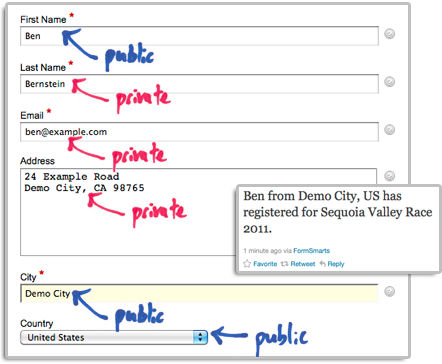
How to Set Up FormSmarts to Post Twitter Updates
First connect your Twitter account with FormSmarts to allow FormSmarts to post tweets on your behalf. You will be taken to Twitter for authentication and asked to authorize FormSmarts to post updates using your account. You will only need to do this once. Note that FormSmarts will not have access to your Twitter password. Once this is done, Twitter will send you back to FormSmarts.
Next click on Twitter Feed Setup in the Form Details screen of the form builder. Enter a short text using placeholders $1, $2, $3,… where you want the value of the corresponding input field to be inserted. Use $1 for the value of the first input field, $2 for the second, etc., in the order fields appear on the form.

Posting Updates to Your Facebook Wall
When someone submits a form, FormSmarts can post an update to your Facebook wall via the Twitter App for Facebook. First set up FormSmarts to post updates to Twitter as described in the previous section, then add the Twitter App to your Facebook page or profile. We will add native support for Facebook if there is demand—please let us know here. (Note: if you ended up here while looking for information on integrating an online form to Facebook, read this).
Respecting the Privacy of User Information
Protecting the information of your users is of paramount importance. When someone submits his information via an online form, he does it with the implicit understanding that his personal information will not be disclosed.
- Add a privacy note on the form (like on this demo) to ensure people understand that some none-personal information will be posted to social networks. Say what information will be published.
- Make sure you’re using the correct placeholder (e.g. $1, $2,…) in the message template. Remember that $1 will be replaced by the value of the first input field in the order they appear on the form, $2 will be replaced by the value of the second input field, etc.
- If you change the order of fields on the form, don’t forget to update the message template with the correct placeholder name.
- Always test the form after setting up a Twitter feed or changing field order.
To further prevent the leak of confidential information, FormSmarts will not publish Twitter updates for SSL secure online forms, even if this has been set up through the online form builder.
How to Disable a Twitter Feed
If you no longer want FormSmarts to post a Twitter update when a form is submitted, simply erase the message template in the Twitter Feed Setup screen (pictured above) and save changes.
Posted on Dec 13th, 2011 in form builder.
1 Comment
Tags: facebook, form builder, form recipient, form results, form submission, pro, twitter
Detailed Form Confirmation Page (Summary Page)
FormSmarts supports a number of options to complement the default confirmation page that is displayed when someone submits a form.
You can:
- Redirect form users to your site
- Allow form users to pay a registration fee via PayPal
- Show a detailed confirmation page where users can choose to receive a confirmation email or download a PDF receipt
Detailed Form Confirmation Page
The detailed confirmation page, also called Summary Page, shows a summary of the data submitted and allows form users to:
- Have a confirmation email sent to them
- Download a PDF receipt
- Print a copy of the form data.
Feel free to try this demo.
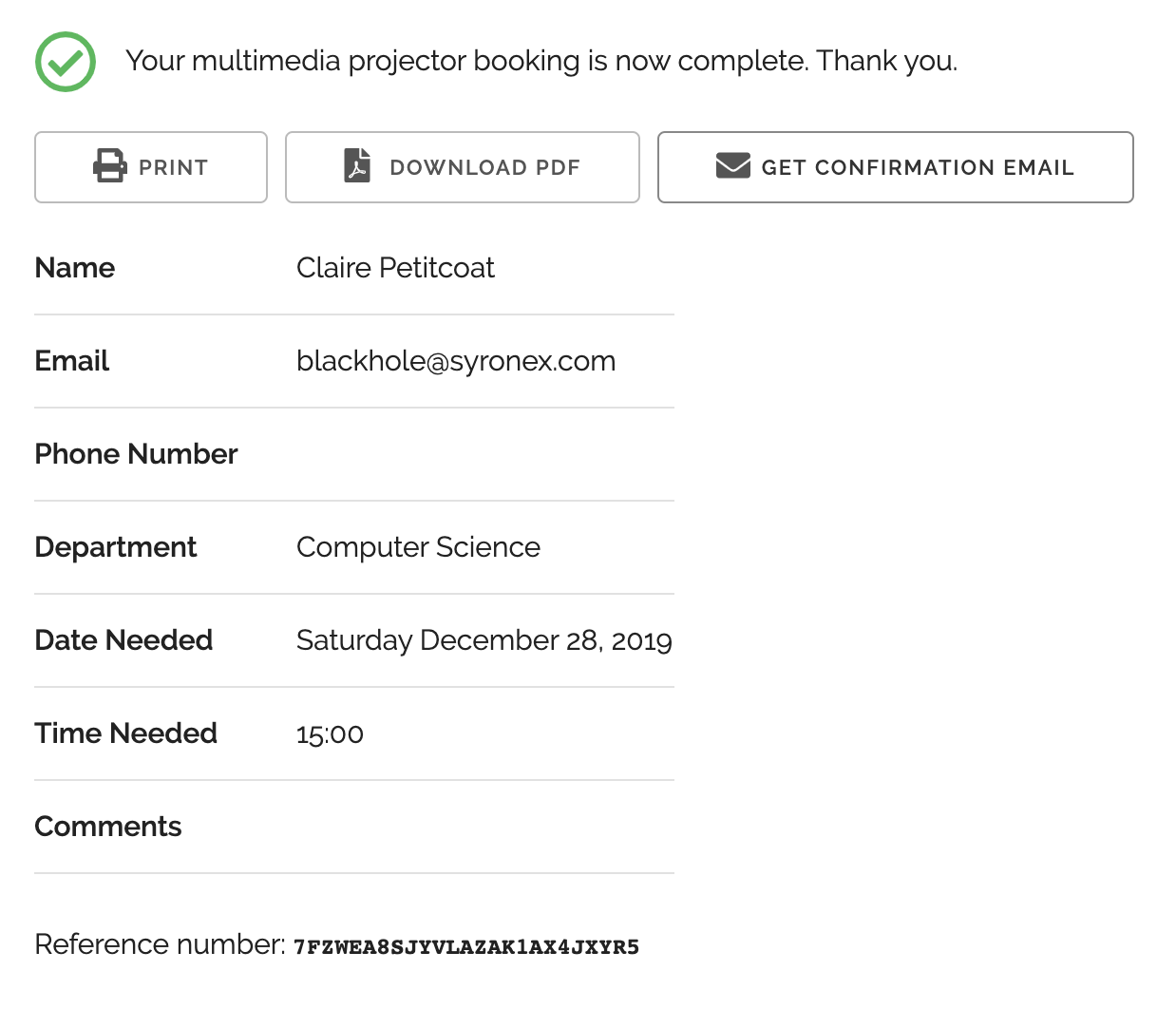
Use the summary page whenever you want users to be able to keep a copy of the information they’ve submitted or a proof of their submission.
- You can change the text at the top of the confirmation message and in the PDF receipt (not supported with all account types)
- The confirmation email, PDF and printable receipts show a total of any fees/prices on the form (see FormSmarts payment integration syntax) to allow members to create invoices and allow cash payments on-site.
PDF receipts may not display correctly in non Western-European languages (Russian, Chinese,…) unless the language is set explicitly with the lang parameter.
Setup Instructions

Visit the Forms Tab of the form builder and click the icon showing a pen to edit the corresponding form. Towards the bottom of the Form Details screen (pictured above), change the On Submission action to ‘Show summary with print, email & PDF options’.
Posted on Oct 12th, 2010 in form builder.
13 Comments
Tags: business, confirmation email, form submission, form to pdf, paypal form, pdf receipt, pro
Personalize the Confirmation Message Shown After a Form Submission
FormSmarts allows you to personalize the confirmation message that is displayed after a form has been submitted successfully.
To personalize the confirmation message of a form, visit the Forms tab of the form builder, and click the Edit icon. This feature is only available for Pro and Business accounts.
Default Confirmation Message
Like all messages shown during the form submission process, the default confirmation message is localized. If you change the confirmation message, users will see your personalized message instead of the default confirmation message in their own language.
You can always revert to the default confirmation message by erasing the text in the Personalized Message box.
Links & Formatting
You may insert links in the confirmation message and add basic formatting with this wiki-like syntax.
Posted on Apr 11th, 2009 in form builder.
3 Comments
Tags: form submission, international, pro
Attaching Multiple Email Recipients to a Form
With the new version of FormSmarts, Pro users can now subscribe to form results using one or more of the following mechanisms:
- Email subscription. Subscribe one or more email recipients.
- Stored form results. Aggregate form submissions on FormSmarts, and
download them later as Microsoft Excel documents.
A notable change is of course the ability to send forms to several email addresses. The allowance of one email recipient per form for users of the free service stays unchanged.
The new subscription mechanism should best fit the needs of most users. We welcome your feedback about this development.
Posted on Jan 20th, 2009 in form builder.
2 Comments
Tags: form results, pro