How to Send Form Submissions to Microsoft Teams with a Webhook
In this tutorial, we’ll demonstrate how to send a message to Microsoft Teams whenever a user submits an online form, using a few lines of code hosted on the cloud.
Maintenance Request Form with Emergency Microsoft Teams Notification
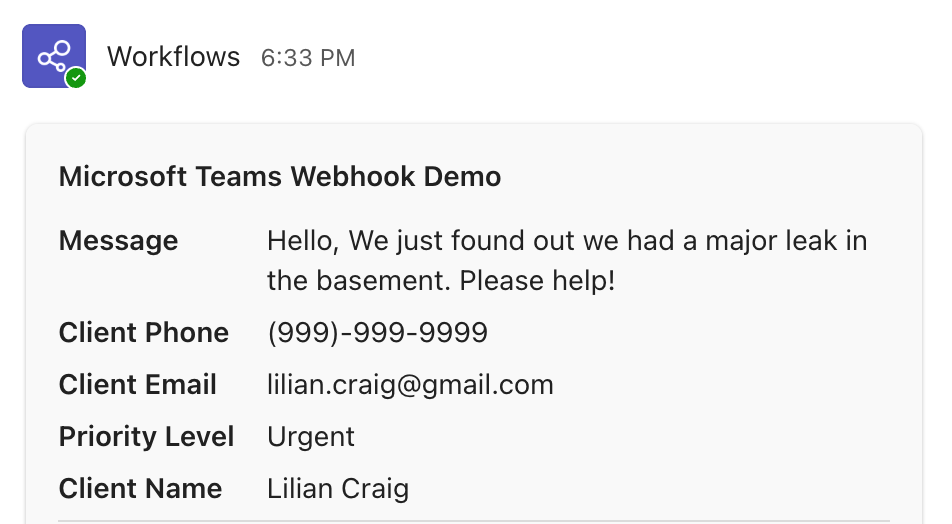
We’ve made a property maintenance request form for this demonstration. This form lets users choose a priority level for their request. Upon submission, FormSmarts notifies the property maintenance team by email. In addition, if the user indicates that the maintenance request is “urgent” or “critical”, we use a webhook to send a message to Microsoft Teams.
About Webhooks
A webhook is computing code that executes outside FormSmarts whenever a form is submitted. FormSmarts triggers the code’s execution by sending an HTTP request to a callback URL you’ve configured. The code receives the form data from the HTTP request, allowing you to perform useful actions with it.
Prerequisites
You will need both a FormSmarts account and an AWS account1.
This tutorial requires little coding skills (the Python code provided should run as is) and the AWS services needed for this tutorial are configured online via the AWS Console. If you think you would benefit from integrating your forms with a webhook but don't have the technical skills, please contact us for advice.
If you want to create a working webhook, replicate this form in your own FormSmarts account.
The Python Code
import os
import json
import urllib3
import logging
from formsmarts import WebhookAuthenticator, FormEntry, AuthenticationError

logger = logging.getLogger()
logger.setLevel(logging.INFO)

class TeamsSender:
    def __init__(self, event):
        self._event = event
        self._au = WebhookAuthenticator(os.environ['FORMSMARTS_WEBHOOK_KEY'])
        self._entry = None

    def create_adaptive_card(self):
        """
        Creates a Microsoft Teams Adaptive Card payload.
        """
        entry = self._entry
        form_title = entry.form_name

        # 1. Build the list of facts (key-value pairs) for the card
        # Customize these lookups based on your specific form fields
        facts = [
            # Get the main message body (adjust index as needed)
            {"title": "Message", "value": entry.fields[5].value},

            # Lookup fields by type
            {"title": "Client Phone", "value": entry.fields_by_type('phone')[0].value},
            {"title": "Client Email", "value": entry.fields_by_type('email')[0].value},

            # Lookup field by name (Used for Priority check later as well)
            {"title": "Priority Level", "value": entry.fields_by_name('Priority')[0].value},
            {"title": "Client Name", "value": entry.fields_by_name('Full Name')[0].value},
        ]

        # 2. Construct the Adaptive Card JSON
        adaptive_card = {
            "type": "message",
            "attachments": [
                {
                    "contentType": "application/vnd.microsoft.card.adaptive",
                    "content": {
                        "$schema": "http://adaptivecards.io/schemas/adaptive-card.json",
                        "type": "AdaptiveCard",
                        "version": "1.2",
                        "body": [
                            {
                                "type": "TextBlock",
                                "text": form_title,
                                "weight": "Bolder",
                                "size": "Medium",
                                "wrap": True
                            },
                            {
                                "type": "FactSet",
                                "facts": facts
                            }
                        ]
                    }
                }
            ]
        }
        return adaptive_card

    def send_to_teams(self):
        try:
            # Verify request signature (raises AuthenticationError on failure)
            self._au.verify_request(self._event['headers'].get('authorization', ''))

            # Parse the webhook data
            self._entry = FormEntry.create(json.loads(self._event['body']))

                # Check priority: Only send urgent/critical requests
                priority_field = self._entry.fields_by_name('Priority')

                if priority_field and priority_field[0].value in ('Urgent', 'Critical'):
                    try:
                        http = urllib3.PoolManager()
                        resp = http.request(
                            'POST',
                            os.environ['TEAMS_WEBHOOK_URL'],
                            body=json.dumps(self.create_adaptive_card()),
                            headers={'Content-Type': 'application/json'}
                        )

                        if resp.status not in (200, 201, 202):
                            logger.warning(f"Teams message delivery failed: {resp.status} {resp.data}")
                        else:
                            logger.info(f"Message for form '{self._entry.form_name}' sent to Teams.")

                    except urllib3.exceptions.HTTPError as err:
                        logger.warning(f"HTTP Error: {err}")
                else:
                    logger.info("Submission not urgent; skipping Teams notification.")

                return {
                    'statusCode': 200,
                    'body': json.dumps('Processed')
                }
            else:
                return {
                    'statusCode': 401,
                    'body': json.dumps('Invalid webhook signature.')
                }

        except AuthenticationError as err:
            logger.warning(f"Auth Error: {err}")
            return {
                'statusCode': 401,
                'body': json.dumps('Authentication failed.')
            }
        except Exception as e:
            logger.error(f"Unexpected error: {e}")
            return {
                'statusCode': 500,
                'body': json.dumps('Internal Server Error')
            }

def lambda_handler(event, context):
    return TeamsSender(event).send_to_teams()
Create a Microsoft Teams Message
The create_adaptive_card() function formats data from the form submission into a Microsoft Teams message. We use a FormEntry object provided by the FormSmarts API & Webhook Client to get input fields by index, name or datatype.
Note how we can retrieve a field:
- With its name:
entry.fields_by_name('Priority')[0]. Field names aren't necessarily unique, so the function returns a list. - With its datatype:
entry.fields_by_type('email')[0]. This is especially convenient when you know there is only one input field of that type, like email address and phone number fields. - Sequentially, in the order fields appear on the form:
entry.fields[5]returns the sixth field.
Send a Microsoft Teams Message, Conditionally
The send_to_teams() function first verifies that the request was sent by FormSmarts. It takes advantage of the WebhookAuthenticator object to check the cryptographic signature in the header of the HTTP request. We then create a FormEntry object from the request's payload and send a message to Microsoft Teams if the value of the Priority field is Urgent or Critical.
Downloads
The Lambda deployment package for this tutorial includes both the code above and the FormSmarts API & Webhook Client for Python.Create an Incoming Webhook in Teams
- Go to the Microsoft Teams channel where you want to receive notifications.
- Click the … (More options) next to the channel name > Workflows (or "Connectors" in older versions).
- Search for "Send webhook alerts to a channel", add it, and copy the URL provided.
Deployment to AWS Cloud
We're not quite done yet. We still need to create and configure the cloud resources that will run the code.
Deploy the Code to Lambda
Lambda is a service that runs code when an event occurs. To create a Lambda function, log in to the AWS Console and click Create Function. Choose the Author from scratch option.
- Set the name as FormSmartsTeamsSender
- Select a Python 3.x runtime (Python 3.14 at the time of writing)
- Hit the Create function button.
Create a Function
Scroll down to the Create a function section and select Upload a .ZIP file as the Code entry type. Upload the deployment package for this tutorial.
Set Environment Variables
Scroll down to the Environment Variables section and set the FORMSMARTS_WEBHOOK_KEY environment variable to your FormSmarts Webhook Key. You can find your Webhook Key in the Security Settings of your account.
Also set the TEAMS_WEBHOOK_URL environment variable to the URL you copied from Microsoft Teams.
Save changes.
Create a Function URL
Lambda runs code when an internal or external event happens. To trigger an event when an HTTP request is received, we need to create a Function URL.
Select Function URL in the Configuration tab and create a new URL. Choose the NONE Authentication type. The code authenticates the request with the FormSmarts cryptographic signature in the header, not with AWS authentication.
Note the function's URL, you'll need it to set up the webhook callback URL on FormSmarts.
Set Up the Webhook on FormSmarts
Follow the instructions in the webhook documentation to register the callback URL for the form you've created earlier.
- We run the code for this example on AWS Lambda, but you can use a Cloud Function (Google Cloud), an Azure Function (Microsoft Azure) or a Cloudflare Worker instead.