Stripe Integration
Accept credit cards and collect fees on your forms with FormSmarts built-in Stripe integration.
How Can I Add a Fee to a Form?
To add a fee or charge to a form, enter its description, amount and currency directly on the form, as shown in this three-minute video tutorial.
Try a Demo: Registration Form with Stripe Payment
Configuration
To start accepting payments via Stripe on your forms1, create a Stripe API key, then use it to connect your Stripe account to FormSmarts.
1. Create a Stripe API Key
A Restricted Key is a Stripe API key that only grants access to the parts of your Stripe account FormSmarts needs to process payments, unlike a Secret Key, which grants full access.
- Visit the API keys page of your Stripe Dashboard and click Create restricted key
- When asked “How will you be using this key?”, select Providing this key to a third-party application and press Continue
- Enter a name for the key, for example FormSmarts and URL https://formsmarts.com, but don't press Continue yet
- Check Customize permissions for this key and press Continue
- Stripe preselects permissions commonly used by other applications. FormSmarts doesn't need them: set them to None to only grant the permissions listed below
- For each permission listed below, type its name in the Filter resources box at the top of the list, then select Read or Write as indicated
- Click Create key and copy the key. Stripe only shows a new key once
| Resource | Permission | Reason Needed |
|---|---|---|
| Balance Core > Balance | Read | Read the Stripe fee of each payment |
| Charges and Refunds Core > Charges and Refunds | Read | Find the charge of a payment to read its fee |
| Payment Intents Core > Payment Intents | Read | Look up payment details when Stripe confirms a payment |
| Accounts Connect > Accounts | Read | Confirm that payments FormSmarts receives were made to your Stripe account |
| Invoices Billing > Invoices | Read | Find the payment behind each recurring charge to read its fee |
| Subscriptions Billing > Subscriptions | Write | Record recurring payments, and stop them after the number of payments set on the form |
| Coupons Billing > Coupons | Write | Apply discount codes entered on your forms |
| Checkout Sessions Checkout Sessions > Checkout Sessions | Write | Create the Stripe payment page users are sent to after submitting a form |
| Webhook Endpoints, Event Destinations Webhook Endpoints > Webhook Endpoints, Event Destinations | Write | Set up payment notifications to FormSmarts, and remove them when you disconnect Stripe |
If your key is missing any of these permissions, FormSmarts tells you which ones to add. Go back to the Restricted keys section of the Stripe dashboard and click Edit key to add the missing permissions.
A Secret Key grants full access to your Stripe account.
- Visit the API keys page of your Stripe Dashboard and click Create secret key
- Enter a name for the key, for example FormSmarts, and click Create
- Copy the key. Stripe only shows a new key once
2. Connect Stripe to FormSmarts
- Open the Form Builder and select the Settings tab
- Under Payment Integration, click Connect Stripe
- Paste your Stripe key and click Connect
The Payment Integration section then shows Stripe as Connected.
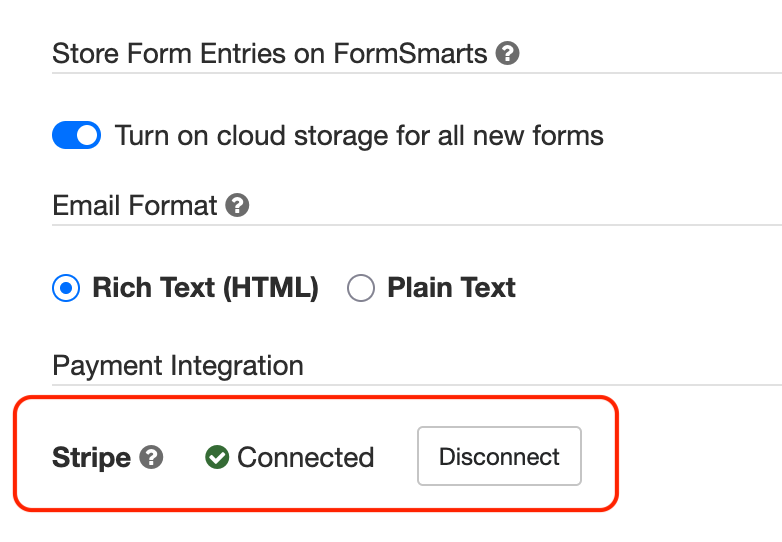
FormSmarts adds a webhook to your Stripe account to receive automated payment status notifications. Please do not change or remove this webhook, payment integration won't work without it.
Checking Stripe Integration Status
The Payment Integration section of the Form Builder's Settings tab shows whether your account is ready to accept Stripe payments. If it shows Invalid configuration, click Connect Again and paste your Stripe key.
Disconnecting Stripe
If you no longer want to use the Stripe integration, click Disconnect under Payment Integration in the Form Builder's Settings tab. This deletes the FormSmarts webhook from your Stripe account and removes your Stripe API key from your FormSmarts account.
Setting Up Stripe with the API
Advanced users can also set up, check and remove Stripe integration with the FormSmarts API.
Setting Up a Form to Accept Payments via Stripe
To start accepting Stripe payments on a form:
- Add one or more fees
- Edit the form and select Integrate with Stripe in the Submit Actions tab, as shown on the screenshot below
- Save changes

- Not available with Business Starter accounts.