Event Check-In App
The free FormSmarts Check-In iOS App lets FormSmarts customers and their staff check in guests who have registered for an event using a FormSmarts online form.
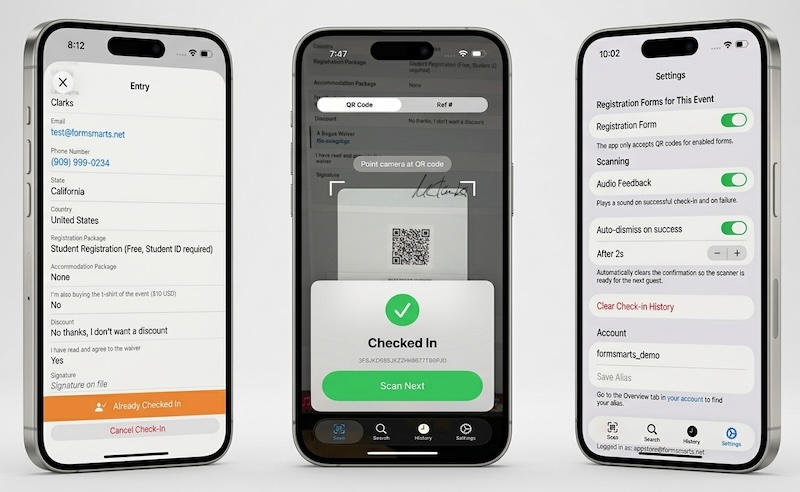
Check-in is performed by scanning a QR code or using the camera to read a registration reference number. The App can also look up a registration by email address or phone number, display individual registration details, and let staff annotate a registration with tags and notes.
Features
- QR code check-in — Scan the QR code from a guest’s registration confirmation email to check them in instantly
- Reference number check-in — Use the camera to read a registration's reference number as a fallback when a guest’s QR code is unavailable
- Check-in history — Review the list of guests already checked in
- Guest lookup — Search for a registration by phone number or email address, browse the latest submissions, and filter by check-in status, form or tag
- Registration details — View an individual registration and check in or cancel a guest’s check-in
- Tags — See the tags of a registration and add or remove your own
- Notes — Read the notes attached to a registration and write your own, for example to record that a badge was reprinted
- Sharing — Send a registration to a colleague, with a link that opens straight in their Check-In App
- Works with a poor connection — Tells staff when the device is offline instead of failing silently, and keeps them logged in
Logging In
For security reasons, the Check-In App does not accept the main email address and password associated with a FormSmarts account (admin credentials). Instead, customers should create a dedicated sub-user account for each member of the event team and share the relevant registration forms with them, as described below.
Setting Up Your Team
Follow these steps to set up your team for event check-in.
- Create an Account Alias — Set an account alias in your FormSmarts account settings. Your team members will use this alias to identify your account when logging in to the App.
- Create a user for each team member — Add a sub-user for each member of your event team in the User Management Dashboard.
- Grant permissions on your registration forms — Share each registration form with the appropriate team members and assign the permissions they need. The App supports events with multiple registration forms, so repeat this step for each form.
Permissions
The permissions required depend on the team member’s role at the event:
Check-in Operator
An operator who checks in participants by scanning QR codes only needs View permission on the registration form. 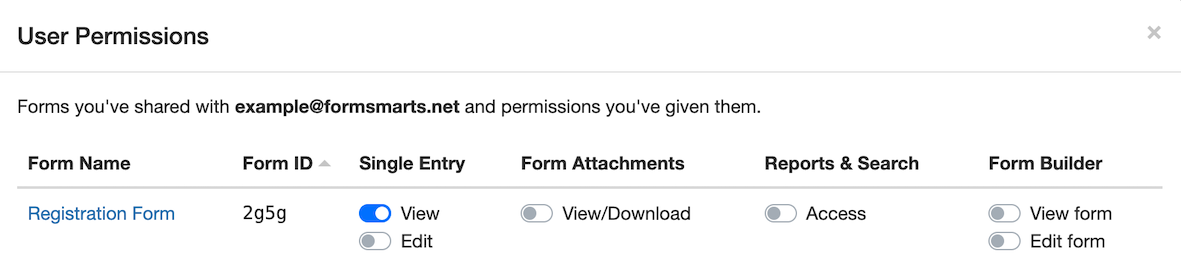
Check-in Leader
The event's check-in leader needs View and optionally Edit permissions on all registration forms for the event. Edit permission (which is toggled off the screenshot below) allows the event's check-in leader to cancel a guest's check-in and to add or remove tags. Writing notes only requires View permission, so any member of your team can annotate a registration. A Check-In Leader also need Access permission to Reports & Search, so they can view individual registrations and look up guests who arrive without a confirmation email using a phone number or email address.1 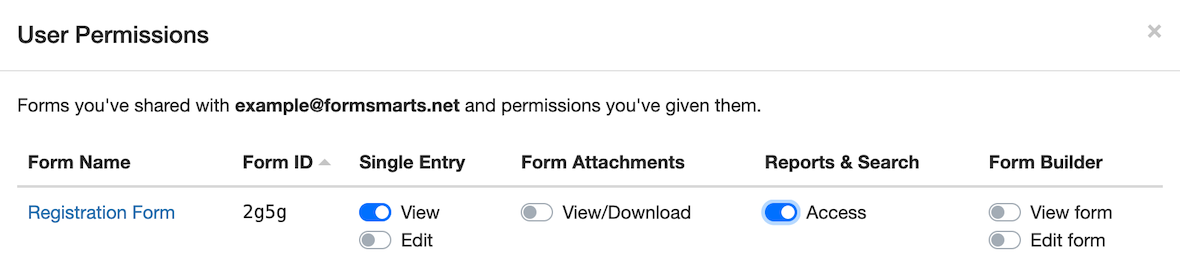
Syncing App Permissions
If you updated the permissions of a user who is already logged in to the app, ask them to pull down the Settings tab to refresh permissions in the app.
App Settings
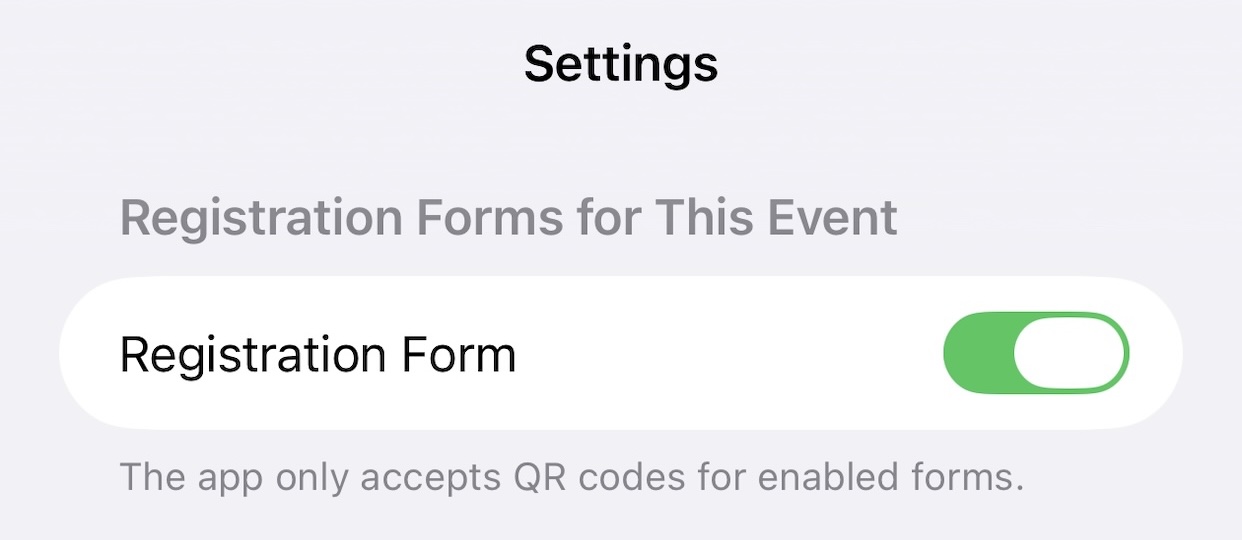
By default, the Check-In App works with all forms the logged-in user has access to. This means that if a user has permissions on registration forms for multiple events — or on both a registration form and an unrelated form such as a contact form — the App will accept QR codes for all of them.
To avoid participants being checked in against the wrong form, open the App’s settings and select only the registration form (or forms) for your event, deselecting all others. This is the one setting you should configure before every event.
Searching Registrations
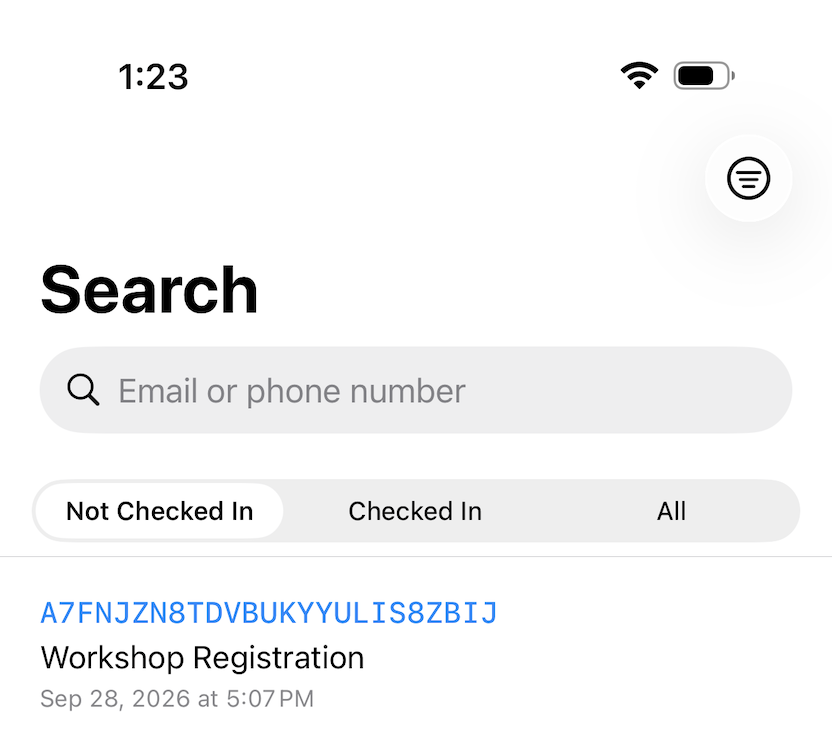
The Search tab looks up a registration by email address or phone number. Leave the search box empty to browse the most recent submissions.
Below the search box, three tabs filter results by check-in status:
- Not Checked In — the default, so the guests you still expect are the ones you see first
- Checked In — guests already checked in
- All — every registration, whatever its status
The filter button at the top right narrows results further, by registration form, by tags, or by system tags. Only the forms you selected for the event in the App’s settings are listed. Active filters appear as chips under the tabs; tap one to remove it. Prefix a tag with not: — for example not:VIP — to exclude registrations carrying it.
The Search tab requires Access permission to Reports & Search.1
Check-In History
The History tab lists the guests checked in on this device over the last 24 hours, most recent first, with the time shown as an age — 2 minutes ago, 3 hours ago — so staff can tell at a glance whether a guest was just scanned.
Press and hold an entry in the list for the actions available to you:
- Share Entry — see Sharing a Registration below
- Add Note and Add Tag — annotate the registration without opening it
- Cancel Check-In — mark the guest as not checked in, with Edit permission on the form
Team members without Access to Reports & Search see only the first characters of each reference number, and can’t open the registration itself. They can still share it, as described below.
Tags and Notes
Open a registration to see its tags and notes at the bottom of the screen.
Tags label a registration — VIP, Table 4, Badge reprinted. Tap Add Tag to add one; the App suggests tags already used in your account as you type, and you can enter several at once by separating them with commas. Press and hold a tag to delete it. Tags set by FormSmarts itself, are shown in a lighter colour and can’t be edited. Adding or removing tags requires Edit permission on the form.
Notes record what happened with a registration, in up to 400 characters. Any team member with View permission can write one, and it is attributed to them and visible to everyone else who opens the registration, in the App and on the FormSmarts website. Press and hold your own note to edit or delete it.
Sharing a Registration
The share button at the top right of a registration, and the Share Entry action in the History tab, send a registration to a colleague.
What is shared depends on the sender’s permissions. Team members with Access to Reports & Search share a link to the registration on the FormSmarts website. Check-in operators without that permission share a link that carries no reference number and opens the registration directly in the recipient’s Check-In App — so an operator can pass a registration to their check-in leader, so they can cancel the check-in or amend the registration details. The recipient still needs permission to view the registration.
Securing Participants Data
Users with the check-in leader role have access to all registration data for the event on their personal device. This data is likely to include personally identifiable information (PII), so it is worth taking a moment to protect it.
The App’s authentication token is valid for two weeks, giving staff the continuous access they need during an event and after, without having to log in repeatedly. To prevent unauthorized access if a device is lost or left unattended, we recommend you ask them to require Face ID to open the App: press and hold the App icon on the home screen and tap Require Face ID.
What event staff do with their phone is beyond your control, so we suggest you suspend users when they have no legitimate reason to use the app. To suspend an account, click on the menu icon in the Actions column in the User Management section of your account and click Suspend User.
Working Offline
Venue Wi-Fi is sometimes unreliable or overloaded, so the App is explicit about losing its connection. A request that can’t reach FormSmarts shows a No Internet Connection message rather than a generic error, and staff stay logged in. When the connection comes back, the message says so and the operator taps Try Again; nothing is re-sent on its own, so a guest is never checked in without someone seeing the result.
The App needs a connection to check a guest in, so we recommend testing mobile reception at the check-in desk before the event, and arranging a fallback if it is poor.
App Uses Beyond Registration Forms
Search, browse and access form submissions on the go.
The Search Tab
Although the app is primarily designed for event check-in and guests management, its Search tab1 also makes it a convenient way to look up and access form submissions from your phone at any time. The app works with all FormSmarts forms, not only registration forms.
You can search form responses by:
- Email address
- Phone number
- FormSmarts reference number
- PayPal or Stripe payment ID
You can also filter results by tags and form.
Browse Form Entries
Leaving the search box empty lists the most recent submissions for the forms in your user account, the equivalent of the “latest” search query on the FormSmarts website. Use the Filter button at the top of the screen to show entries for a specific form and filter results by tags or system tags.View Form Submissions
You can view form submissions, add notes and tag them on the go. You can also share a submission with another user of the app in your account.Stay Logged In to FormSmarts
Once you've logged in to the app with your FormSmarts credentials (user account only), you won't need to log in again as long as you use it at least every two weeks. As noted in the security section above, we recommend enabling Face ID to protect access to data in your account.
The Search tab requires Access permission to Reports & Search.
- Data search in the app and on the website is not available with Starter and Plus subscriptions.