Posts Tagged ‘excel’
How to Filter Form Submissions When Exporting to Excel
FormSmarts has long made it straightforward to export form submissions to Excel or CSV, turning every form field into a column and every submission into a row. Recent updates have made reports more customizable, with options to choose exactly which fields and metadata appear in your spreadsheet, and a new ability to filter submissions by field value.
Exporting Form Submissions to Excel
The FormSmarts Excel report generator allows customers to download stored form submissions as a spreadsheet. Each submission becomes a row; each form field becomes a column. You can export as a native Excel (.xlsx) file or as a CSV, covering any date range you choose — a specific start and end date, or a preset period like Last Week or This Month.
Before you can export, data storage must be enabled for your form. Business accounts have storage on by default; Pro accounts need to turn it on per form in the Submit Actions tab of the Form Details screen.
Choosing Which Fields and Metadata to Include
By default, your Excel report includes every field in your form. But you can also create focused, custom reports by selecting exactly the columns you need.
In the Include fields section of the report settings, you will find a checklist of every field in your form alongside a set of metadata items. Simply check or uncheck each item to include or exclude it from the spreadsheet.
The metadata items available are:
- Date submitted — the timestamp of the submission, adjusted to your chosen time zone
- Reference number — a unique identifier for the submission, or a link to view it online
- Form submission context — information passed to the form at the time of submission, such as the page it was embedded on or a campaign parameter. Useful if you track the source of leads through your forms
- Payment information — the payment amount, currency, processor name, transaction ID and fee, available for forms using FormSmarts payment integration with PayPal or Stripe
- Tags — Tags help you organize form entries
- Systems tags — System tags are tags set by FormSmarts. For example, we set the ‘checked-in’ system tag when a guests checks in at an event
If you have never opened the Report Settings panel before, it is worth a look — you may find it saves you a lot of manual column-hiding in Excel.
Filtering Submissions by Field Value
The most significant new addition is the ability to filter submissions by the value of any field before you export. Instead of downloading everything and filtering in Excel, you can now define your criteria upfront and export only the submissions that match.
Building a Filter
Click Fields & Filters in the export settings to open the filter builder. You can add up to three levels of nested rules combined with AND and OR logic.
Each rule has three parts:
- Field — choose any field from your form (see limitations below for unsupported field types)
- Operator — choose how to match the value
- Value — enter the value to match against
The operators available depend on the field type:
| Field Type | Available Operators |
|---|---|
| Text fields, email, URL, phone, dropdown | equals, not equals, contains, starts with, ends with, is empty, is not empty |
| Number, positive integer | equals, not equals, <, ≤, >, ≥, between |
| Date | equals, not equals, <, ≤, >, ≥, between |
| Time | equals, not equals, <, ≤, >, ≥ |
| Yes/No (boolean) | equals, not equals |
Rules within a group are combined with either AND (all rules must match) or OR (any rule must match). You can nest groups inside other groups to express more complex logic — for example, a top-level AND group with one of its items being an OR sub-group.
Limitations
The following field types are not supported in filters and will not appear in the field list:
- File upload fields
- Signature fields
- Long text fields
Phone number matching works by comparing normalised digits. If you enter “+44 7887 948495”, the filter strips formatting and matches on “+447887948495”. If there is no leading +, all non-digit characters are stripped, so “(123) 123-4567” matches as “1231234567”. Note that phone number filtering is not be available on all subscription plans.
Example 1: Sales Inquiries from the Phoenix Area
Suppose you run an inquiry form that asks respondents to choose a subject — Sales Inquiry, Support Inquiry, or Billing Inquiry — and to provide their phone number.
You want to export all sales inquiries submitted by people in the Phoenix, AZ area (area codes 602, 480, and 623).
Set up the filter as follows:
"Subject of Your Inquiry" equals "Sales Inquiry"
AND (
    "Phone Number" starts with "602"
    OR "Phone Number" starts with "480"
    OR "Phone Number" starts with "623"
)
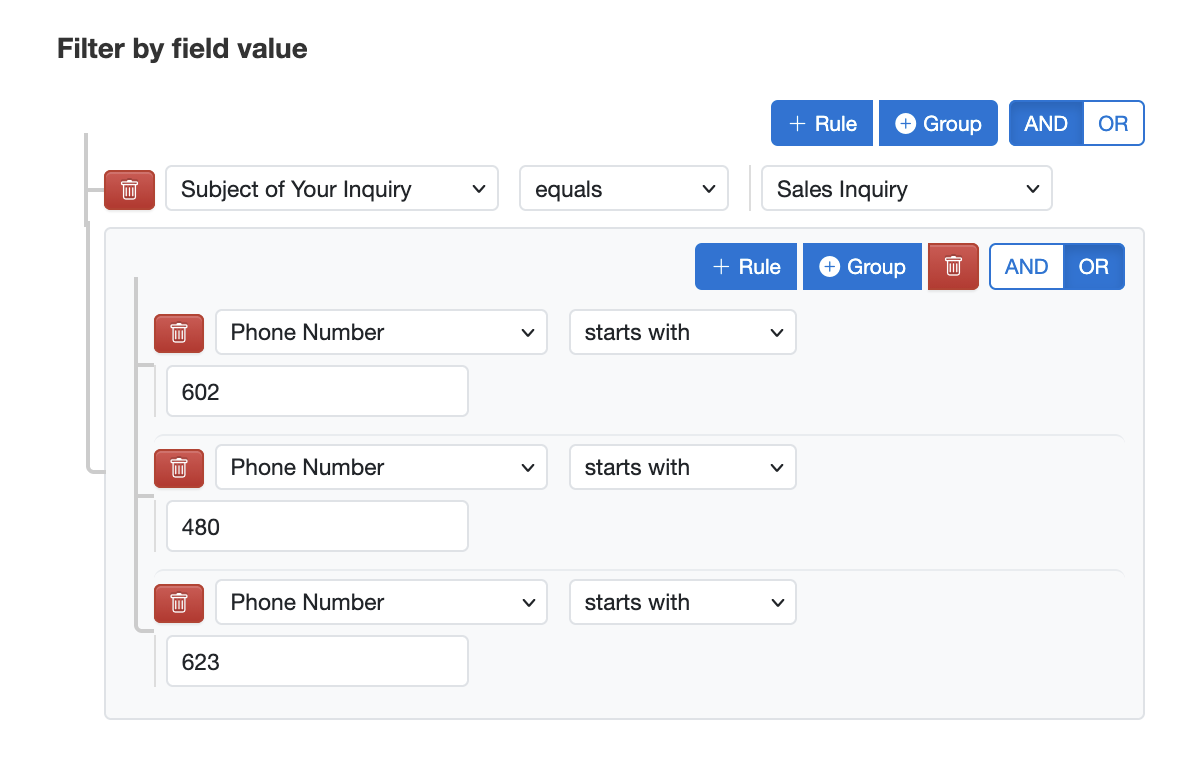
The top-level AND group contains two items: the subject rule and a nested OR group for the three area codes. The export will include only submissions that match the “sales inquiry” subject and have a phone number beginning with one of the three area codes.
Example 2: Conference Catering for Attendees with Dietary Requirements
Suppose you run a conference registration form that collects a ticket type — General Admission, VIP, or Speaker — and a dietary requirement — None, Vegetarian, Vegan, or Nut Allergy. Your caterer needs a headcount of VIP attendees and speakers who have a dietary requirement other than “None”, so you can arrange appropriate meals.
Set up the filter as follows:
("Ticket Type" equals "VIP"
OR "Ticket Type" equals "Speaker")
AND (
    "Dietary Requirement" equals "Vegetarian"
    OR "Dietary Requirement" equals "Vegan"
    OR "Dietary Requirement" equals "Nut Allergy"
)
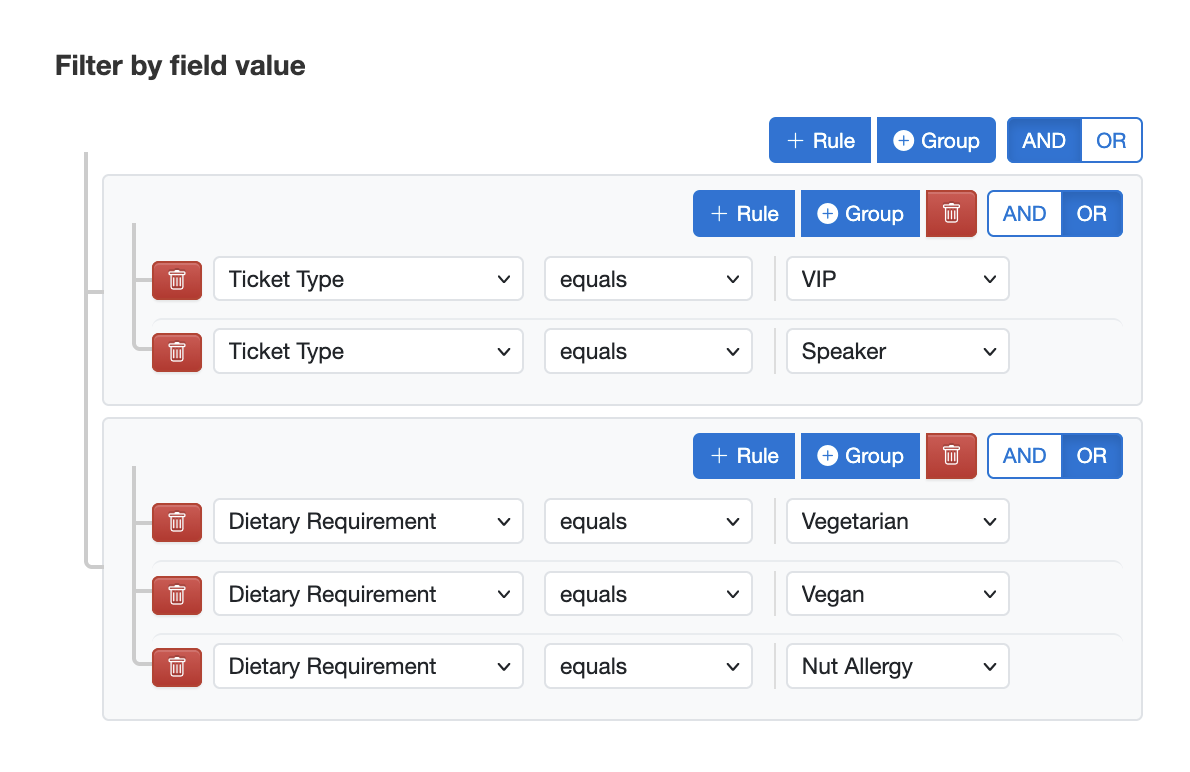
The first OR group captures both VIP and Speaker ticket holders. The second OR group matches any of the three dietary requirements. The top-level AND ensures both conditions must be true. With a single export you have an accurate catering list — no manual filtering in Excel required.
This example shows how nesting OR groups inside an AND group lets you express conditions that would otherwise require multiple separate exports and a spreadsheet merge.
Filtering by Tags
If you have tagged form submissions manually, or if your form uses system tags set automatically by FormSmarts, you can restrict your export to submissions carrying a specific combination of tags.
In the Tags section of the report settings, enter one or more tags. Only submissions that carry all of the selected tags will be included. Common use cases include:
- Checked-in — the system tag added when an event attendee is checked in using the QR code in their confirmation email
- Custom workflow tags — tags you add manually (or with a webhook or API automation) to mark a submission as reviewed, approved, followed up, or requiring a callback
Tag filters and field value filters work together: both conditions must be satisfied for a submission to appear in the Excel report.
Getting Started
To export your form submissions to Excel with filters, open the FormSmarts Report Generator, select your form and date range, then click Select Fields & Edit Filters. If you have questions, the FormSmarts team is on hand to help.
Posted on Apr 24th, 2026 in online form.
Post a Comment
Tags: excel, form results, form to excel
PayPal & Stripe Fees Now in Excel Reports
Many FormSmarts members leverage our integration with PayPal and Stripe to charge fees on their online forms. Most members also export registrations, memberships, and other data from their forms to an Excel spreadsheet.
FormSmarts has traditionally provided details about payments including the amount paid and payment ID in reports.
In response to user needs, we now include the fees charged by the payment processor (PayPal or Stripe) in these Excel reports. This information is displayed in a new column titled “Payment Fee“. This update will allow customers to calculate the total net amount collected by applying a simple formula within Excel.

If you prefer not to have the payment fee details included in Excel reports, you can easily remove this information by accessing the Settings of the Report Generator and unchecking the Payment Fee field.
Posted on Jan 23rd, 2025 in payment form.
Post a Comment
Tags: excel, payment, paypal, stripe
Enhancing Your Reporting Experience: New Features in the Report Generator
We’re excited to announce two additions to our Report Generator, designed to empower our users to create custom Excel reports according to their unique needs.
Choose the Fields (Columns) Shown in Excel Reports

Our Excel reports now offer even more flexibility by allowing you to customize the displayed fields/columns. By default, reports include essential information like form fields, submission reference numbers, submission links, submission timestamps, payment details (for payment forms), and contextual information passed during submission.
However, we understand that your reporting needs may vary. That’s why we’ve introduced the ability to create tailored reports, that include only the specific fields relevant to your analysis. Simply navigate to the Fields section in the Settings and check/uncheck the desired fields and metadata items to include/exclude them in your report. It’s that simple!
Filter Form Responses by Tags

We’ve taken customization a step further by introducing the option to filter form responses based on tags. If you’ve assigned tags to form responses or if our system has automatically tagged submissions, you can now generate reports that exclusively include submissions matching specific tag criteria.
For instance, imagine creating a report highlighting all event attendees who not only registered but also checked in. This can be achieved by filtering submissions with the “checked-in” system tag, added when the event organizer scans QR codes from FormSmarts confirmation emails or PDF receipts.
These new features are designed to enhance your reporting experience, providing you with better control over the information presented in your Excel reports. We believe that by offering these customization options, we’re empowering you to extract precisely the insights you need.
We’d love to hear your thoughts—share your feedback with us!
Posted on Nov 15th, 2023 in event registration, form builder.
Post a Comment
Tags: excel, form results, form to excel, report generator
When Should You Export Forms to Native Excel (XLSX) instead of CSV?
FormSmarts allows customers to collect online form submissions on the cloud and download aggregated entries in a format, CSV, which is supported by all spreadsheet applications (including Microsoft Excel, Apple Numbers and Apache OpenOffice) and many other data analysis tools. We’ve recently added the option to export form responses to native Excel format (.xlsx or .xls) instead of the default CSV for Excel.
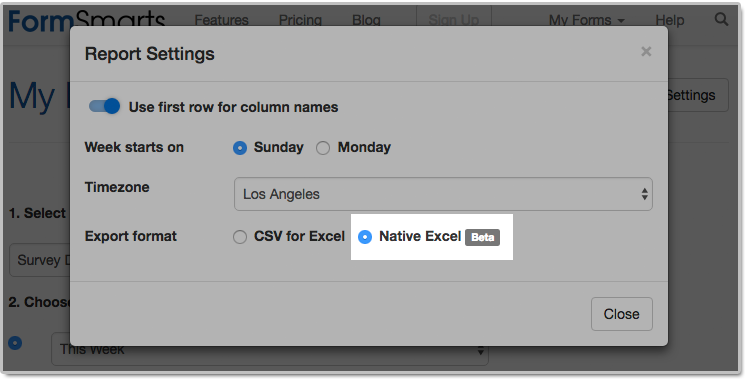
The main reason we decided to support the new export format is to solve an issue with phone number fields that may not be displayed correctly when Excel opens a CSV file. The Excel XLSX format also has a few other benefits, but we expect most members to continue using the default CSV format in the foreseeable future. Please read on to find out if and when you would benefit from using the new format.
Benefits of the Excel .xlsx Format
Phone Number Fields
Provided you have set the Allowed Content (data type) of phone input fields to Phone Number, FormSmarts stores phone numbers as character strings rather than numbers to ensure any leading zero is not dropped from phone numbers. Unfortunately, Excel interprets character strings that only contain digits as numbers, thus removing leading zeros. Members who collect phone numbers on their forms, especially in locales where phone numbers may start with a zero (some US states and part of Asia & Europe), should set the Export Format to the Native Excel option in the Report Generator settings, as illustrated above.
If you find out when opening a CSV spreadsheet from FormSmarts that leading zeros were dropped from phone numbers, update the export format and create another report. Provided phone input fields were correctly created as phone number fields, the correct information, with any leading zeros, is stored on FormSmarts. No information was lost, any errors is due to the Excel import process and can be easily fixed by generating a new report after changing the export format.
All settings of the Report Generator but the timezone are kept in your browser, so as long as you use the same browser and allow FormSmarts to store information in your browser, your export preference will be saved from one session to the next.
Form Results with Data in a Non Western-European Language
When a spreadsheet contains data in a language other than English or another Western-European language, customers need to make sure when opening an Excel/CSV report from FormSmarts they select the UTF-8 (Unicode) encoding in Excel’s Import Wizard. The content of the spreadsheet may otherwise not be displayed properly. Alternatively, exporting form entries to a native Excel (.xlsx, .xls) spreadsheet removes the need to select the correct text encoding.
Note that FormSmarts stores data with a universal encoding (UTF-8) that supports all languages, so if you find out that a report appears corrupted when opening the spreadsheet, open the file again and select the UTF-8 encoding or switch the export format to Native Excel: no data was lost or corrupted.
Other Benefits
The native Excel format offers a few other benefits and we expect their number to grow in the future:
- The URLs of form attachments are clickable links
- The FormSmarts Reference Number (the penultimate column in the spreadsheet) links to the form response on FormSmarts. Use this link to add a note to a form submission, check where it was submitted from (IP address, approximate location), export it to PDF, print it, delete it and more. As we add more functionality to the page showing individual form responses (like the ability to tag and edit a form response), we expect more and more customers to rely on links in the spreadsheet as part of their workflow.
The native Excel format is supported with Business Plus accounts and above.
Posted on Jul 26th, 2018 in online form.
Post a Comment
Tags: excel, form results, form to excel
Excel Report Generator Upgrade
If you’re using FormSmarts’ Export to Excel feature, you may have already noticed that we’ve updated the report generator. As well as several other minor changes, we’ve added a second way to specify the date range over which the report is generated (in addition to selecting a start and end date) by choosing a preset time period. This is meant to further simplify the task of generating a report. The preset periods available are Today, Yesterday, This Week, Last Week, Last Seven Days, This Month, Last Month, Last 30 Days.
For the time period options that depend on the first day of the week (This Week, Last Week), we use the default for your country, as set in your account. You can change this in the Report Generator under More Options.
Give Us Feedback
Do you find the new date range feature useful? Which one do you anticipate you will use most? Should we add more (e.g. quarter)? Please give us feedback by posting a comment, via Facebook or Twitter.
Posted on Sep 16th, 2011 in form builder.
4 Comments
Tags: excel, form to excel
How to Export an Online Form to Excel
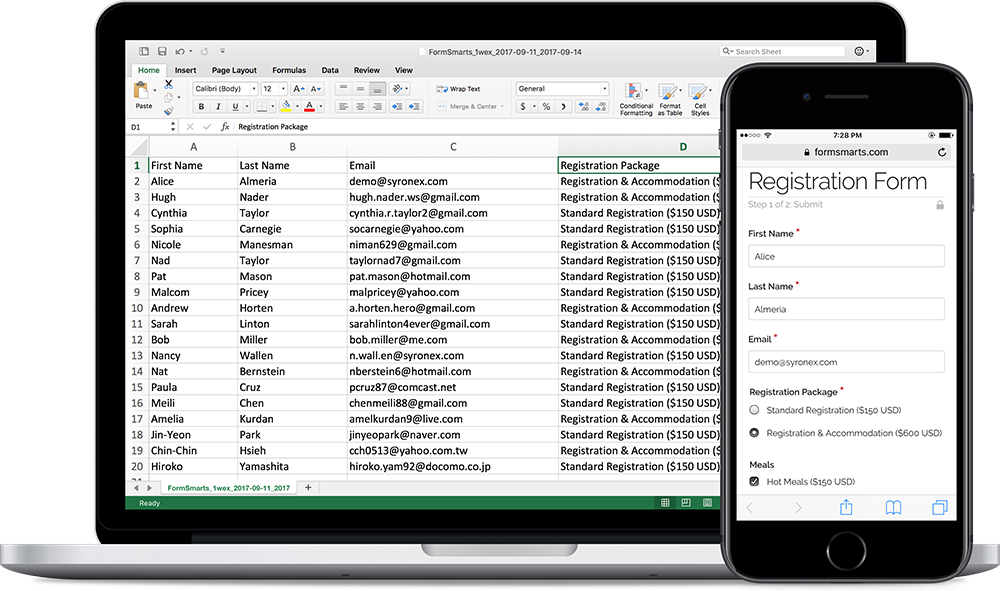
FormSmarts allows customers to collect online form responses on the cloud and export them to Excel. We also support a number of options to create custom reports.
Enable Form Data Storage for Export to Excel
Export to Excel requires that you turn on data storage for each of the forms for which you would like to use this feature.
For privacy reasons, form submissions were not saved on the cloud by default in the past. For Business accounts created after March 20, 2017, storage is now enabled by default. This does not apply to Pro accounts, for which storage is turned off by default and must be enabled for each form if needed. Note that the storage space available with Pro accounts is limited.
To enable stored form results and allow Excel reporting, visit the Submit Actions tab of the Form Details screen of each of the forms for which you would like to access form responses online, as shown in the video below.

You will then be able to download Excel reports from stored form responses in a few clicks with the report generator. Business-level members may also view individual form responses online and download a PDF Report.
To enable storage of form entries by default when you create a new form, check Turn on cloud storage for all new forms in the Settings Tab of the form builder. This option is only available in Business accounts and is turned on by default for accounts created after March 20, 2017.
This video shows how to set up a form to store form responses on the cloud for online access and export to Excel. Although it features an old version of FormSmarts, the information provided can still be used with the current version.
Updating Form Results
To ensure you get consistent and up-to-date data when you export form results as an Excel spreadsheet:
- If you find out a form response has incorrect or out-of-date information, edit it and amend the data
- After you submit a test run, remember to remove it.
Excel Report Generator Settings
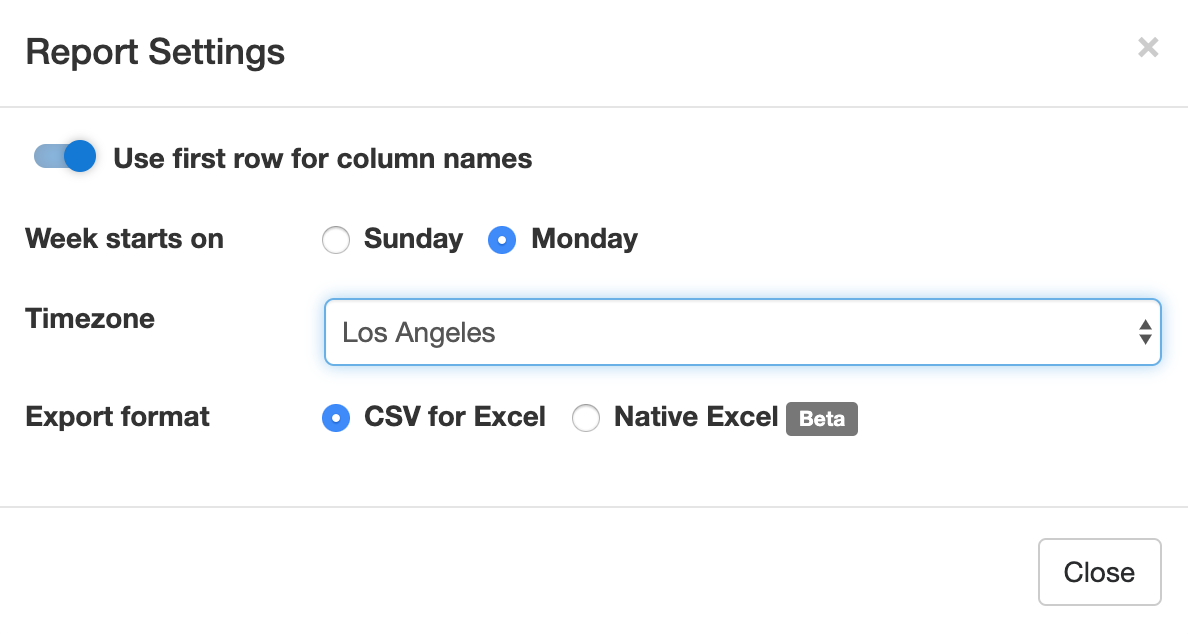
Show Field Names in the First Row
When toggled on, the first row of Excel spreadsheets shows the name of each field. This option is enabled by default.
Week Starts
The report generator allows you to specify the date range over which a report is generated by either picking a start & end date or choosing a preset period of time (This Week, Last Seven Days,…). For time periods that depend on the first day of the week (This Week, Last Week), we use the default first day of the week for your country (as set in your account). You can change the first day of the week with the Week Starts setting.
Select the Fields (Columns) Shown in the Spreadsheet
By default, Excel reports include:
- A column for each fields of a form
- Two columns for common metadata: the reference number of the form submission or a link to access it online, and the date and time the form was submitted
- Additional columns for payment details (payment forms only) and any context information passed to the form when it was submitted.
You can also create custom reports that only include the fields you need in the spreadsheet. To choose the fields/columns to include/exclude, check/uncheck the fields and metadata items listed in the Fields section of the Settings.
Time Zone
Preset time periods, date ranges and the form submission timestamp shown in Excel reports are now using your time zone (as defined in your computer settings). If you would like to generate a report using a different timezone, select the relevant city in the Timezone drop-down list. Note that the city selected by default may not be your city of residence, but it should be a city with the same UTC offset.
Filter Form Responses by Tags
If you have tagged form responses or a form has system tags set by FormSmarts when the form is submitted, you can create reports than only include form submission with the combination of tags and system tags you have specified.
You can for example create a report with all guests who registered and turned up at an event with the checked-in system tag. This tag is added when the event organizer checks-in attendees with the QR code in the confirmation email or PDF receipt.
Spreadsheet Format: CSV or XLSX
Choose a spreadsheet format from Comma-Separated Values (CSV) or native Excel (XLSX) format. We recommend you use the default CSV unless:
- Form submissions have data in a non-Western European language which doesn’t show correctly when you open the CSV spreadsheet
- Some of the characters like typographic curly quotes (‘, ’, “, ”) don’t display properly when you open the file with Microsoft Excel
If you experience one of these issues, download the report in Excel XLSX format. You can alternatively change the CSV text import settings in Excel as explained in the next section, or open the spreadsheet with another application like OpenOffice or Apple Numbers (on Mac OS X).
Importing an Excel Report When the Spreadsheet Contains Non-Western European Characters
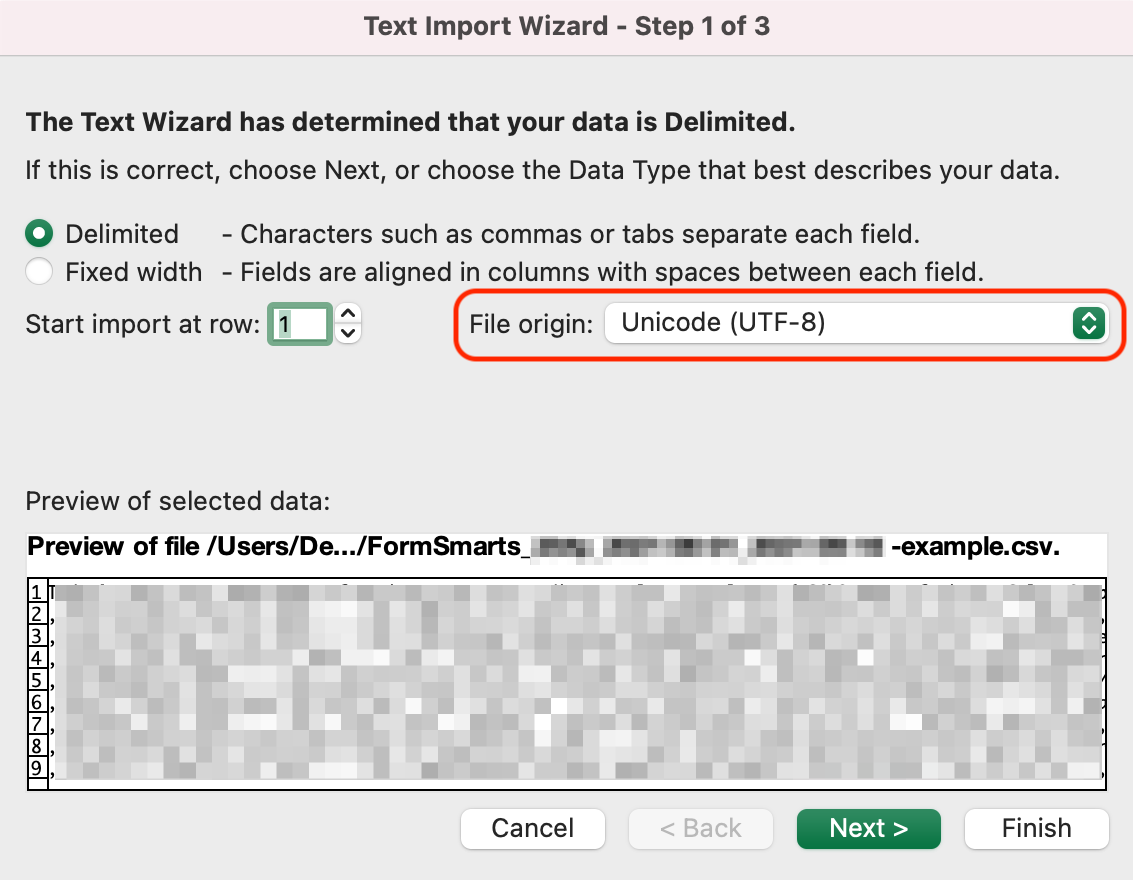
If an Excel (CSV) report contains text in a language other than English, you may need to change the character encoding to Unicode (UTF-8) in Excel’s Text Import Wizard, as illustrated below. The report may not display correctly for languages other than English unless the encoding is set to Unicode (UTF-8).
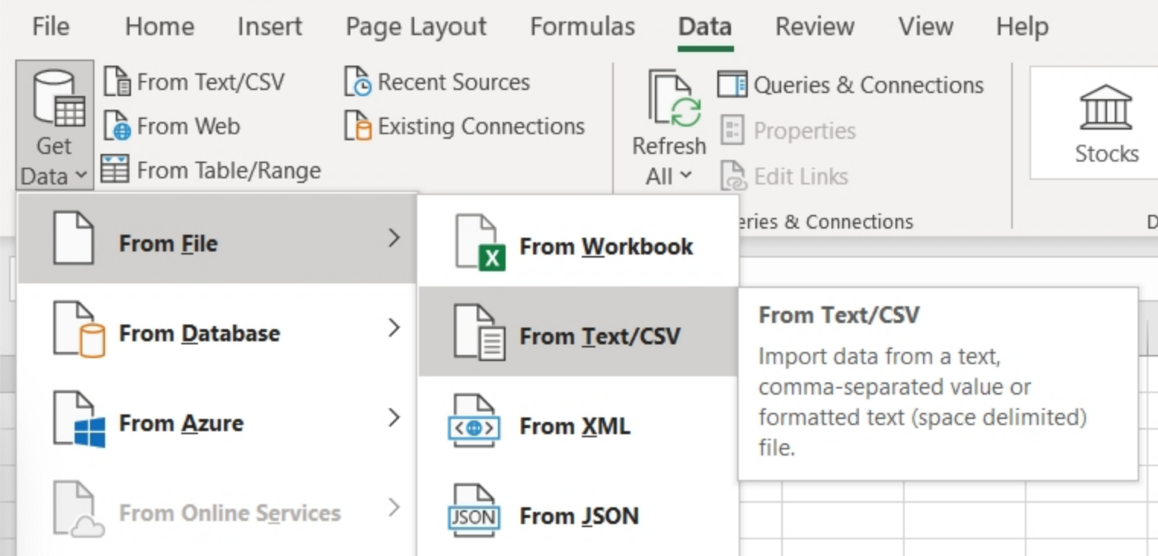
In the Data menu, click Get Data > From File > From Text/CSV
In Step 1 of the Text Import Wizard, set the file origin (character encoding) to Unicode (UTF-8):
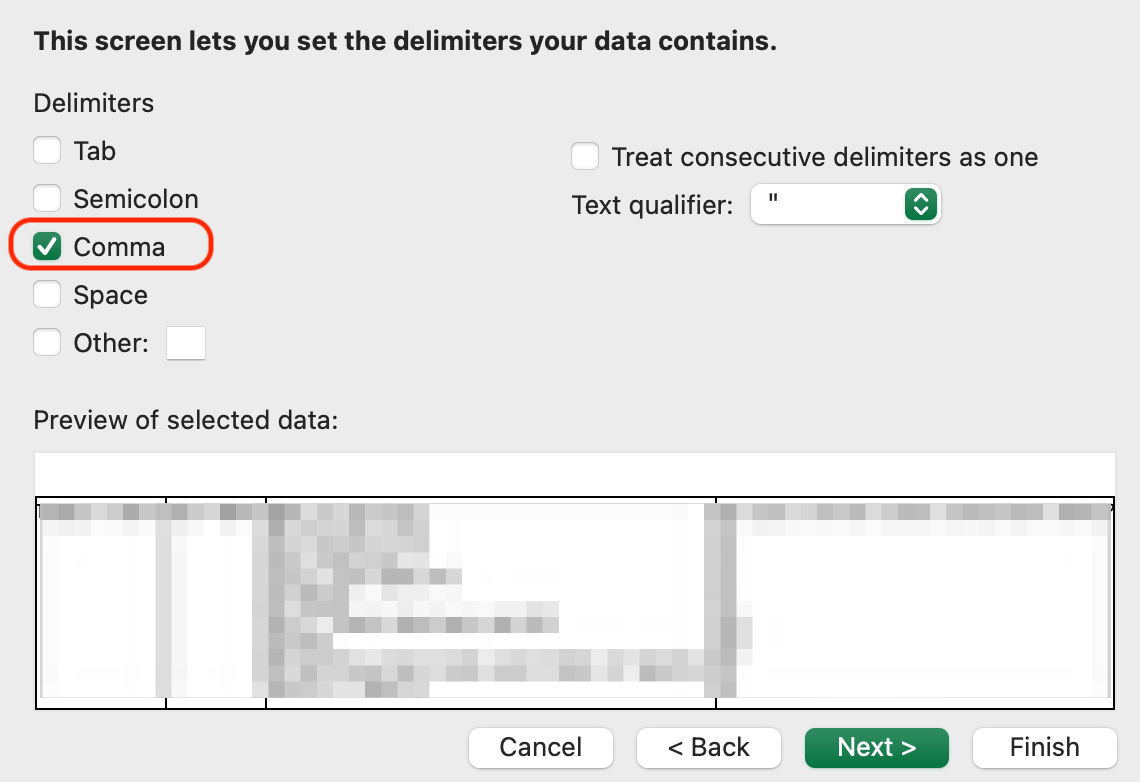
In Step 2 of the Text Import Wizard, set the delimiter to Comma:
Posted on Jul 8th, 2009 in form builder.
17 Comments
Tags: excel, form results, form to excel, form to pdf