Introducing the Event Check-In App for iOS
Event check-in has always been one of those deceptively simple tasks that turns surprisingly stressful in practice. Guests arrive in clusters, not one by one. A few can’t find their confirmation email. And somewhere in the background, the event organizer is wondering who actually showed up.
We built the FormSmarts Event Check-In App to address all of this — without adding complexity. If you already use FormSmarts registration forms to collect event sign-ups, the app connects directly to your existing forms and data without any duplication or extra configuration.
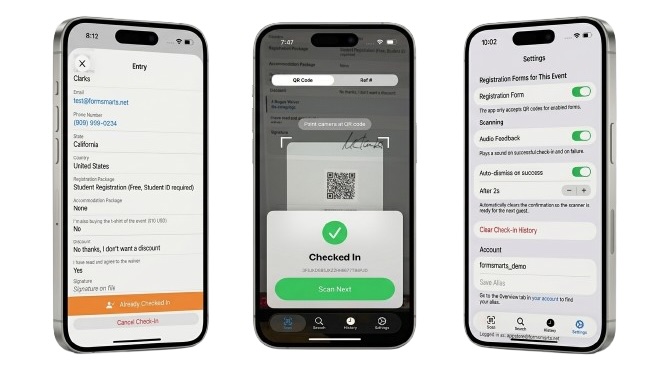
A Seamless Check-In Experience
The core of the app is a QR code scanner that opens the moment you launch it. When a guest presents their confirmation email, the operator scans the QR code — and that’s it. The registration is instantly retrieved, verified, and the guest is checked in. A clear visual confirmation and an audio cue let the operator know right away, without having to read the screen carefully. Both can be adjusted in the app’s settings.
No QR code? No problem. If a guest can’t show the QR code because they are offline, the app can use the camera to read the registration’s reference number directly — a practical fallback that keeps the line moving. And for team leaders with the appropriate permissions (more on that below), the app also supports looking up a registration by email address or phone number directly from the Search tab.
The app also lets you view full registration details for any guest — all the fields they filled in at registration time — which can be useful for operators who need to verify information at the door.
Team Roles and Sub-User Accounts
For security reasons, the Event Check-In App is designed to work with sub-user accounts, not the main FormSmarts admin account. Before your event, you create a dedicated user for each member of your check-in team, share the relevant registration form(s) with them, and assign the appropriate permissions. The app supports events with multiple registration forms.
The Check-In App documentation defines two distinct roles, each with different permission requirements:
Check-In Operator — The standard role for staff checking in participants at the door. Operators only need View permission on the registration form. They can scan QR codes and reference numbers to check guests in. They cannot search by email or phone number, or view individual registrations.
Check-In Leader — The senior check-in role, typically held by one or a small number of experienced team members. Leaders need View on all registration forms as well as Access permission to Reports & Search. In addition to everything operators can do, leaders can view individual registrations and look up guests by email address or phone number — essential for guests who arrive without any form of confirmation. The Edit permission is also required if you want to allow staff to cancel a check-in if needed.
For the full details on setting up permissions, see the Permissions section of the app documentation.
Integrated Event Management
The Check-In App doesn’t operate in isolation. It’s one part of a set of FormSmarts tools that together give event organizers a complete picture of their event — before, during, and after.
Tracking Check-Ins in Real Time with Data Search
When a guest is checked in, FormSmarts automatically applies a checked-in system tag to their registration. System tags are applied automatically by FormSmarts and are distinct from the user-defined tags you can also apply manually.
This makes it straightforward to monitor the event as it unfolds. On FormSmarts Data Search, you can filter registrations by the checked-in system tag to see who has arrived, or use not:checked-in to identify who hasn’t checked in yet. The same search functionality is available directly in the Check-In App’s Search tab, where team leaders can look up individual registrations by email or phone number and check guests in on the spot.
As noted above, access to the Search function — both in the app and on the FormSmarts website — requires specific permissions. Refer to the permissions documentation for the full details on what’s needed and how to configure it for your team.
Post-Event Attendance Reports with the Report Generator
Once your event is over, the Report Generator lets you export your registration data to Excel in a format tailored to your needs. You can filter the report by system tag to produce exactly the list you need:
- Use the
checked-insystem tag to generate a list of registrants who attended the event - Use the
not:checked-intag to identify registrants who registered but did not show up
You can also customize which fields appear as columns in the report, so the spreadsheet you download contains exactly the registration information relevant to your post-event follow-up — nothing more, nothing less.
A Few Practical Considerations
Configure forms before each event. By default, the app works with all forms the logged-in user has access to. If a team member has permissions on forms for multiple events — or on both a registration form and an unrelated form — the app will accept QR codes for all of them. To avoid any ambiguity, open the app’s Settings before the event and select only the registration form (or forms) for that specific event. This is the one setting you should review before every event.
Protect attendee data. Team leaders with search access can view full registration data, which is likely to include personally identifiable information. The app’s authentication token is valid for two weeks. To prevent unauthorized access if a device is lost or left unattended, it’s worth encouraging leaders to enable Face ID for the app: press and hold the app icon on the home screen and tap Require Face ID. You should also suspend sub-user accounts promptly when team members no longer need access, via the User Management section of your account.
Getting Started
The FormSmarts Check-In App is available on the App Store and works with existing FormSmarts registration forms. Setting up your team is a matter of creating sub-user accounts, assigning the right permissions, and sharing the relevant forms — all from your FormSmarts account. Full instructions are on the Check-In App page.
If you’re not yet using FormSmarts for event registration, a good place to start is the registration form demo, which walks through the key features of the form builder in an event context.
We’d love to hear how the app works for your events — use the comment section to share your thoughts.
Posted by FormSmarts on
May 15, 2026 at 8:12 am in event registration.
Permalink
· Comment
Leave a Reply
About the Form Builder Blog
Categories
- booking (1)
- collaboration (7)
- event registration (4)
- file upload (2)
- form builder (54)
- form handler (9)
- form spam (5)
- HTML form (11)
- mobile form (1)
- online form (11)
- payment form (16)