How to Filter Form Submissions When Exporting to Excel
FormSmarts has long made it straightforward to export form submissions to Excel or CSV, turning every form field into a column and every submission into a row. Recent updates have made reports more customizable, with options to choose exactly which fields and metadata appear in your spreadsheet, and a new ability to filter submissions by field value.
Exporting Form Submissions to Excel
The FormSmarts Excel report generator allows customers to download stored form submissions as a spreadsheet. Each submission becomes a row; each form field becomes a column. You can export as a native Excel (.xlsx) file or as a CSV, covering any date range you choose — a specific start and end date, or a preset period like Last Week or This Month.
Before you can export, data storage must be enabled for your form. Business accounts have storage on by default; Pro accounts need to turn it on per form in the Submit Actions tab of the Form Details screen.
Choosing Which Fields and Metadata to Include
By default, your Excel report includes every field in your form. But you can also create focused, custom reports by selecting exactly the columns you need.
In the Include fields section of the report settings, you will find a checklist of every field in your form alongside a set of metadata items. Simply check or uncheck each item to include or exclude it from the spreadsheet.
The metadata items available are:
- Date submitted — the timestamp of the submission, adjusted to your chosen time zone
- Reference number — a unique identifier for the submission, or a link to view it online
- Form submission context — information passed to the form at the time of submission, such as the page it was embedded on or a campaign parameter. Useful if you track the source of leads through your forms
- Payment information — the payment amount, currency, processor name, transaction ID and fee, available for forms using FormSmarts payment integration with PayPal or Stripe
- Tags — Tags help you organize form entries
- Systems tags — System tags are tags set by FormSmarts. For example, we set the ‘checked-in’ system tag when a guests checks in at an event
If you have never opened the Report Settings panel before, it is worth a look — you may find it saves you a lot of manual column-hiding in Excel.
Filtering Submissions by Field Value
The most significant new addition is the ability to filter submissions by the value of any field before you export. Instead of downloading everything and filtering in Excel, you can now define your criteria upfront and export only the submissions that match.
Building a Filter
Click Fields & Filters in the export settings to open the filter builder. You can add up to three levels of nested rules combined with AND and OR logic.
Each rule has three parts:
- Field — choose any field from your form (see limitations below for unsupported field types)
- Operator — choose how to match the value
- Value — enter the value to match against
The operators available depend on the field type:
| Field Type | Available Operators |
|---|---|
| Text fields, email, URL, phone, dropdown | equals, not equals, contains, starts with, ends with, is empty, is not empty |
| Number, positive integer | equals, not equals, <, ≤, >, ≥, between |
| Date | equals, not equals, <, ≤, >, ≥, between |
| Time | equals, not equals, <, ≤, >, ≥ |
| Yes/No (boolean) | equals, not equals |
Rules within a group are combined with either AND (all rules must match) or OR (any rule must match). You can nest groups inside other groups to express more complex logic — for example, a top-level AND group with one of its items being an OR sub-group.
Limitations
The following field types are not supported in filters and will not appear in the field list:
- File upload fields
- Signature fields
- Long text fields
Phone number matching works by comparing normalised digits. If you enter “+44 7887 948495”, the filter strips formatting and matches on “+447887948495”. If there is no leading +, all non-digit characters are stripped, so “(123) 123-4567” matches as “1231234567”. Note that phone number filtering is not be available on all subscription plans.
Example 1: Sales Inquiries from the Phoenix Area
Suppose you run an inquiry form that asks respondents to choose a subject — Sales Inquiry, Support Inquiry, or Billing Inquiry — and to provide their phone number.
You want to export all sales inquiries submitted by people in the Phoenix, AZ area (area codes 602, 480, and 623).
Set up the filter as follows:
"Subject of Your Inquiry" equals "Sales Inquiry"
AND (
    "Phone Number" starts with "602"
    OR "Phone Number" starts with "480"
    OR "Phone Number" starts with "623"
)
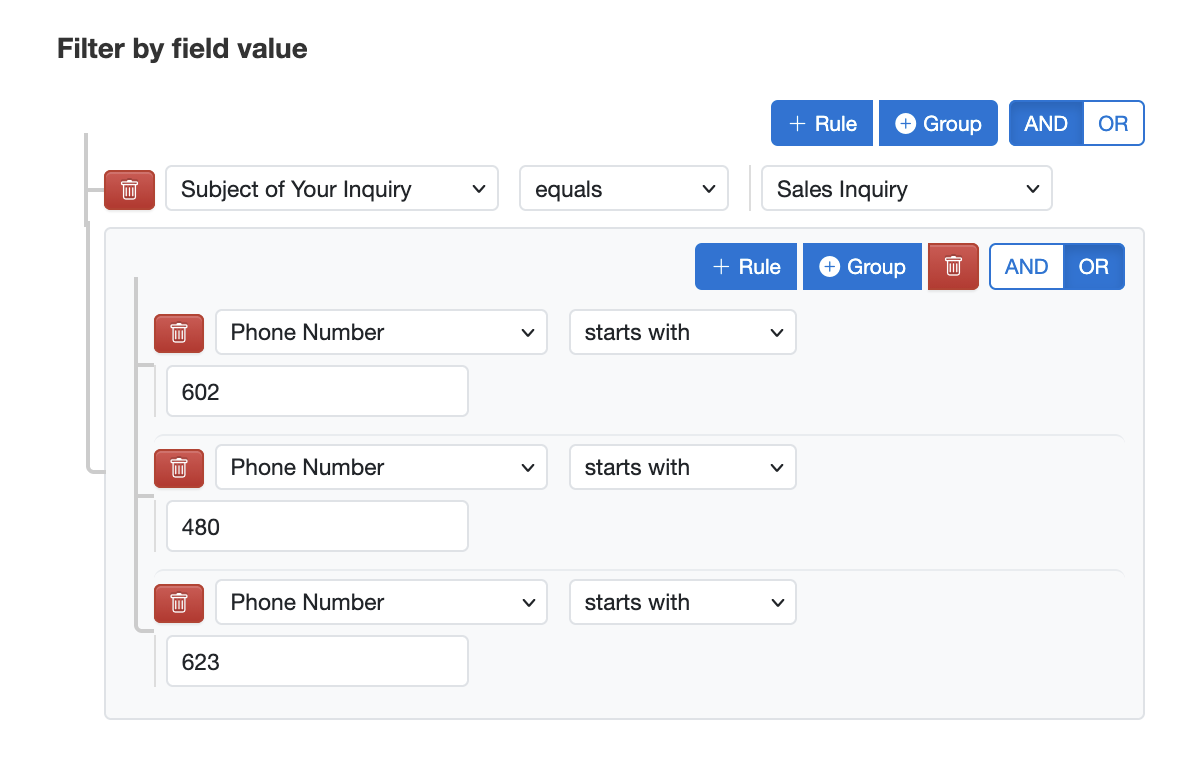
The top-level AND group contains two items: the subject rule and a nested OR group for the three area codes. The export will include only submissions that match the “sales inquiry” subject and have a phone number beginning with one of the three area codes.
Example 2: Conference Catering for Attendees with Dietary Requirements
Suppose you run a conference registration form that collects a ticket type — General Admission, VIP, or Speaker — and a dietary requirement — None, Vegetarian, Vegan, or Nut Allergy. Your caterer needs a headcount of VIP attendees and speakers who have a dietary requirement other than “None”, so you can arrange appropriate meals.
Set up the filter as follows:
("Ticket Type" equals "VIP"
OR "Ticket Type" equals "Speaker")
AND (
    "Dietary Requirement" equals "Vegetarian"
    OR "Dietary Requirement" equals "Vegan"
    OR "Dietary Requirement" equals "Nut Allergy"
)
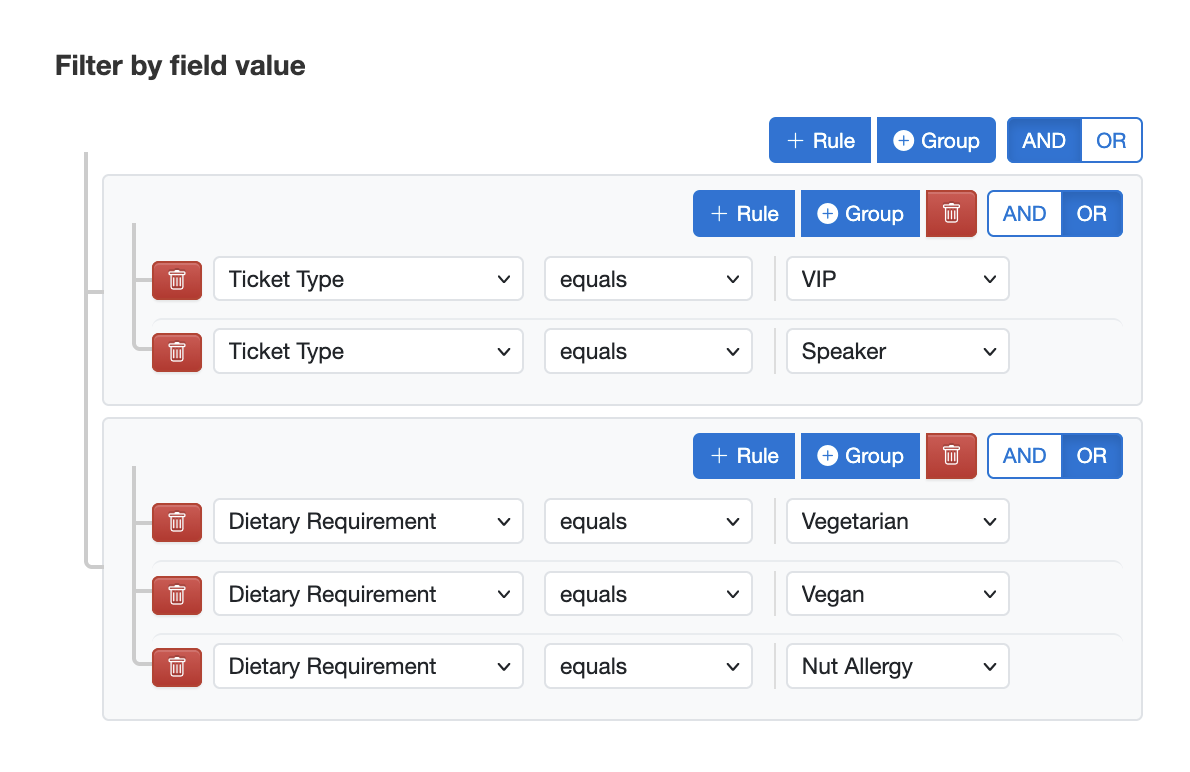
The first OR group captures both VIP and Speaker ticket holders. The second OR group matches any of the three dietary requirements. The top-level AND ensures both conditions must be true. With a single export you have an accurate catering list — no manual filtering in Excel required.
This example shows how nesting OR groups inside an AND group lets you express conditions that would otherwise require multiple separate exports and a spreadsheet merge.
Filtering by Tags
If you have tagged form submissions manually, or if your form uses system tags set automatically by FormSmarts, you can restrict your export to submissions carrying a specific combination of tags.
In the Tags section of the report settings, enter one or more tags. Only submissions that carry all of the selected tags will be included. Common use cases include:
- Checked-in — the system tag added when an event attendee is checked in using the QR code in their confirmation email
- Custom workflow tags — tags you add manually (or with a webhook or API automation) to mark a submission as reviewed, approved, followed up, or requiring a callback
Tag filters and field value filters work together: both conditions must be satisfied for a submission to appear in the Excel report.
Getting Started
To export your form submissions to Excel with filters, open the FormSmarts Report Generator, select your form and date range, then click Select Fields & Edit Filters. If you have questions, the FormSmarts team is on hand to help.
Posted by FormSmarts on
Apr 24, 2026 at 9:15 am in online form.
Permalink
· Comment
Tags: excel, form results, form to excel
Leave a Reply
About the Form Builder Blog
Categories
- booking (1)
- collaboration (7)
- event registration (4)
- file upload (2)
- form builder (54)
- form handler (9)
- form spam (5)
- HTML form (11)
- mobile form (1)
- online form (11)
- payment form (16)