The Form Builder Is Now Multi-User
The form builder is now multi-user. As a FormSmarts account administrator, you can give individual users in your account view or edit access to specific forms, so your team can collaborate on form building without needing the admin login.
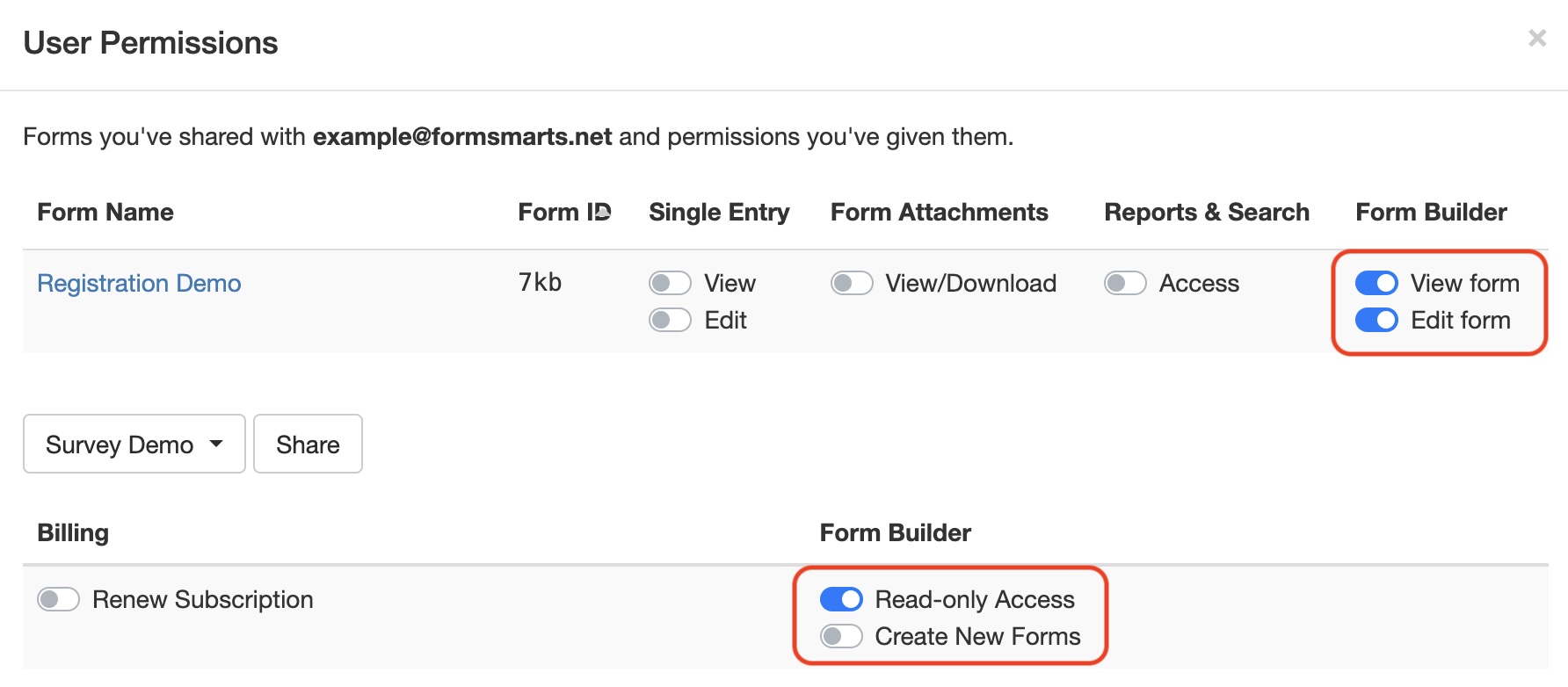
Form Builder Access Permissions
To access the form builder, a user needs:
- The Read-only Access account permission, to open and view forms settings
- The Create New Form permission, if they should be able to create their own forms
When a user creates a form, they are implicitly given permissions to view and edit the form. But they aren’t given any access to completed form submissions. As the account administrator, you have to grant them the suitable permissions on form data if needed.
If you haven’t set up additional users on your account yet, see our guide on how to create a user.
Form Level Permissions
To view and edit a specific form in the form builder, a user needs the View Form and Edit Form permission, respectively.
You can manage these permissions, and see which forms each user has access to, from the User Management Dashboard (illustrated above).
What’s Still Admin-Only
While form building is now shared, a handful of account-level settings remain restricted to the main administrator:
- Changing the account’s login email address (a.k.a. admin email)
- Deleting a form
- Scheduling a form suspension or reactivation
- Disabling or enabling a drop-down list or radio button option (e.g. for early bird pricing)
- Turning cloud storage on or off for all new forms
- Changing email format from Rich Text (HTML) to Plain Text
Other Changes
Alongside the multi-user form builder, we’ve also rolled out:
- User-specific preferences
- The ability to set a default form color scheme
- The ability to set Secure Access on your forms
Head over to the User Management Dashboard to start assigning form access to your team. Please leave a comment below if you have any questions.
Posted on Jul 3rd, 2026 in form builder.
Post a Comment
Tags: collaboration, user
Introducing the Event Check-In App for iOS
Event check-in has always been one of those deceptively simple tasks that turns surprisingly stressful in practice. Guests arrive in clusters, not one by one. A few can’t find their confirmation email. And somewhere in the background, the event organizer is wondering who actually showed up.
We built the FormSmarts Event Check-In App to address all of this — without adding complexity. If you already use FormSmarts registration forms to collect event sign-ups, the app connects directly to your existing forms and data without any duplication or extra configuration.
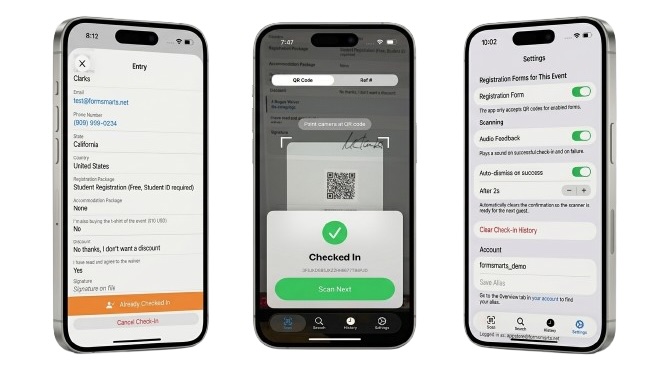
A Seamless Check-In Experience
The core of the app is a QR code scanner that opens the moment you launch it. When a guest presents their confirmation email, the operator scans the QR code — and that’s it. The registration is instantly retrieved, verified, and the guest is checked in. A clear visual confirmation and an audio cue let the operator know right away, without having to read the screen carefully. Both can be adjusted in the app’s settings.
No QR code? No problem. If a guest can’t show the QR code because they are offline, the app can use the camera to read the registration’s reference number directly — a practical fallback that keeps the line moving. And for team leaders with the appropriate permissions (more on that below), the app also supports looking up a registration by email address or phone number directly from the Search tab.
The app also lets you view full registration details for any guest — all the fields they filled in at registration time — which can be useful for operators who need to verify information at the door.
Team Roles and Sub-User Accounts
For security reasons, the Event Check-In App is designed to work with sub-user accounts, not the main FormSmarts admin account. Before your event, you create a dedicated user for each member of your check-in team, share the relevant registration form(s) with them, and assign the appropriate permissions. The app supports events with multiple registration forms.
The Check-In App documentation defines two distinct roles, each with different permission requirements:
Check-In Operator — The standard role for staff checking in participants at the door. Operators only need View permission on the registration form. They can scan QR codes and reference numbers to check guests in. They cannot search by email or phone number, or view individual registrations.
Check-In Leader — The senior check-in role, typically held by one or a small number of experienced team members. Leaders need View on all registration forms as well as Access permission to Reports & Search. In addition to everything operators can do, leaders can view individual registrations and look up guests by email address or phone number — essential for guests who arrive without any form of confirmation. The Edit permission is also required if you want to allow staff to cancel a check-in if needed.
For the full details on setting up permissions, see the Permissions section of the app documentation.
Integrated Event Management
The Check-In App doesn’t operate in isolation. It’s one part of a set of FormSmarts tools that together give event organizers a complete picture of their event — before, during, and after.
Tracking Check-Ins in Real Time with Data Search
When a guest is checked in, FormSmarts automatically applies a checked-in system tag to their registration. System tags are applied automatically by FormSmarts and are distinct from the user-defined tags you can also apply manually.
This makes it straightforward to monitor the event as it unfolds. On FormSmarts Data Search, you can filter registrations by the checked-in system tag to see who has arrived, or use not:checked-in to identify who hasn’t checked in yet. The same search functionality is available directly in the Check-In App’s Search tab, where team leaders can look up individual registrations by email or phone number and check guests in on the spot.
As noted above, access to the Search function — both in the app and on the FormSmarts website — requires specific permissions. Refer to the permissions documentation for the full details on what’s needed and how to configure it for your team.
Post-Event Attendance Reports with the Report Generator
Once your event is over, the Report Generator lets you export your registration data to Excel in a format tailored to your needs. You can filter the report by system tag to produce exactly the list you need:
- Use the
checked-insystem tag to generate a list of registrants who attended the event - Use the
not:checked-intag to identify registrants who registered but did not show up
You can also customize which fields appear as columns in the report, so the spreadsheet you download contains exactly the registration information relevant to your post-event follow-up — nothing more, nothing less.
A Few Practical Considerations
Configure forms before each event. By default, the app works with all forms the logged-in user has access to. If a team member has permissions on forms for multiple events — or on both a registration form and an unrelated form — the app will accept QR codes for all of them. To avoid any ambiguity, open the app’s Settings before the event and select only the registration form (or forms) for that specific event. This is the one setting you should review before every event.
Protect attendee data. Team leaders with search access can view full registration data, which is likely to include personally identifiable information. The app’s authentication token is valid for two weeks. To prevent unauthorized access if a device is lost or left unattended, it’s worth encouraging leaders to enable Face ID for the app: press and hold the app icon on the home screen and tap Require Face ID. You should also suspend sub-user accounts promptly when team members no longer need access, via the User Management section of your account.
Getting Started
The FormSmarts Check-In App is available on the App Store and works with existing FormSmarts registration forms. Setting up your team is a matter of creating sub-user accounts, assigning the right permissions, and sharing the relevant forms — all from your FormSmarts account. Full instructions are on the Check-In App page.
If you’re not yet using FormSmarts for event registration, a good place to start is the registration form demo, which walks through the key features of the form builder in an event context.
We’d love to hear how the app works for your events — use the comment section to share your thoughts.
Posted on May 15th, 2026 in event registration.
Post a Comment
How to Filter Form Submissions When Exporting to Excel
FormSmarts has long made it straightforward to export form submissions to Excel or CSV, turning every form field into a column and every submission into a row. Recent updates have made reports more customizable, with options to choose exactly which fields and metadata appear in your spreadsheet, and a new ability to filter submissions by field value.
Exporting Form Submissions to Excel
The FormSmarts Excel report generator allows customers to download stored form submissions as a spreadsheet. Each submission becomes a row; each form field becomes a column. You can export as a native Excel (.xlsx) file or as a CSV, covering any date range you choose — a specific start and end date, or a preset period like Last Week or This Month.
Before you can export, data storage must be enabled for your form. Business accounts have storage on by default; Pro accounts need to turn it on per form in the Submit Actions tab of the Form Details screen.
Choosing Which Fields and Metadata to Include
By default, your Excel report includes every field in your form. But you can also create focused, custom reports by selecting exactly the columns you need.
In the Include fields section of the report settings, you will find a checklist of every field in your form alongside a set of metadata items. Simply check or uncheck each item to include or exclude it from the spreadsheet.
The metadata items available are:
- Date submitted — the timestamp of the submission, adjusted to your chosen time zone
- Reference number — a unique identifier for the submission, or a link to view it online
- Form submission context — information passed to the form at the time of submission, such as the page it was embedded on or a campaign parameter. Useful if you track the source of leads through your forms
- Payment information — the payment amount, currency, processor name, transaction ID and fee, available for forms using FormSmarts payment integration with PayPal or Stripe
- Tags — Tags help you organize form entries
- Systems tags — System tags are tags set by FormSmarts. For example, we set the ‘checked-in’ system tag when a guests checks in at an event
If you have never opened the Report Settings panel before, it is worth a look — you may find it saves you a lot of manual column-hiding in Excel.
Filtering Submissions by Field Value
The most significant new addition is the ability to filter submissions by the value of any field before you export. Instead of downloading everything and filtering in Excel, you can now define your criteria upfront and export only the submissions that match.
Building a Filter
Click Fields & Filters in the export settings to open the filter builder. You can add up to three levels of nested rules combined with AND and OR logic.
Each rule has three parts:
- Field — choose any field from your form (see limitations below for unsupported field types)
- Operator — choose how to match the value
- Value — enter the value to match against
The operators available depend on the field type:
| Field Type | Available Operators |
|---|---|
| Text fields, email, URL, phone, dropdown | equals, not equals, contains, starts with, ends with, is empty, is not empty |
| Number, positive integer | equals, not equals, <, ≤, >, ≥, between |
| Date | equals, not equals, <, ≤, >, ≥, between |
| Time | equals, not equals, <, ≤, >, ≥ |
| Yes/No (boolean) | equals, not equals |
Rules within a group are combined with either AND (all rules must match) or OR (any rule must match). You can nest groups inside other groups to express more complex logic — for example, a top-level AND group with one of its items being an OR sub-group.
Limitations
The following field types are not supported in filters and will not appear in the field list:
- File upload fields
- Signature fields
- Long text fields
Phone number matching works by comparing normalised digits. If you enter “+44 7887 948495”, the filter strips formatting and matches on “+447887948495”. If there is no leading +, all non-digit characters are stripped, so “(123) 123-4567” matches as “1231234567”. Note that phone number filtering is not be available on all subscription plans.
Example 1: Sales Inquiries from the Phoenix Area
Suppose you run an inquiry form that asks respondents to choose a subject — Sales Inquiry, Support Inquiry, or Billing Inquiry — and to provide their phone number.
You want to export all sales inquiries submitted by people in the Phoenix, AZ area (area codes 602, 480, and 623).
Set up the filter as follows:
"Subject of Your Inquiry" equals "Sales Inquiry"
AND (
    "Phone Number" starts with "602"
    OR "Phone Number" starts with "480"
    OR "Phone Number" starts with "623"
)
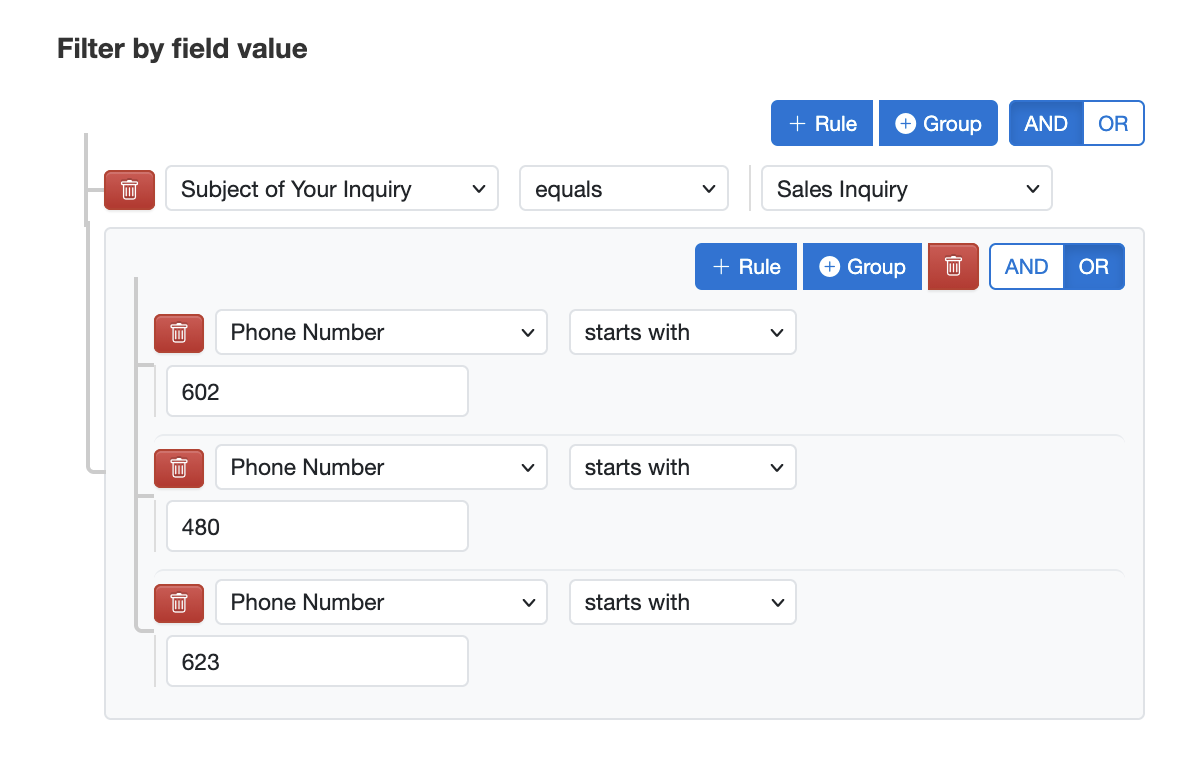
The top-level AND group contains two items: the subject rule and a nested OR group for the three area codes. The export will include only submissions that match the “sales inquiry” subject and have a phone number beginning with one of the three area codes.
Example 2: Conference Catering for Attendees with Dietary Requirements
Suppose you run a conference registration form that collects a ticket type — General Admission, VIP, or Speaker — and a dietary requirement — None, Vegetarian, Vegan, or Nut Allergy. Your caterer needs a headcount of VIP attendees and speakers who have a dietary requirement other than “None”, so you can arrange appropriate meals.
Set up the filter as follows:
("Ticket Type" equals "VIP"
OR "Ticket Type" equals "Speaker")
AND (
    "Dietary Requirement" equals "Vegetarian"
    OR "Dietary Requirement" equals "Vegan"
    OR "Dietary Requirement" equals "Nut Allergy"
)
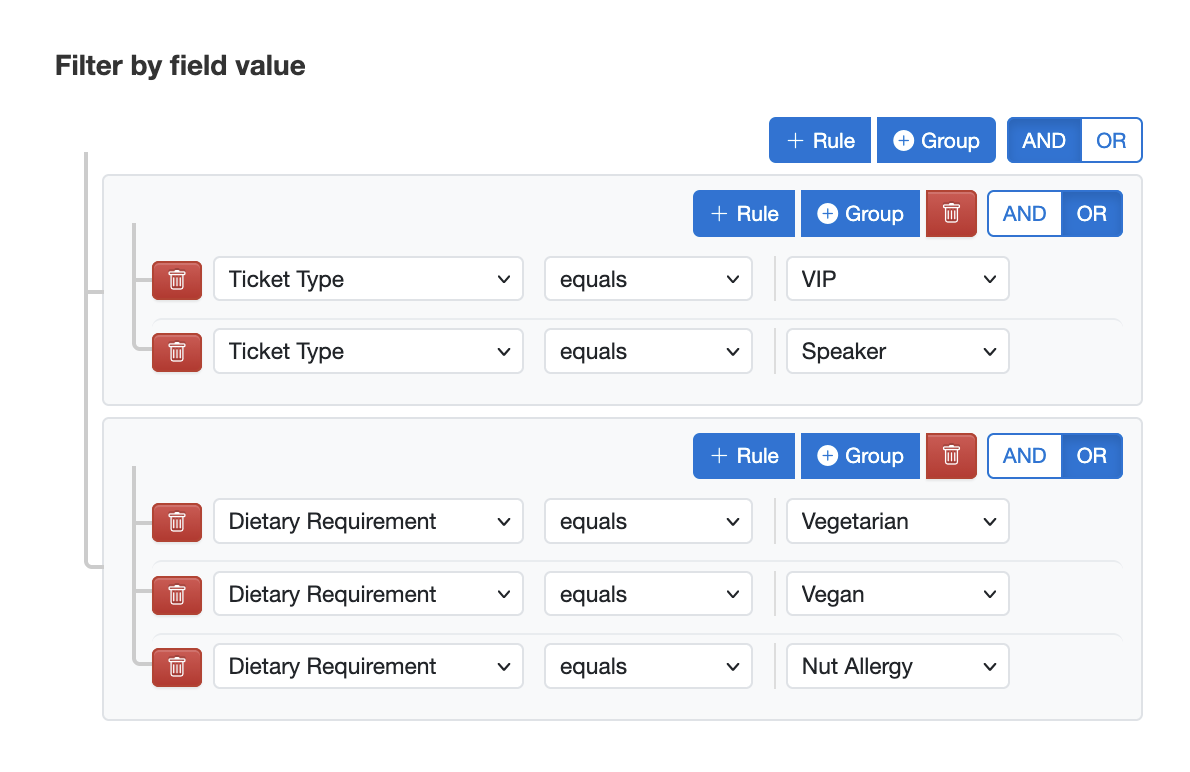
The first OR group captures both VIP and Speaker ticket holders. The second OR group matches any of the three dietary requirements. The top-level AND ensures both conditions must be true. With a single export you have an accurate catering list — no manual filtering in Excel required.
This example shows how nesting OR groups inside an AND group lets you express conditions that would otherwise require multiple separate exports and a spreadsheet merge.
Filtering by Tags
If you have tagged form submissions manually, or if your form uses system tags set automatically by FormSmarts, you can restrict your export to submissions carrying a specific combination of tags.
In the Tags section of the report settings, enter one or more tags. Only submissions that carry all of the selected tags will be included. Common use cases include:
- Checked-in — the system tag added when an event attendee is checked in using the QR code in their confirmation email
- Custom workflow tags — tags you add manually (or with a webhook or API automation) to mark a submission as reviewed, approved, followed up, or requiring a callback
Tag filters and field value filters work together: both conditions must be satisfied for a submission to appear in the Excel report.
Getting Started
To export your form submissions to Excel with filters, open the FormSmarts Report Generator, select your form and date range, then click Select Fields & Edit Filters. If you have questions, the FormSmarts team is on hand to help.
Posted on Apr 24th, 2026 in online form.
Post a Comment
Tags: excel, form results, form to excel
View and Test Your Forms Privately While They’re Disabled
To make your workflow smoother, we’ve updated how disabled forms behave. You can now tinker, test, and perfect your forms while they are disabled, allowing you to finalize your work without showing a “work in progress” to the public.
What’s New: Access Even When “Off”
Previously, a disabled form was inaccessible to everyone. Now, we’ve created a way for you and your team to work on them privately.
- Logged-In Access: If you are logged into FormSmarts, you can now view and submit disabled forms exactly as if they were live.
- Team-Wide Compatibility: This applies to the account admin and all users associated with the account.
- Standalone Only: This change specifically applies to the standalone version of your form. If you have the form embedded on your website, it will remain hidden from the public.
Identifying Disabled Forms
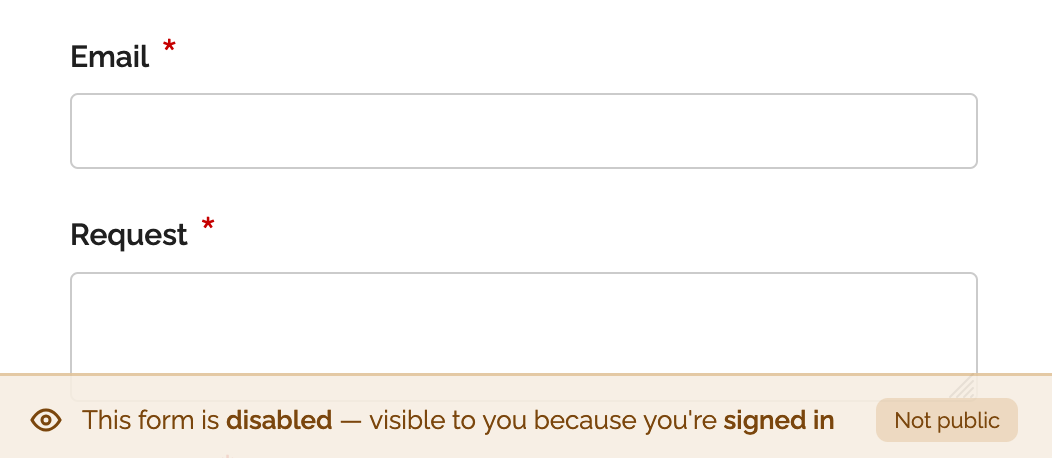
To help you keep track of a form’s status, we’ve added a status banner at the bottom of the form page. This banner identifies when a form is currently disabled, so you know you’re viewing it in a private testing capacity.
Quick Reminder: Managing Form Visibility
Here is a quick refresher on how to manage your form visibility settings:
- Manual Toggle: Enable or disable any form via the Forms tab in the Form Builder.
- Scheduling: Use the scheduling feature to automatically enable or disable forms at specific dates and times.
- Custom Messaging: When you disable a form, you can customize the message shown to public visitors (e.g., “Check back soon!” or “Registrations are now over”).
This update is designed to help you move from draft to live with more confidence and less friction.
Posted on Mar 27th, 2026 in collaboration, form builder.
Post a Comment
PayPal & Stripe Fees Now in Excel Reports
Many FormSmarts members leverage our integration with PayPal and Stripe to charge fees on their online forms. Most members also export registrations, memberships, and other data from their forms to an Excel spreadsheet.
FormSmarts has traditionally provided details about payments including the amount paid and payment ID in reports.
In response to user needs, we now include the fees charged by the payment processor (PayPal or Stripe) in these Excel reports. This information is displayed in a new column titled “Payment Fee“. This update will allow customers to calculate the total net amount collected by applying a simple formula within Excel.

If you prefer not to have the payment fee details included in Excel reports, you can easily remove this information by accessing the Settings of the Report Generator and unchecking the Payment Fee field.
Posted on Jan 23rd, 2025 in payment form.
Post a Comment
Tags: excel, payment, paypal, stripe
How to Charge Recurring Fees with a Stripe Subscription
The Stripe integration supports two types of recurring payments: subscriptions and payments in installments. A subscription charges a customer at regular intervals until it is canceled, while a recurring payment in installments allows customers to pay in a set number of installments.
If you’re familiar with FormSmarts’ PayPal integration, the syntax for subscriptions and payments in installments remains the same. Simply add your Stripe API key to FormSmarts and set the form’s Submit Action to Integrate with Stripe.
Stripe Subscription
With Stripe, you can easily charge your customers a recurring membership or subscription fee. Once a customer has set up a Stripe subscription through FormSmarts, Stripe automatically charges them yearly, monthly, weekly, or even daily. The subscription runs indefinitely until cancelled.
In the example below, customers are charged $25 (Individual Membership) or $45 (Family Membership) monthly. They also have the option to make a donation each month.

Paying in Installments with Stripe
You can as easily allow your customers to pay in installments with Stripe. Once a customer has set up a Stripe subscription though FormSmarts, Stripe charges them for the installment amount monthly. In this example, individuals can choose to pay in two or four monthly installments.

Try Payment in Installments with Stripe
Advanced Recurring Payment Use Cases
Subscription for Multiple Products
FormSmarts enables you to combine multiple recurring fees on a form, provided they have the same recurring period (i.e. yearly, monthly, …) and recurring times (number of installments). For instance, you could offer your customers options to pay in installments for both Days and Overnight Stays as shown on this demo. However, both must be paid in the same number of installments and recurring period (e.g., monthly in this example).
Recurring Donations
In addition to charging your customer recurring fixed amounts on a form, you can also invite them to make a donation with each payment by adding a donation box to the form. For instance, on the first demo presented on this page, we use a donation box to suggest our members make a monthly donation when they renew their membership. You can create multiple donation boxes to allow contributors to support different causes or projects.
Trial Subscriptions
The PayPal integration allows FormSmarts members to offer a trial period before a customer starts a paid subscription. However, we’ve noticed that few FormSmarts members ever use trials, so the Stripe integration doesn’t support them. If you need to use trials for your recurring payments, please reach out to our support team.
Posted on Dec 5th, 2024 in payment form.
Post a Comment
Tags: payment, payment integration, stripe
Safeguard Your Customers’ Data with Password-Protected PDFs
As the custodian of your customers’ sensitive information, it’s crucial you ensure that the data collected through your forms is well protected. FormSmarts offers a variety of options to help you safeguard form submissions.

Many businesses prefer to receive form responses via email for timely action. However, relying solely on standard email can expose you to several risks:
- Account Compromise: If your email account is hacked, someone could gain access to the data.
- Inadvertent Leaks: Anyone who has access to your phone or computer could accidentally expose a local copy of the data.
View Form Submissions Online
To mitigate these risks, FormSmarts provides an option to send notification emails that do not display the submitted data directly in the message. Instead, you can view the complete form entry online through a secure link. This requires signing in to your FormSmarts account, adding an extra layer of security.
Downloading Secure PDFs
If you prefer to download submissions as PDFs, FormSmarts allows you to password-protect these reports. This means anyone attempting to access the document will need the password, thereby safeguarding the data from unauthorized access on your devices and in your email.
Setting up password protection for PDF documents is straightforward:
- For forms sent only to your primary email address (the login email), create a unique PDF password (distinct from your FormSmarts password) and enable PDF protection.
- If your form is sent to multiple email addresses, create a sub-user for each recipient. They will need to sign in to FormSmarts to set up their own PDF password (again, the PDF password must differ from their FormSmarts password). Once everyone has created a PDF password, complete setup as directed.
Conclusion
FormSmarts also provides a third option: secure encrypted email. While slightly more complicated to set up, encrypted email provides additional benefits and a high level of protection.
By implementing these measures, you can better protect your customers’ data while maintaining efficient access and communication.
Posted on Oct 23rd, 2024 in online form.
Post a Comment
Tags: collaboration, form to pdf, security
How to Create an Online Form With Stripe
Are you looking to streamline your online payment forms? With FormSmarts Stripe integration, accepting credit cards and collecting fees has never been easier.
To get started, simply follow these steps:
- Add fees to your form: Include the description, amount, and currency of each fee directly on your form. Check out our quick three-minute video tutorial for guidance. If you’ve used our popular PayPal integration, the format is the same.
- Integrate with Stripe: Edit your form and navigate to the Submit Actions tab in the Form Builder. Select Integrate with Stripe as shown on the screenshot below, and save your changes.

Stripe Configuration
To activate Stripe payments on your forms, you’ll need to add your Stripe API Key to FormSmarts. Don’t worry; this is a one-time setup unless you change your API Key.
Here’s how to do it:
- Log in to FormSmarts’ API Console.
- Select HTTP Method:
POST (Create). - Enter the Endpoint URL:
https://formsmarts.com/api/v1/integrations/stripe. - Open a new tab and access the Developers section of your Stripe account.
- Copy your Secret Key (or create a Restricted Key).
- Return to FormSmarts’ API Console and type
api_key =into the Request Data box - Paste your Stripe key as shown below and submit

That’s it! With FormSmarts Stripe integration, you can effortlessly accept payments and manage fees directly from your forms.
For additional information, please read the Stripe integration documentation. If you need help or have any questions, please feel free to post a comment below or contact us from the Help section of the website.
Posted on Jun 13th, 2024 in payment form.
2 Comments
Tags: payment integration, stripe
Enhancing Your Reporting Experience: New Features in the Report Generator
We’re excited to announce two additions to our Report Generator, designed to empower our users to create custom Excel reports according to their unique needs.
Choose the Fields (Columns) Shown in Excel Reports

Our Excel reports now offer even more flexibility by allowing you to customize the displayed fields/columns. By default, reports include essential information like form fields, submission reference numbers, submission links, submission timestamps, payment details (for payment forms), and contextual information passed during submission.
However, we understand that your reporting needs may vary. That’s why we’ve introduced the ability to create tailored reports, that include only the specific fields relevant to your analysis. Simply navigate to the Fields section in the Settings and check/uncheck the desired fields and metadata items to include/exclude them in your report. It’s that simple!
Filter Form Responses by Tags

We’ve taken customization a step further by introducing the option to filter form responses based on tags. If you’ve assigned tags to form responses or if our system has automatically tagged submissions, you can now generate reports that exclusively include submissions matching specific tag criteria.
For instance, imagine creating a report highlighting all event attendees who not only registered but also checked in. This can be achieved by filtering submissions with the “checked-in” system tag, added when the event organizer scans QR codes from FormSmarts confirmation emails or PDF receipts.
These new features are designed to enhance your reporting experience, providing you with better control over the information presented in your Excel reports. We believe that by offering these customization options, we’re empowering you to extract precisely the insights you need.
We’d love to hear your thoughts—share your feedback with us!
Posted on Nov 15th, 2023 in event registration, form builder.
Post a Comment
Tags: excel, form results, form to excel, report generator
eSign a Form With Your Phone
eSign a form with your phone — even when you submit it with a computer.
When you submit a form with a phone or tablet, you can e-sign it directly on the screen, exactly as you would write your signature on a paper document.
FormSmarts provides several signing options on devices without a touchscreen like computers or smart TVs. First, you can write your eSignature on paper and scan it with the device’s camera. You can also eSign the form with your mouse or trackpad. Last but not least, you can easily capture your eSignature with your phone.
How to Sign a Form With Your Phone
FormSmarts suggests the best way to sign a form based on the capabilities of your device. On a computer, we usually recommend that you write your signature on paper and scan it with the camera (demo video). But you can also sign on your phone and instantly transfer the signature to the form on your computer.
To get started, click on the signature box of a form on your computer.
If the form reports that no camera is available or when your browser asks you to permit FormSmarts to use the camera of your computer, click the Sign on your phone link.

A QR code appears on screen
Scan the QR Code With Your Phone
Open the camera app of your phone and point the camera at the QR code. Tap the formsmarts.com banner to open the link with the browser of your phone, as shown below.

This screenshot shows how to scan the QR code on an iPhone, but it works the same way on Android.
Draw Your eSignature
Draw your eSignature on your phone and tap the Use This Signature button to transfer the signature to the form on your computer. If needed, use the Clear button to reset the signature pad and try again. The signature pad works both when holding your phone in portrait and landscape mode (shown below).

Posted on Jul 2nd, 2023 in online form.
Post a Comment
Tags: esignature
About the Form Builder Blog
Categories
- booking (1)
- collaboration (7)
- event registration (4)
- file upload (2)
- form builder (54)
- form handler (9)
- form spam (5)
- HTML form (11)
- mobile form (1)
- online form (11)
- payment form (16)