Archive for the ‘form builder’ Category
« Older Entries Newer Entries »
Introducing the New Account Dashboard
A major refresh of the account section of the site introduces several new tools and capabilities:
- Easily create sub-users and share forms with them with the User Management dashboard
- Review activity in your account in the new Account Activity pane
- Invited users now have their own account dashboard
Contact Information
Many customers rely on FormSmarts to receive timely form notifications critical to their organization. Unfortunately, we’ve been in the past left without any ways to contact some members after all email addresses in their account bounced our emails.
The Contact Information panel of the account dashboard now allows you to set a secondary email address and mobile phone number we will use in situations were we are unable to contact you via the primary email address associated with your account (i.e. your login email).
To set a secondary email, select one of the verified email addresses in your account, or add a new email in the Settings Tab of the Form Builder, verify it, then go back to the account dashboard to set the new address as your secondary email.
If your organization gets its email service as part of a web hosting package, we recommend using your personal email (e.g. Gmail account) as a secondary email.
To set a phone number, enter your cell phone number including the international dialing code (e.g. +1, +44,…). FormSmarts will send you a text message with a code to verify your number. Enter the verification code in the space provided and tap Verify to verify your number, then Update Contact Info to save the new number.
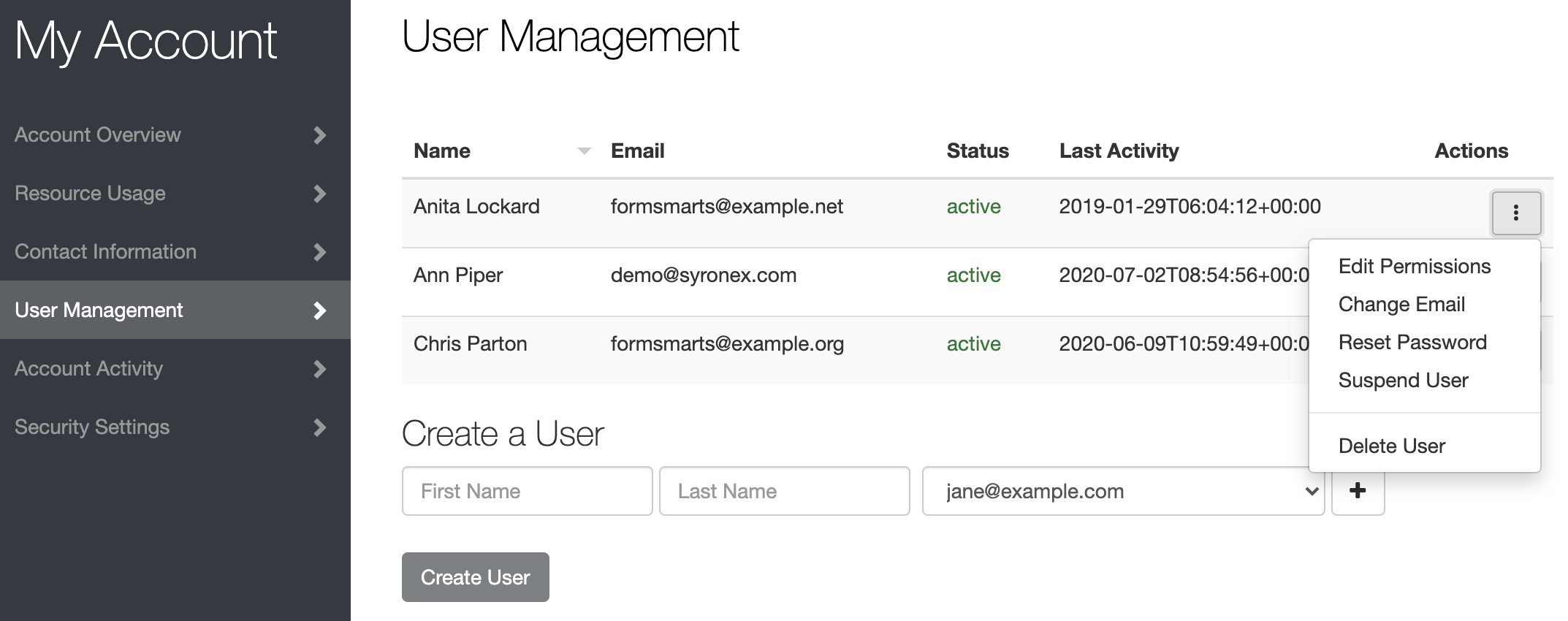
User Management Dashboard
The User Management Dashboard illustrated above allows you to view and manage existing users in your account, create new ones, and change their permissions on individual forms.
Click the button showing a vertical ellipsis to access the Actions menu for the corresponding user.
You can:
- Edit a user’s permissions on your forms and share new forms with them
- Change the email address associated with a user
- Reset a user’s password
- Turn off a user’s two-factor authentication
- Suspend a user
- Permanently delete a user
Create a User
To create a new user, enter their name and select their email address in the list of verified emails in your account. If needed, click the button showing a plus sign to add and verify a new email address.
Click Create User button.
The newly created user doesn’t have any permissions on any of your forms but has implicit permissions. They can, for instance, submit Private Forms.
Share a Form with a User & Edit Form Permissions
Tap the Edit Permissions option in the Actions menu of a user to launch the User Permissions settings.
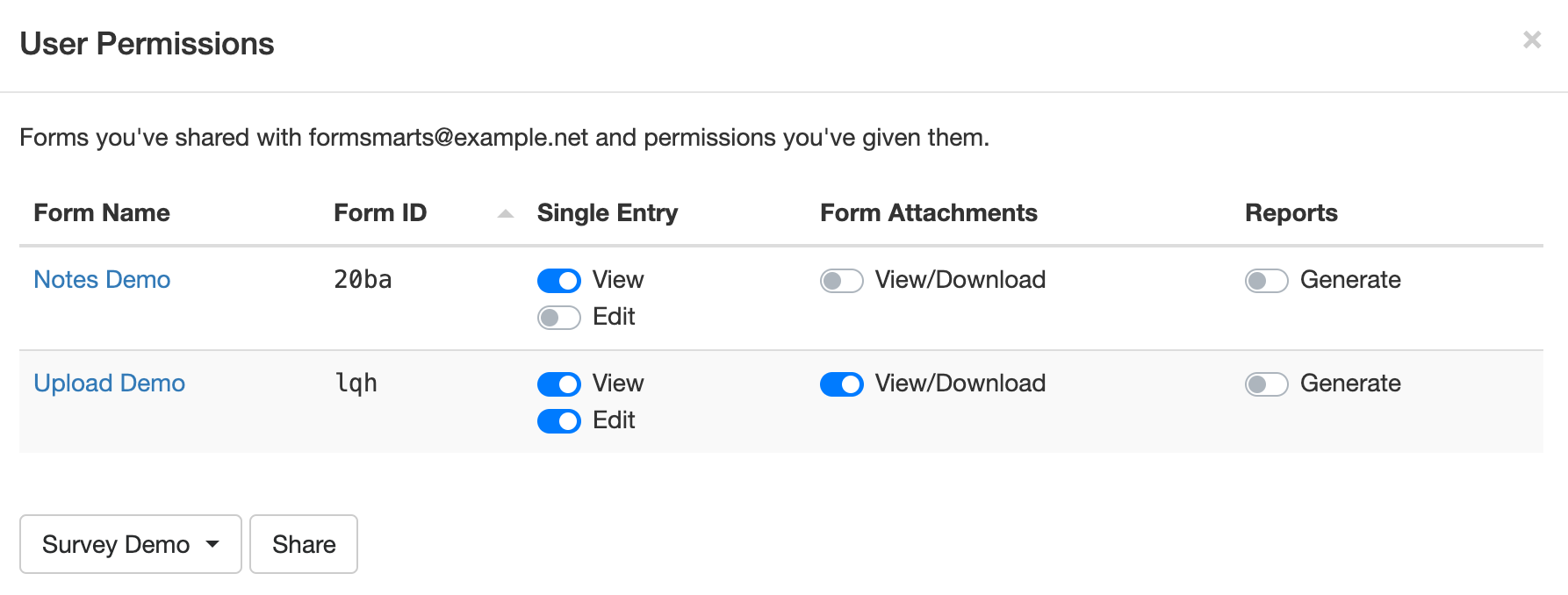
To allow a user to access submitted data for a form, first share the form with them: select (or search for) a form in the list and click Share.
FormSmarts will give the user the necessary permissions to view a single form entry online, download a copy in PDF, view uploaded documents (form attachments), and add notes and tags to a form entry.
You can adjust permissions to additionally authorize the user to edit a form submission and generate a spreadsheet with aggregated form responses.
Account Activity
The new Account Activity panel allows you to review and audit the session history of all users who have accessed your account in the last thirty days.
A separate table lists Administrator Sessions and User Sessions.
Sign a User Out
Should you suspect or become aware of an unauthorized access to your account while it is still taking place, you can immediately sign the user out and invalidate their session with the Log Out of Other Sessions and Log User Out buttons.
- Click Log Out of Other Sessions to immediately invalidate all administrator sessions other than the one you are currently using
- Select a user in the list of users with an active session and click Log User Out to immediately log them out
Invited User Dashboard
FormSmarts sub-users can also access the account dashboard to perform actions and view information relevant to them:
- View a list of forms you’ve shared with them and actions you’ve allowed them to perform
- Review their recent account activity to check no one else has accessed their account
- Change their password
- Set up two-factor authentication
Posted on Aug 3rd, 2020 in form builder.
Post a Comment
Tags: collaboration, file upload, form attachment, form builder, form to pdf, team, user
How to Set Up a Conditional Form Notification Email Based on a User’s Answer
Conditional Notifications allow a form owner to choose when to receive an email notification based on the value of a field or other conditions on the answer the user provides on a form.
Let’s see how we can benefit from this feature in practice with two examples.
First, consider a questionnaire where we ask customers to rate and give feedback about their experience with various aspects of a service. We’re going to send out invitations for customers to take part in the survey and collect their responses on the cloud. When the survey period is over, we’ll generate an Excel report with the aggregated answers of all participants for analysis. In this scenario, there is clearly no point in sending an email for each and every form submission.

But we wouldn’t want to miss an opportunity to talk to a customer promptly if they indicate on the form they have unfulfilled needs or concerns to address. This is where Conditional Notifications come handy: we want to send an email notification to the Customer Support team only when a customer indicates they need to speak to someone.
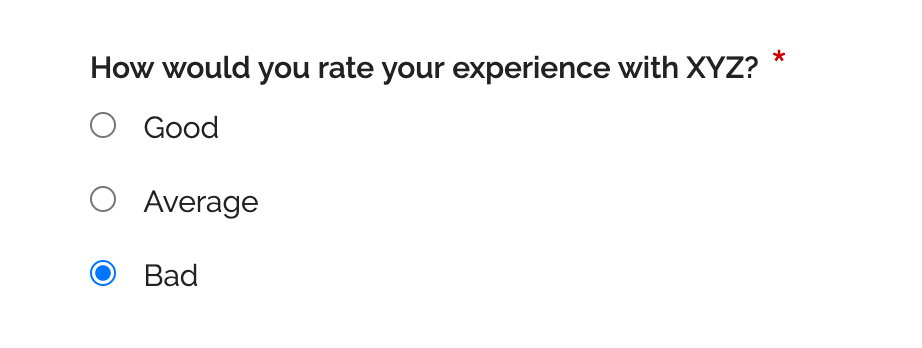
We can define the Conditional Notification rule to send an email if a specific checkbox is checked as illustrated above, or when at least one aspect of the service is rated ‘Bad’.
When Should You Use Conditional Notification?
Online forms typically support one of two workflows:
- Form responses are collected “unsupervised” then the aggregated data set is processed or analyzed: this workflow relies on FormSmarts’ Excel report feature to generate a spreadsheet, it doesn’t involve email notifications
- Someone needs to attend to each and every form response, which is time-sensitive, must be processed individually and for which a reply must be sent to the submitter.
Conditional Notification allows FormSmarts members to add an exception to the first workflow by specifying a set of situations where a notification is sent, providing a bridge to the second workflow.
Rules can apply to any properties of a form response: value of input fields, type of form control (e.g. ‘radio button’), field ID, etc and may include logic operators, conditions, boolean operations,… to support a wide range of use-cases.
Second Example: A Screening Questionnaire
In the context of the current COVID-19 pandemic, an employee screening questionnaire provides us with another practical example of a situation where we can use a Conditional Notification to help screen employees prior to returning to work.
The screening questionnaire lists a number of questions describing COVID-19 symptoms to which employees have to reply by ‘Yes’ or ‘No’. All employees have to submit a screen questionnaire, but the sponsor of the questionnaire should only by notified by email if an employee replies ‘Yes’ to any of the screening questions.
When an employee submits their screening questionnaire, the Conditional Notification rule checks the value of all radio buttons on the form and sends a notification if at least one has the value ‘Yes’.
How to Set Up a Conditional Notification
To set up a Conditional Notification:
- Define a Rule: Conditional Notification rules are defined with a formal language for which there is currently no visual rules builder. Until we provide such a tool, contact Support with details of the precise conditions under which you want to receive an email notification so we set up the conditional notification rule for you. Please remember to provide us with the URL of the form.
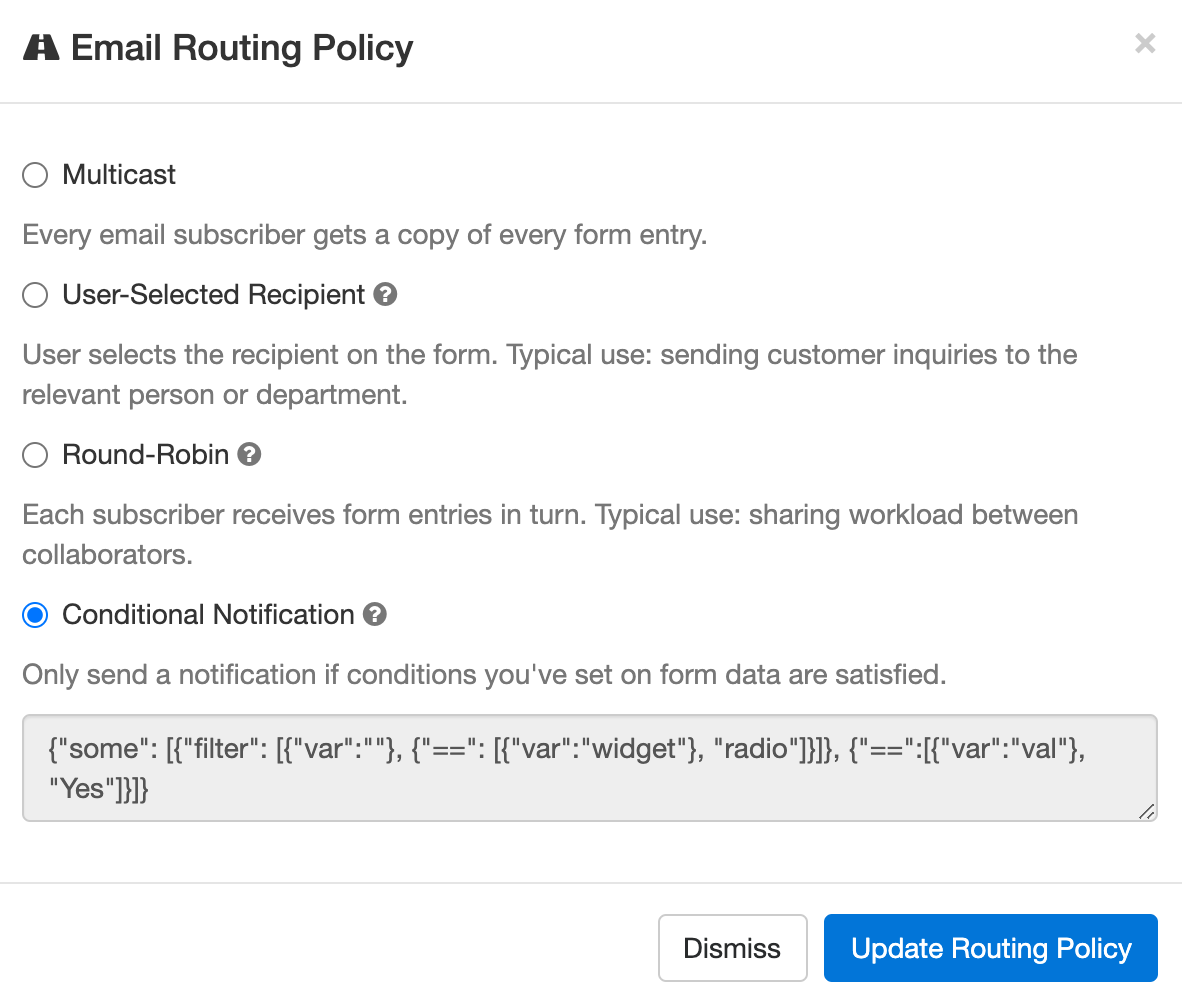
- Enable conditional notifications: Once we’ve set up the rule for you, edit the form and tap Update email routing policy in the Submit Actions tab of the form builder. Select the Conditional Notification routing policy and save.
Other Email Routing Policies
By default, all destination emails you’ve set up for a form get a copy of every form response. You can change this behavior by setting a different email Routing Policy.
FormSmarts currently has the following Routing Policies:
- Multicast: Every email subscriber gets a copy of every form entry (default).
- User-Selected Recipient: User selects the recipient on the form. Typical use: sending customer inquiries to the relevant person or department.
- Round-Robin: Each subscriber receives form entries in turn. Typical use: sharing workload between collaborators.
- Conditional Notification: Only send a notification if conditions you’ve set on form data are satisfied.
Posted on Jul 9th, 2020 in form builder.
Post a Comment
Tags: conditional logic, conditional notification, routing policy
How to Add a Waiver, Liability Release or Other Contractual Agreement to a Form
The Agreement form widget allows you to add a waiver, liability release, agreement, or any other contract (terms & conditions, privacy statement, policy) to a form.
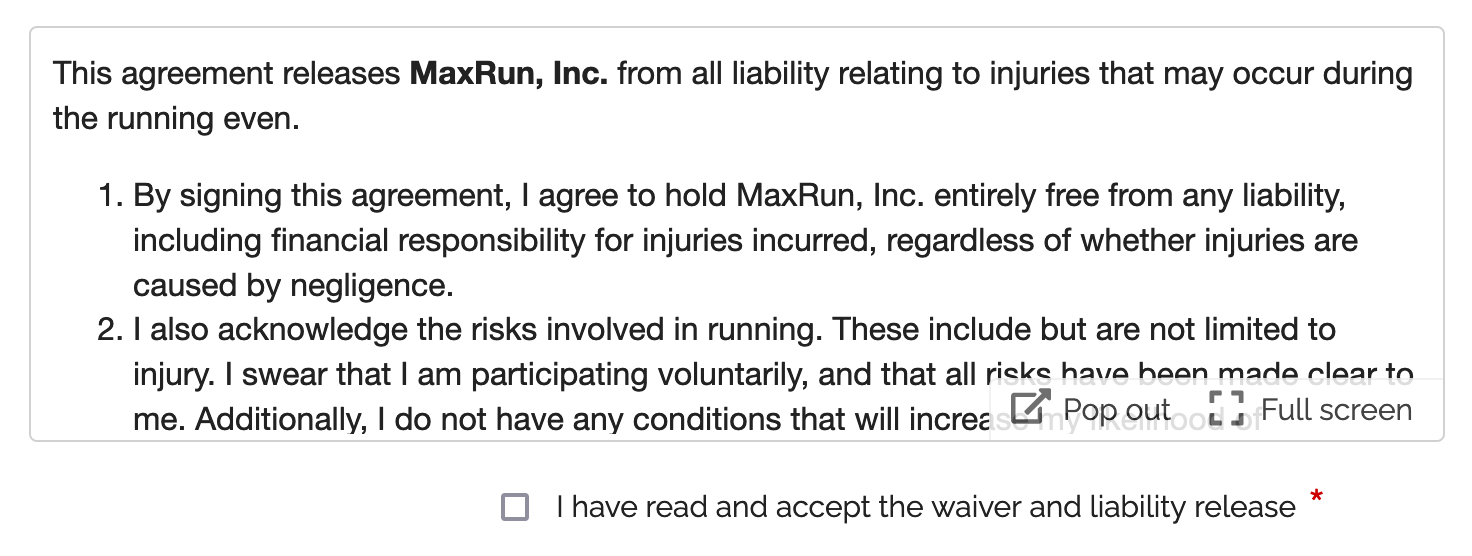
The Agreement widget is intended to be combined with a required checkbox and an e-signature to capture a person’s consent on an online registration form or any other digital contract. Please try this demo.
- A user can read the agreement inline in a scrollable area
- The text can be popped out to a larger window and even launched full screen
- We provide print and download buttons in the pop-up window
- The text shown in agreement widget allows links and basic formatting: bold, italics, underlining, ordered and unordered lists. Here is a waiver example with formatted text.
- Agreements are currently limited to 20,000 characters, please contact us if you need more.
Agreements are only available with the new generation of FormSmarts forms. You can set your account to the new forms in the Settings tab of the Form Builder.
Posted on Jan 22nd, 2016 in form builder.
2 Comments
Tags: digital contract, form design, howto
Checkbox List vs. Checkbox
The form builder provides both standard checkboxes and a dedicated checkbox list widget. Let’s review when you should use one or the other.
Checkbox List
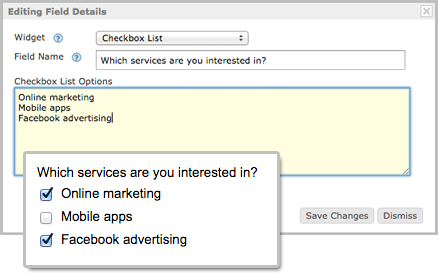
As illustrated below, a checkbox list is made of a question (field name in the form builder) and a number of checkboxes. Use a checkbox list whenever multiple choices are allowed in a list of items, as often occurs in online surveys and many other types of forms.
Checkbox
When you only need a single yes/no answer, a simple checkbox is all you need. For example, the field Subscribe to FormSmarts Demo mailing list on this mail list signup form uses a checkbox rather than a checkbox list to allow the user to subscribe to the mailing list.
Required Checkbox for Disclaimers & Waivers
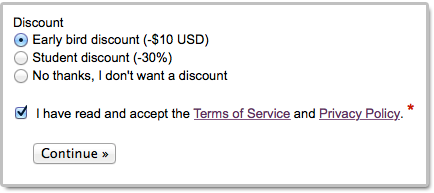
Use a required (non-optional) checkbox whenever the form must have a disclaimer/waiver area where the person must “check” that they “agree to” before the form will allow for success submission. The checkbox text supports links and basic formatting.
Posted on Jan 27th, 2015 in form builder.
Post a Comment
How to Organize Your Forms in the Form Builder
As the year ends, we’ve updated the form builder to improve how users can organize their forms.

- Forms can now be classified into categories. You can set a category both when creating a new form and editing existing forms.
- A new function allows customers to filter forms shown in the Forms Tab of the form builder by category or enabled/disabled status.
We know those FormSmarts members who have created a number of forms along the years will appreciate this new feature. As always, we would very much appreciate your thoughts and feedback.
Happy holidays from the FormSmarts Team. We wish you a wonderful upcoming 2015.
Posted on Dec 22nd, 2014 in form builder.
1 Comment
Introducing Multi-User Accounts
FormSmarts supports accounts with multiple users, allowing an account owner to give invited users access to selected online forms.

How to Enable Multiple User Accounts
- Set up an account alias
- Create users
- Manage user permissions
Set Up an Account Alias
Before allowing sub-users to sign in to FormSmarts, you first need to set up an alias for your account. The alias must be unique and easy for users to memorize. A good choice is probably your organization or department’s name. Users will need to enter the account alias on the log in screen.
To create an account alias, visit the Account Overview panel of your account.
Create a User
To create a user, head to the User Management Dashboard.
- Users sign in to FormSmarts with their email address, account alias and password
- Before creating a user, add their email address to your account in the Settings Tab of the Form Builder and verify it
- Users can change their password in the Security Settings panel of their account if they know their current password
- The account administrator can reset a user’s password in the User Management Dashboard.
Manage User Permissions
For each form, you can grant a user permissions to:
- access individual form entries online or download a PDF (e.g. from the link in email notifications)
- download form attachments (file uploads)
- generate Excel reports
- add tags and notes to a form entry
- edit or delete a form entry
You can also give a user account-level permissions to:
- renew your subscription or upgrade your account (billing permissions)
To set account-level permissions, please contact Support.
How to Sign In as an Invited User
We’ve updated the log in screen to allow all FormSmarts members to sign in on the same page. Account owners (aka account admins) can sign in in the usual way with their email address and password. Invited users also need to enter the account alias provided by their account admin as shown in this video.
Multiple users are available with our Business Plus package and above.
Posted on Jul 10th, 2014 in collaboration, form builder.
2 Comments
Tags: business, collaboration, form attachment, form results, form to excel, form to pdf, howto, team, user
Introducing Form Builder v 3.0
Version 3 of the form builder introduces a number of new functions to the Forms Tab.
Rows in the Forms Tab are now selectable. Simply click on a row to select the corresponding form. That form will become your working form; the form which input fields are listed in the Fields Tab. Other actions like viewing a form, editing it, enabling a previously disabled form and grabbing the form’s HTML code snippet or URL will also make that form your working form. Your working form is saved across form builder sessions provided you use the same browser.

A new Duplicate button in the equally new toolbar now allows you to create a copy of the working form, thereby deprecating the Form Cloning Tool.
We’ve added a “+” button that takes the user straight to the New Form section. This will be most useful to customers with a large number of forms. To avoid cluttering the user interface, the “+” button only shows up when the New Form section is not entirely visible and would require the user to scroll down.
Finally we’ve streamlined the navigation between the Forms and Fields tabs, providing direct access to the fields of any form by double-clicking on the relevant row in the Forms Tab.

The most obvious change to the Fields Tab is a new toolbar above the list of input fields. Besides the new “+” button, allowing you to scroll down to the new field section, the toolbar allows you to directly access form-level functions in the Fields Tab: you can now view the form you’re working on, edit it, and get its URL or HTML code while in the process of adding fields, without needing to go back and forth between the Fields and Forms tabs.
Please let us know the changes you like and (more importantly) those you don’t like, and feel free to suggest any ideas that would further improve the form builder.
Posted on Sep 25th, 2013 in form builder.
Post a Comment
How to Track the Source of Leads
If you use online forms for lead generation, you will want to know the source of form submissions: from which page of your site a form was submitted, which social network or site the visitor came from, or which marketing campaign led the prospect to you.

You can track the source of leads received via form submissions with the ctx context parameter, giving it a unique value for each source or campaign you wish to track. In this article, we show you how. If you need help setting this up, let us know.
Example 1: Form Accessed by Its FormSmarts URL
The simplest way to publish a form online is to allow your customers to directly access the form by its FormSmarts URL. To track the source of form responses, create a unique URL for each source or campaign:
- https://formsmarts.com/form/lqh
?ctx=Facebook-May-2013 - https://formsmarts.com/form/lqh?ctx=Newsletter-May-12-2013
- https://formsmarts.com/form/lqh?ctx=ABC+Conference+2013 (tip: create a QR code with this URL and print it on posters, flyers and stickers)
- https://f8s.co/lqh?
ctx=insta - https://f8s.co/
lqh-insta
As you would expect, context values are collected by FormSmarts and shown in notification emails, online & PDF reports, Excel reports, and can be retrieved in a form automation with a webhooks callback or the web API.
Example 2: Form Embedded onto Your Site
If you manually inserted the code snippet for the same form into multiple pages of you site, follow instructions in this section to track leads. If you added the form to your site template, skip to the next section (for WordPress sites) or the one after (for other template-based sites).
Edit each web page where you embedded the form and locate the code snippet in the HTML source. Add the context value after lay=1 (or lay=2), as in the code highlighted below:
<iframe width="540" height="481" src="https://formsmarts.com/form/lqh?mode=h5embed&lay=1&ctx=Summer+2013+Conference+Registration+Page" scrolling="auto" marginwidth="0" marginheight="0" vspace="0" hspace="0" allowtransparency="true" frameborder="0" style="overflow-x:hidden"><a href="https://formsmarts.com/form/lqh">Can't see the form? Click here</a>.</iframe>
Alternatively, grab a fresh copy of the code snippet from the form builder, edit the code as described, then add it to your site in the usual way.
Example 3: Tracking Leads on a WordPress Site
If you added a form to the template of your WordPress site, you can track the URL of the page a form was submitted from with PHP.
- In your WordPress template, replace the form’s HTML snippet by the PHP code below
- Paste the form’s code snipped given by the form builder between the single quotes as shown.
<?php
$snip = ''; // Paste form embedding code between single quotes
$url = get_permalink();
$re = "/[^\w\s,()\[\]*\/:\-.?]+/";
$ctx = urlencode(substr(preg_replace($re, "", $url), 0, 150));
print(str_replace("mode=h5embed", "mode=h5embed&ctx=".$ctx, $snip));
?>
Example 4: Tracking Leads on Any Site with JavaScript
You can do the same on any other sites with JavaScript:
<script>
var snip = ''; // Paste embed code here
var pth = document.location.pathname;
var re  = /[^\w\s,()\[\]*\/:\-.?]+/g;
var ctx = encodeURIComponent(pth.replace(re, '').substring(0, 150));
document.write(snip.replace("mode=h5embed", "mode=h5embed&ctx=" + ctx));
</script>
Notes
This feature is included with Business plans. Context data may not contains non-alphanumeric characters other than “()[]*/:-.? ” and may not exceed 150 characters.
Posted on May 27th, 2013 in form builder.
2 Comments
Tags: business, email notification, form to excel, form to pdf
How to Lead People to Online Forms from Printed Material
Here are two easy tips to increase online form conversion from paper material: bridge the offline-online gap by allowing people to register for your next event, pay their membership fee, or sign up for your newsletter on the spot from any poster, brochure or printed document.
You are probably aware that you can easily share a form with your user base by email or on social networks using the FormSmarts.com URL that comes with each and every web form. What you may not know is that FormSmarts has two features that allow you to share online forms on printed material.
Using QR Codes & Short Form URLs
You can and should take advantage of the dramatic increase of the number of smartphones and tablets in the last few years to give people a convenient way to access your forms on the spot with their smartphone (or tablet) by either scanning a QR code that will lead them straight to your form or by typing a short URL (for those users that don’t yet have a QR code scanner app on their device).
You’ll find the QR code and short URL (e.g. f8s.co/lqh) of each of your forms in the Form Publishing Options screen of the online form builder.
Printed material where you should consider printing the QR code and short URL of your forms include: posters, invitations, printed newsletters, ads, brochures, job specifications, tags,… and even t-shirts.
Send us a picture of printed media where you use a FormSmarts QR code or short URL and you could win yourself a free Pro subscription! The best three entrants will be chosen on Jul 31, 2012 and will get a 1 year Pro subscription and their picture published on FormSmarts.
Posted on Jun 25th, 2012 in form builder.
Post a Comment
Tags: accessibility, howto, mobile form, usability
How to Integrate with FormSmarts API
The Event Notification API allows you to have FormSmarts send a machine processable ‘push’ notification message to a script on your website (or for that matter to any URL) to process the information that has just been submitted through one of your online forms. You can use the Event API (a.k.a. Web Hooks) to integrate FormSmarts with your database, website or any online service or application.
How to Integrate
Whereas this feature is mainly targeted at developers, creating a script that does something useful with the data received from FormSmarts is actually not difficult. The API is fully documented with examples in PHP.
- You first need to create a program/script to process form data and upload it to your web server. Data is sent in JSON format, which is supported natively by all modern programming languages.
- Then register the script’s URL with FromSmarts
- Whenever a form is submitted, FormSmarts will send the data submitted through the form as well as other data pertaining to the form response (e.g. payment information if the form involves a payment) to the URL you have registered.
Have a Great Idea?
If you have a great idea about how you could use FormSmarts API, let us know: we have several Business Starter subscriptions to give away.
Posted on May 31st, 2012 in form builder.
2 Comments
Tags: API, automation, business, howto, payment integration