Posts Tagged ‘payment integration’
How to Accept Payments in Installments for Your Events
Allowing your customers to pay in installments on a form is as easy as collecting a one-off payment.
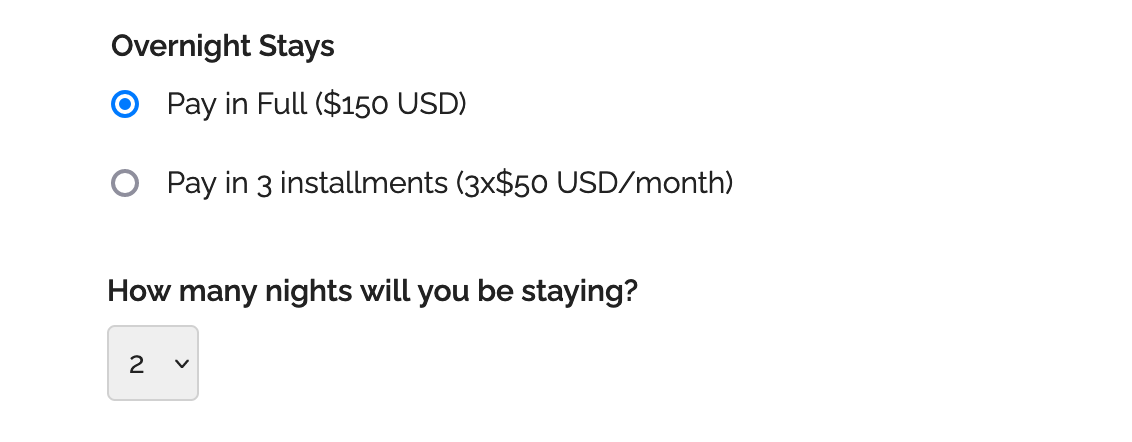
Consumers are increasingly demanding to be able to pay for goods and services in installments. If you organize an event that costs hundreds or thousands of dollars, you may have to provide an option for attendees to pay in several installments.
To offer a payment plan on a form, format the description of the fee, the number of installments and the amount of each installment as: Pay in 3 installments (3x$50 USD/month).
You can also propose weekly or bi-monthly installments or other payment plans that suit your needs. Remember to set up the form to collect a payment.
Payment Flow for Payments in Installments
The payment process for a payment in installments is slightly different from a standard payment:
- A registrants pays the amount of the first installment ($50 in this example) immediately when they submit the form
- When the payment goes through, FormSmarts sends the registration details to the destination emails of the form and also sends a confirmation email to the registrant
- The registrant is charged the same amount a month later and again the next month
- FormSmarts notifies form recipients of each installment payment
- You can view a registration and all associated payments on FormSmarts
Note that a payment plan is not a credit or buy now pay later scheme.
Payment in installments are not available with Starter accounts.
Posted on Jun 2nd, 2023 in payment form.
Post a Comment
Tags: payment, payment integration, paypal, paypal form
How to Offer an Early Bird Discount on a Registration Form
FormSmarts allows you to schedule when to end early bird pricing on your event registration forms.
What Is Early Bird Pricing?
An early bird package is a registration package offering a discount, usually available the moment registration opens until an expiration date you’ve specified. These discounts will often range between 10-20% off the standard pricing and offer registrants significant savings. End dates for early bird rates vary from event to event but commonly end between 2 and 3 months before the time of the event.
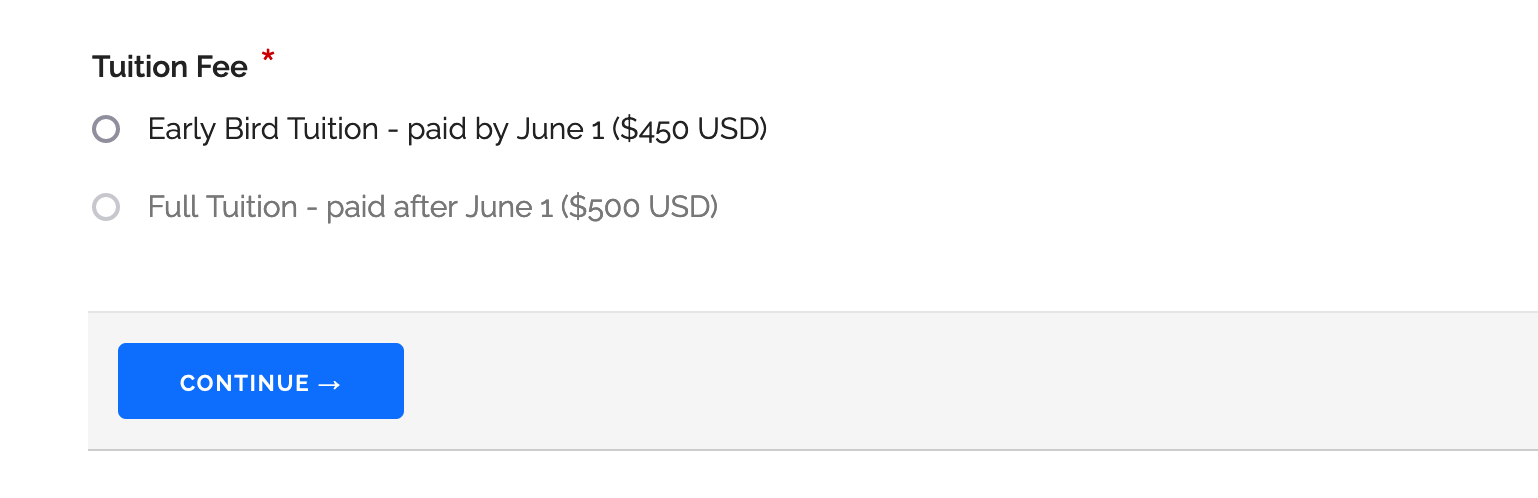
Adding an Early Bird Registration Package
In this example, we create an event registration form with two registration packages (shown above). The early bird package is available from the moment registration opens until June 1. The standard package (full tuition) is available after early bird pricing ends at midnight on June 2.
- Log in to the form builder and create a registration form
- In the Fields tab of the form builder, add radio buttons or a drop-down list to the registration form
- Enter the pricing rules formatted as shown below
- Click Add Field
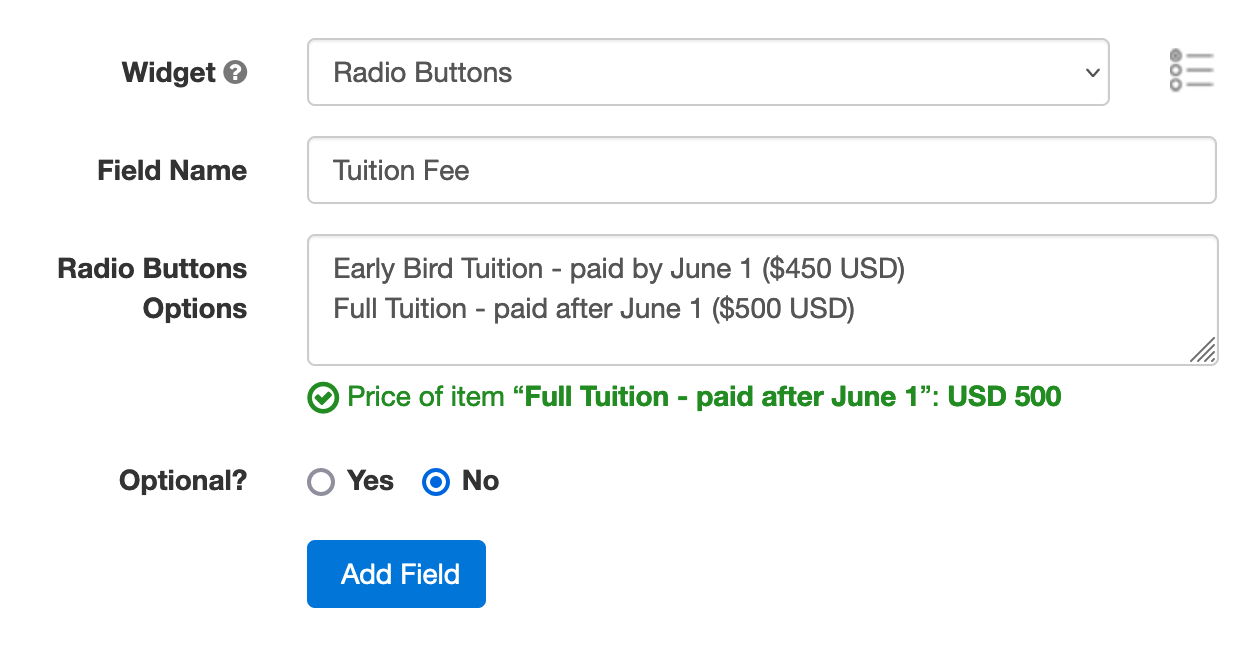
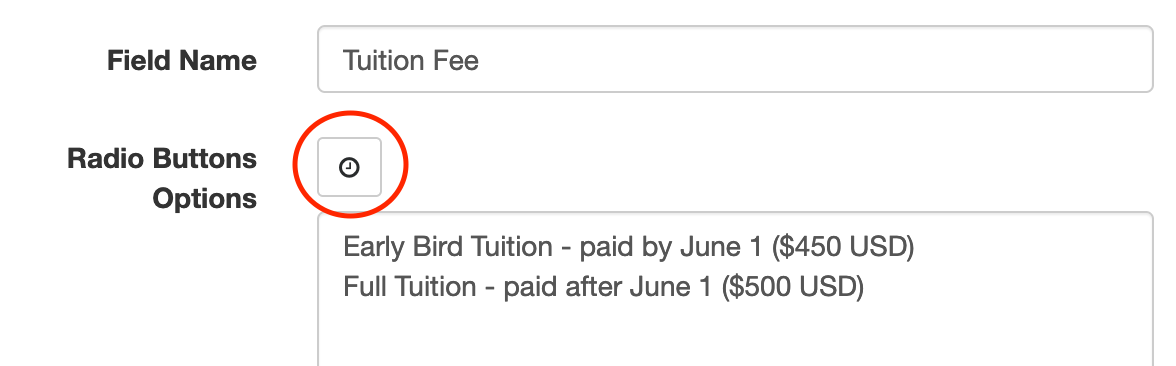
Edit the field you’ve just added. Click the button showing a clock face to schedule when each registration package should be available for purchase (enabled) or not (disabled).
Scheduling When the Early Bird Discount Expires
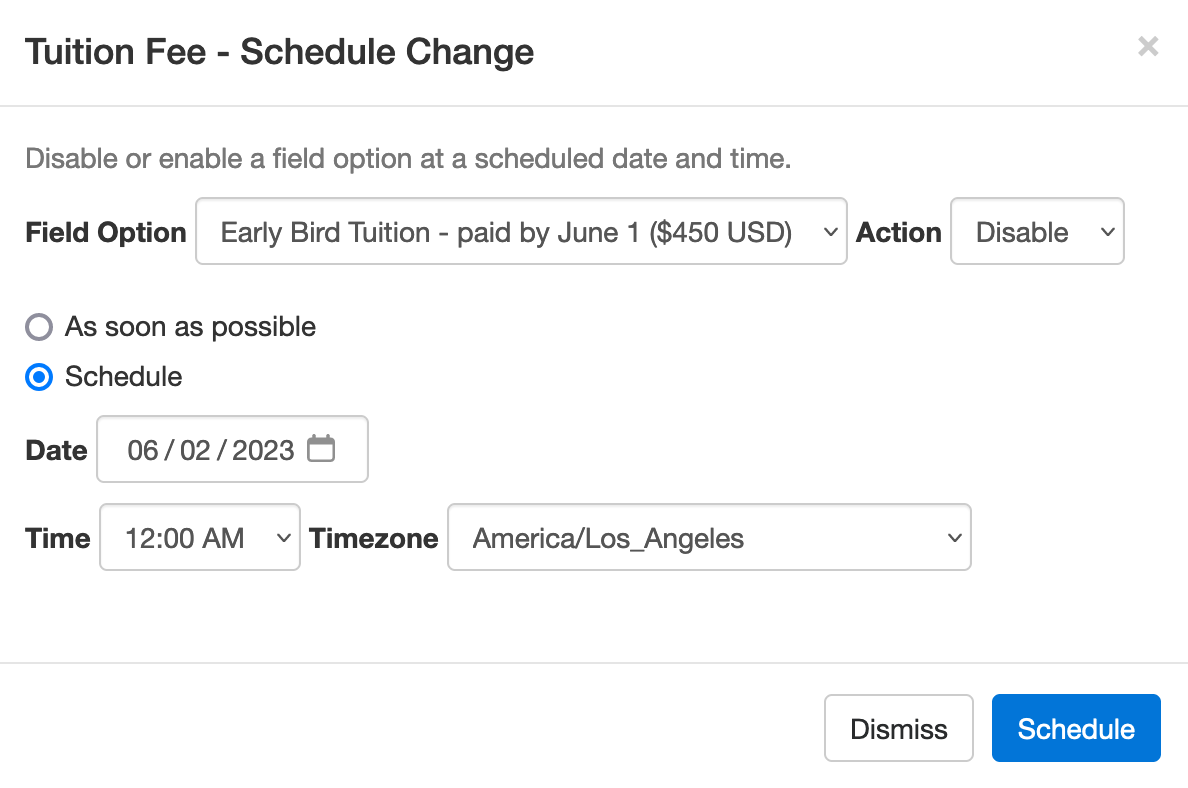
We schedule the early bird package to be disabled on June 2 at midnight.
- Select the Early Bird Field Option
- Set the action to Disable
- Choose Schedule to set the date and time when the early bird discount expires
- Pick a date and time, including timezone (the timezone of your account should be selected by default)
- Click Schedule
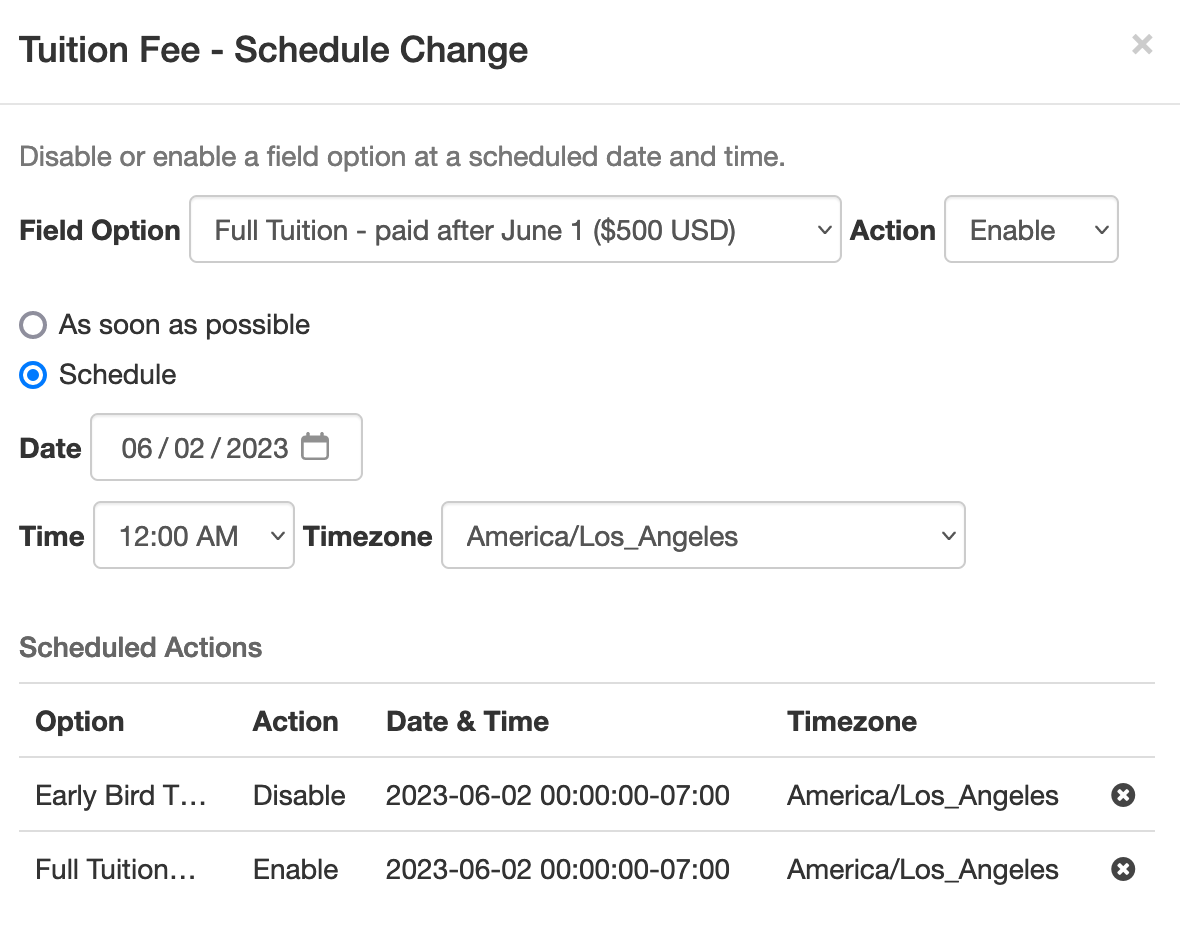
We also schedule the standard (full tuition) package to be disabled immediately (As soon as possible option) and enabled at midnight on June 2.
Note how the Scheduled Actions section now lists two scheduled events: the end of early bird pricing and the start of standard pricing.
Advanced Early Bird Pricing Strategies & More
In addition to common event registration forms that offer one or a few pricing options, FormSmarts allows you to make event registration forms with multiple fees. Each fee can have a price that changes at specific dates, as presented above. You could for example offer a limited number of registrations at a heavily discounted rate, followed by early bird registrations, then standard registrations.
Customers may also want disable/enable field options at a specific date and time for other reasons. For example, to disable a choice that is time-limited or no longer available.
We could also use this feature to create an application form that a user must submit within a specific 5-day window, but can start to fill out the preceding week.
Posted on May 2nd, 2023 in event registration.
Post a Comment
Tags: form builder, payment, payment integration, paypal, paypal form
How to Add Text to Form Responses
As online forms evolve to become digital contracts and documents e-signed online, we've updated Text Blocks to give customers more control over what to display in form responses, confirmation emails, and PDF receipts.
Adding Text & Links to a Form
You can insert chunks of text on a form with two form controls: Text Blocks and Agreements. Text Blocks let you to give directions and specify contractual statements on the form itself, while agreements provide a dedicated form control to allow users to view larger contracts in a scrollable section of the form and keep a copy of it.
Choosing the Text Shown in Form Responses
When we introduced Text Blocks in the early days of FormSmarts, the main purpose was to allow customers to provide instructions and comments on their forms. Form respondents only needed directions while they were filling out a form, so we didn't provide a way to show text blocks in form responses sent to form recipients and available online or in confirmation emails and PDF receipts.
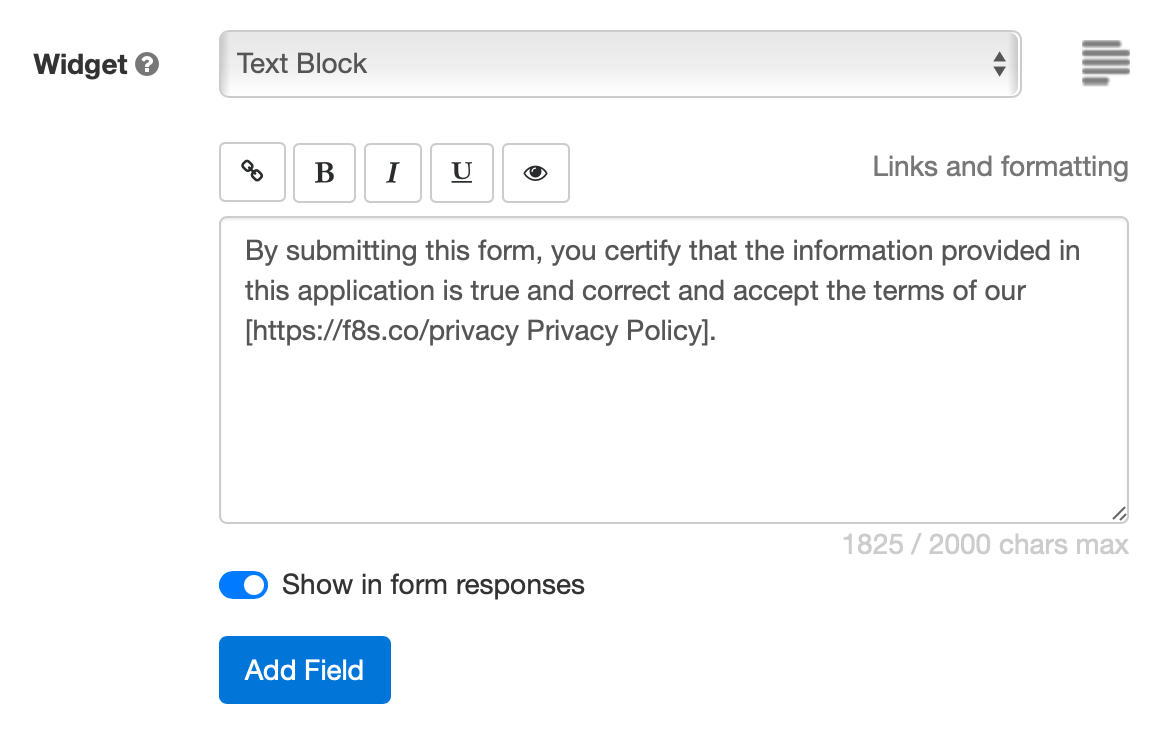
Today, many customers use forms as fillable digital contracts with online signatures, so we've updated Text Blocks to allow members to pick which sections of text they want to display and which ones are just directions for the user that don't need to appear in form submissions.
When you create or edit a text block, toggle on Show in form responses (see screenshot above) to display text blocks in the copy of the submitted data given to both parties:
Form Respondents
- Form review and confirmation pages
- Opt-in and automated confirmation email, payment confirmation email
- PDF receipt
Form Recipients
- Notification emails
- Online form responses
- PDF form responses
This option is not available with all types of accounts.
Setting a Pricing Rule with a Text Block

One use of text blocks is to specify a pricing rule on PayPal forms. Text blocks provide an easy way to set a single registration fee on a form and to allow users to enter an item quantity with a Quantity Box.
Unlike other text blocks, those specifying a fee or amount of money are always displayed, for all types of accounts that support payment integration, even if Show in form responses is toggled off.
Posted on Jul 21st, 2021 in form builder.
Post a Comment
Tags: digital contract, payment integration, paypal form, signature
How to Make a Membership Form
Did you know you can offer paid memberships through a simple online form?
If you thought offering online memberships was challenging because it involved a recurring payment each year (or month), you’d be wrong. Making a membership or subscription form with FormSmarts is (almost) as easy as making a one-time payment form.
Creating a Recurring Membership Form with FormSmarts
What Is a Recurring Membership?
Before discussing how to make a membership form, let’s first define what a membership is: A member of an organization or membership site may take part in the activities or otherwise claim the benefits exclusively offered by the organization or site to its members during the period of time covered by the membership (one year or month or any other period of time) by paying a membership fee. To remain an active member after the initial period of time, a member needs to pay again. Because most members want renew their membership, membership fees tend to be recurring payments.
When someone signs up for a recurring payment, also called subscription, they agree to be charged a fee at the time they subscribe and again after each period of time specified — until they cancel their membership.
How Can I Make a Subscription or Recurring Membership Form?
The short answer is: simply by writing “Recurring Membership ($100 USD/year)” on a form. FormSmarts will understand that the person filling out the form should be charged US$100 each year for a membership called “Recurring Membership”.
Like with other types of payment forms, you may add a recurring fee to a form in a radio button option, check box, drop-down list option or text block.
FormSmarts supports the following recurring periods and (optional) number of installments:
Recurring Period
- Recurring Monthly Subscription ($15 USD/month)
- Recurring 6-Month Membership ($60 USD/6 months)
- Recurring Yearly Membership ($100 USD/year)
- options: day(s), week(s), month(s), year(s)
Recurring Times/Number of Installments
- Quarterly Subscription (4 x $20 USD/3 months)
- Optional, if Recurring Times is not specified, the recurring payment runs until it is canceled
- Think of Recurring Times (4 in this case) as a number of installments
Multiple Recurring Fees
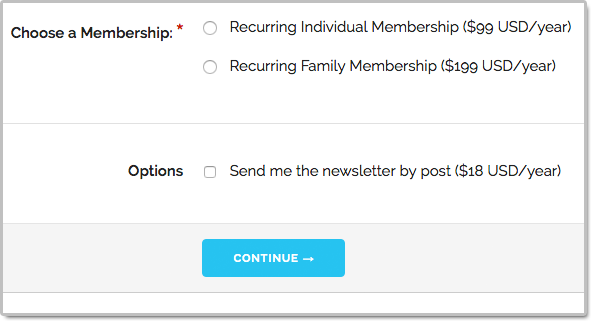
You may allow users to select more than one recurring fee on a form like on the membership form shown on the screenshot above (feel free to try the demo), but all fees must then have the same Recurring Period and Recurring Times.
When someone selects multiple fees, FormSmarts will charge them each time for the total amount.
Offering a Trial Period
Many membership sites offer new members a trial period allowing them to access the site at a low or no cost before having to pay the full membership fee. A fee with terms (i.e. Recurring Period and Recurring Times) different from the first recurring fee listed on a form is interpreted by FormSmarts as a trial period. Our membership form demo has a trial period.
Integration with Other FormSmarts Features
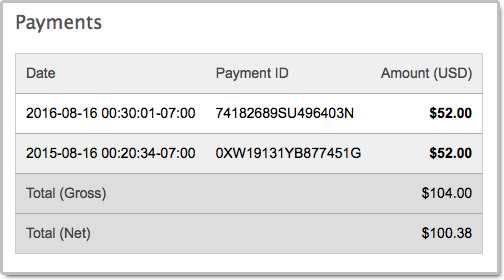
- If cloud storage is enabled, the details of a membership and all associated payments are listed on FormSmarts on the page corresponding to the initial form entry. A link is provided in every email notification.
- FormSmarts sends a confirmation email to the subscriber after each successful payment
- FormSmarts notifies the account owner when a recurring payment is received
Posted on Oct 20th, 2016 in payment form.
2 Comments
Tags: payment integration, paypal
How to Create a Recurring Donation Form
FormSmarts has long supported one-time donations as part of a dedicated donation form, together with other fees on a registration form, or even on a form using our SuperCart shopping cart.
We are pleased to announce that FormSmarts now also supports recurring donations. A recurring donation allows a contributor to sign up for a donation plan to give the same amount at regular intervals, typically every month or year.
Creating a Recurring Donation Form
- Add a text box with the field name formatted as My Donation ($ USD/month)
- Set the field’s Allowed Content (aka. data type) to Number
- In the Form Details screen of the form builder, set the On Submission option to Integrate with PayPal using advanced integration.
FormSmarts supports the following variations:
Recurring Period
- Cause Description ($ USD/month)
- Cause Description ($ USD/2 weeks)
- options: day(s), week(s), month(s), year(s)
Recurring Times
- Cause Description (12 x $ USD/month)
- Think of Recurring Times (12 in this case) as a number of installments
- If Recurring Times is not specified, the recurring donation runs until it is canceled
Contribution to Multiple Causes
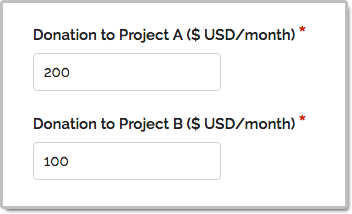
As illustrated on the screenshot above and in this demo, you may add multiple donation boxes to a form to give contributors the opportunity to choose the causes they wish to donate to and allow them to contribute to several causes in a single donation. In the example above, the donor is signing up to give a total of $300 each month; with $200 to support Project A and $100 going towards Projects B.
Posted on Oct 13th, 2016 in payment form.
Post a Comment
Tags: payment integration, paypal
Offering Discounts with PayPal Integration & Discount Codes
FormSmarts allows you to offer three types of discounts to your customers on your PayPal forms: discounts for a fixed amount, percentage discounts and discount codes.
Fixed Amount Discount
- Syntax: My Discount (-$5 USD)
- Example form with a fixed amount discount
- You may offer more than one discount, but not more than there are paid items selected.
Percentage Discount
- Syntax: Discount Percentage (-25%)
- Example form featuring a discount rate
- You may only add one discount rate to a form
- Percentage discounts are not supported on SuperCart forms
- If you’re offering a fixed discount on the same form, both may not be selected at the same time
Discount Codes
Last but not least, FormSmarts supports discount codes. With discount codes, the buyer only get the discount if they enter a valid coupon code on the form.
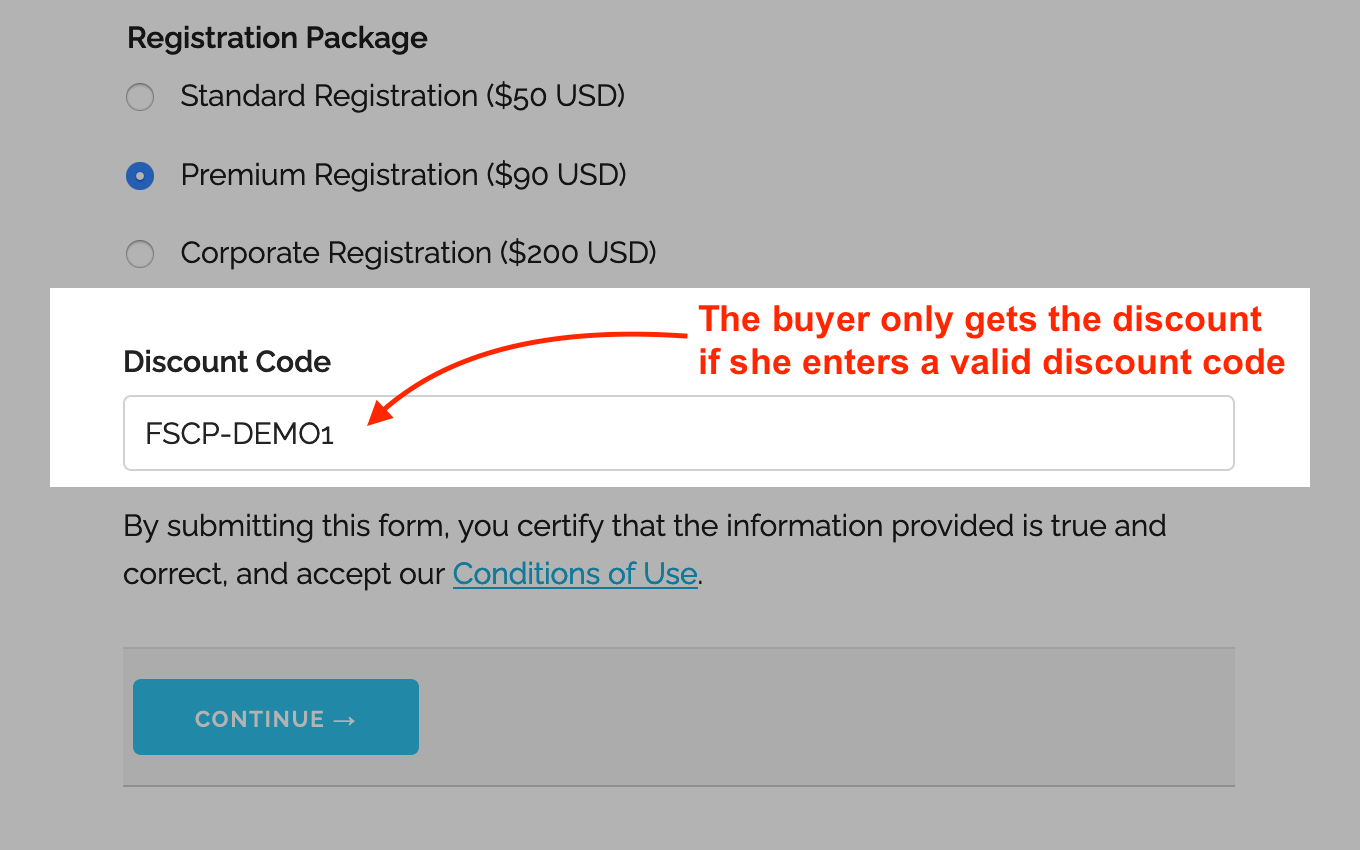
- A discount code offers either a percentage discount or fixed amount discount
- Try this example with the discount code FSCP-DEMO1
- You may set up a discount code with a validity period by providing a start and end date (not supported with Starter accounts)
Early Bird Discounts
To offer an early bird discount on a registration form, create a discount code with a start and end date. The discount will only be applied if the form is submitted between those dates.
How to Offer Discount Codes on a Form
To create a discount code and associate it with a form:
- Add a text box to the form selecting the data type Letters + Numbers
- Create the discount code on FormSmarts with the API Console as documented and shown in this video.
- Promo codes must start with FSCP- and may only contain alphanumeric characters and dash.
Posted on Feb 1st, 2013 in payment form.
8 Comments
Tags: payment integration, paypal, paypal form
How to Have Users Pay Once for Multiple Registrations or Orders
A little known feature of FormSmarts’ Advanced PayPal Integration is SuperCart. This feature allows a user to submit multiple online forms that include a payment and pay once for the total amount at the end, thereby providing the buyer with a better ‘shopping’ experience and reducing the seller’s PayPal fees. Let’s review two typical uses of SuperCart.
Note: This article discusses an early version of SuperCart. Although it content has been updated and is still relevant, please also read our introduction to the SuperCart Shopping Cart.

Use Case 1: Event Registration Form
The first typical use for SuperCart is to create an online form to register attendees for an event. For illustration purposes, I’ve made a registration form for a conference. We want each attendee to be able to choose a different registration package, pick the seminars they would like to attend and optionally add an accommodation package. With SuperCart, a user can register multiple delegates by submitting the registration form for each one, then pay for all of them at once. In the illustration above, we submit the form once to register Pat selecting the standard registration option, then again for Jim, opting this time for a premium registration and adding accommodation. We then proceed to PayPal to pay for both registrations. This short video shows how this works in practice.
Use Case 2: Order Form
Another common use of this feature is to create an order form allowing a buyer to purchase several products or services while being able to customize options for each one. I’ve built an order form demo to allow customers to configure and order goods (greetings cards in this example). Each product can be customized based on the options selected on the order form. With SuperCart, the buyer will be able to order as many products as they like by submitting an order form for each one, then pay for all of them at once.
How to Create a SuperCart Form
While understanding the concepts behind SuperCart may not appear straightforward, building a SuperCart form is easy:
- Set the Return URL of the form to the URL of the page the form is embedded into. If you’re using the standalone form, enter the FormSmarts.com URL given by the form builder instead.
- In the Form Details screen, set the On Submission option to Integrate with PayPal using SuperCart.
If you haven’t already done so, remember to set up your PayPal account for Advanced PayPal Integration.
When You Should and Shouldn’t Use SuperCart
Set up your PayPal forms with SuperCart whenever you would like to allow a buyer to pay once for multiple form submissions and providing a single form would affect the form’s usability because each registration/order has too many options or you expect someone will submit more two or three registrations/orders. If it’s unlikely buyers will submit more than one form you should use a regular payment with Advanced PayPal Integration instead.
Posted on Jan 4th, 2013 in payment form.
4 Comments
Tags: order form, payment integration, paypal, paypal form, registration form, shopping cart, supercart, video tutorial
How to Integrate with FormSmarts API
The Event Notification API allows you to have FormSmarts send a machine processable ‘push’ notification message to a script on your website (or for that matter to any URL) to process the information that has just been submitted through one of your online forms. You can use the Event API (a.k.a. Web Hooks) to integrate FormSmarts with your database, website or any online service or application.
How to Integrate
Whereas this feature is mainly targeted at developers, creating a script that does something useful with the data received from FormSmarts is actually not difficult. The API is fully documented with examples in PHP.
- You first need to create a program/script to process form data and upload it to your web server. Data is sent in JSON format, which is supported natively by all modern programming languages.
- Then register the script’s URL with FromSmarts
- Whenever a form is submitted, FormSmarts will send the data submitted through the form as well as other data pertaining to the form response (e.g. payment information if the form involves a payment) to the URL you have registered.
Have a Great Idea?
If you have a great idea about how you could use FormSmarts API, let us know: we have several Business Starter subscriptions to give away.
Posted on May 31st, 2012 in form builder.
2 Comments
Tags: API, automation, business, howto, payment integration
PayPal Integration in Two Steps
FormSmarts PayPal integration is as easy to use as our popular PayPal form feature, but it provides several additional benefits, mainly:
- FormSmarts only notifies you of a new registration (or more generally, payment form submission) after the payment is confirmed and verified (no need for manual verification)
- Your customer receives an automated email receipt with a copy of the data submitted and a payment confirmation. For registration forms, this can work as an e-ticket.
- PayPal Integration works seamlessly with other FormSmarts features (export to Excel, PDF reports, API).
What Are the Benefits of PayPal Integration?
FormSmarts’ old PayPal integration was easy to use and set up as it required no change to your PayPal account. A downside to this was that FormSmarts had no way to know if the payment went through or not, and you — the seller — had to manually reconcile payments and the corresponding form responses using the FormSmarts Reference Number. That was usually not an issue for small sales volumes, but could quickly become so as sales increased. We’ve now fully automated payment processing and integrated it with the form processing platform. Here are the benefits:
- No need to manually reconcile form responses with payment notifications from PayPal
- The seller is only notified of a registration/order when the payment has gone through
- The transaction won’t appear in Excel exports until the buyer has paid
- FormSmarts verifies that the payment details match data submitted on the form (e.g. amounts, quantities)
- Excel exports combine data submitted through the form and details of the corresponding payments.
- FormSmarts sends a confirmation email to the buyer with both the order details and a payment confirmation. If you have verified your website and uploaded a logo, your site URL and logo will appear in the email.
- Payment processing is fully automated and if you’re using online/PDF reporting or export to Excel, your registration forms are on autopilot.
- You can further automate processing or integrate FormSmarts with your website or another web service using the FormSmarts API.
Setting Up PayPal Integration
This video shows how to set up your form and set up your PayPal account for PayPal Integration.
Add Fees to the Form & Set It Up to Integrate with PayPal
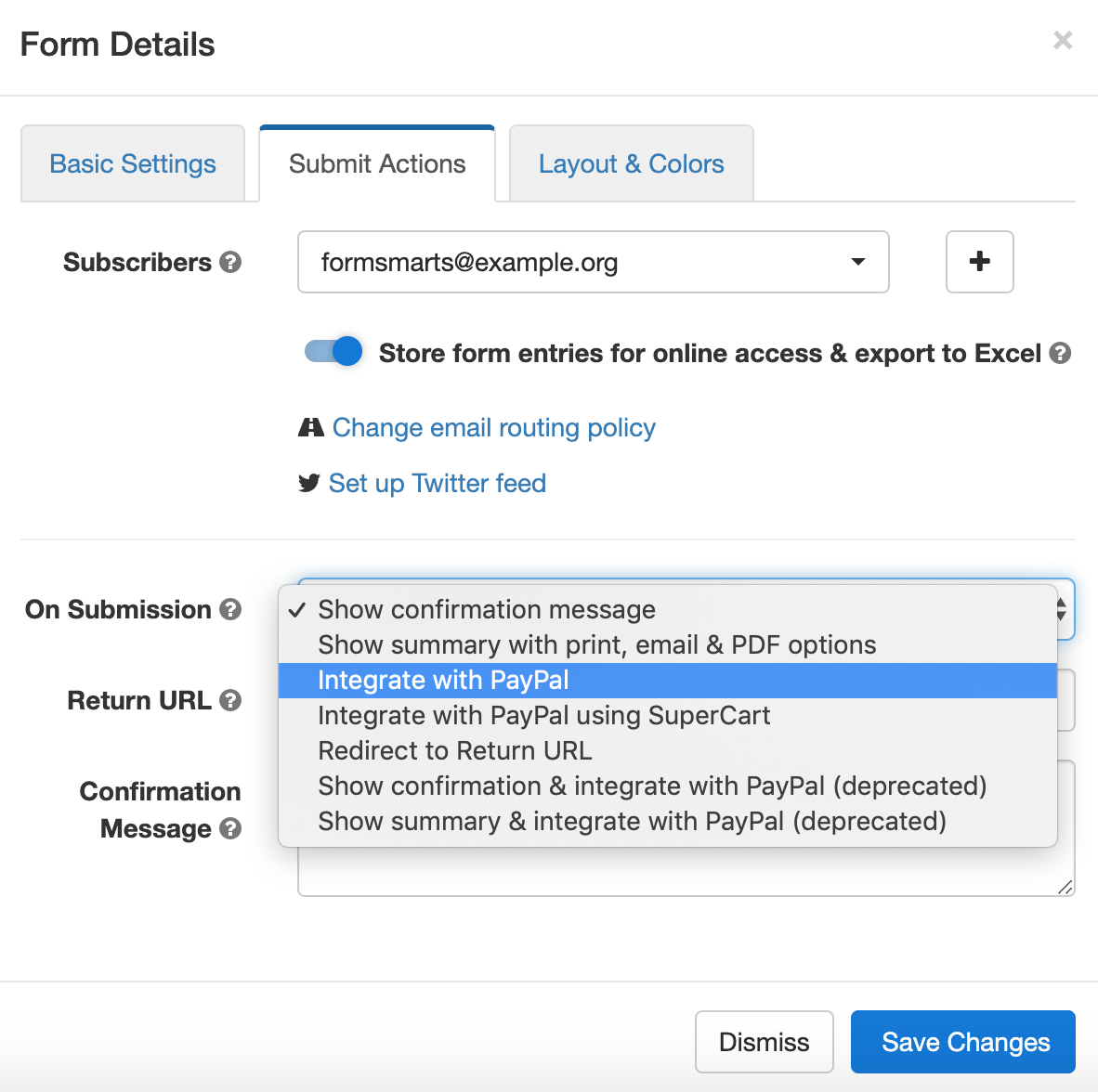
To set up PayPal integration, first create a payment form with prices formatted as shown in the PayPal integration page of the site. Then visit the Forms tab of the form builder and select Integrate with PayPal in the Submit Actions tab of the Form Details screen, as illustrated below.
Add Your FormSmarts Notification URL to PayPal
It’s now time to log in to your PayPal account to add your Notification URL. PayPal will use this URL to communicate with FormSmarts. You’ll find your notification URL in the Security Settings section of your FormSmarts account. The URL contains your private security key, so don’t share it with anyone.
Use this link to access the Instant Payment Notification (IPN) page of your PayPal account, then tap Edit Settings and paste your Notification URL in the box as shown on the screenshot below. Make sure Receive IPN messages is enabled before saving.
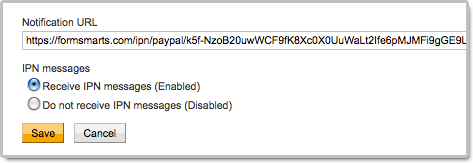
You can alternatively navigate to the IPN Settings screen from the homepage of your PayPal account.
Payment integration will not work until you have added your FormSmarts Notification URL to your PayPal account.
Did You Link Multiple Emails to PayPal?
If you’ve associated more than one email address to your PayPal account, the email you’ve selected as your Primary PayPal email must be the same as your FormSmarts login email.
You can either change your FormSmarts login or update your Primary PayPal email so both email addresses are the same.
FormSmarts will reject payments associated with an email address other than your FormSmarts login email for security reasons.
If PayPal shows an error on the checkout page when testing your first form, you may need to update your PayPal account settings.
Posted on Apr 28th, 2011 in payment form.
27 Comments
Tags: form builder, payment integration, paypal, paypal form
How to Build a PayPal Subscription Form
Many websites allow visitors to access online content and services for a monthly subscription fee. Creating a subscription form is somewhat different from creating a regular payment form, because it involves setting up a recurring payment, so that the buyer is automatically billed a fixed amount of money at a fixed interval until the subscription is canceled. The online form builder’s payment integration feature now supports PayPal Subscriptions.

Creating a Subscription Form
Creating a subscription form is quick and easy:
- If you haven’t got a FormSmarts account yet, sign up for a FormSmarts Business account, then create a form with the form generator
- In the Form Details screen of the form generator, set the On Submission option to Integrate with PayPal
- Add radio buttons, a drop-down list or a checkbox, and enter the description, price and duration of subscription options formatted as My Subscription ($19.99 USD/month), as shown on the screenshot above and in this demo.
Duration of a Subscription
The time before another payment is due can be specified in days, weeks, months, or years. The form builder understands the following formatting variations:
- Monthly Subscription ($9.99 USD/Month)
- 30-Day Subscription ($9.99 USD/30 days)
Trial Subscription
Like in the example presented in the first section, you may specify a trial period for the subscription. This is typically used to give a free trial subscription to the buyer before he is charged for the first billing cycle. The buyer will not have to pay anything if he cancels the subscription before the end of the trial period.
- The trial period doesn’t need to be free
- You may specify up to two trial periods
- Any trial periods must be placed on the form after the main subscription specification.
Payment in Installments
A payment in installments is a recurring payment where the number of payments is fixed.
FormSmarts supports installments with the following syntax:
- Payment in 12 Installments (12x$9.99 USD/month)
- Try this demo
Any Feedback?
As always, your feedback is important to us and is our primary source of inspiration for developing new features. You can also post your questions and comments on Facebook and Twitter (@FormSmarts).
Posted on Jan 17th, 2011 in payment form.
1 Comment
Tags: form builder, payment integration, paypal, paypal form